
Settings
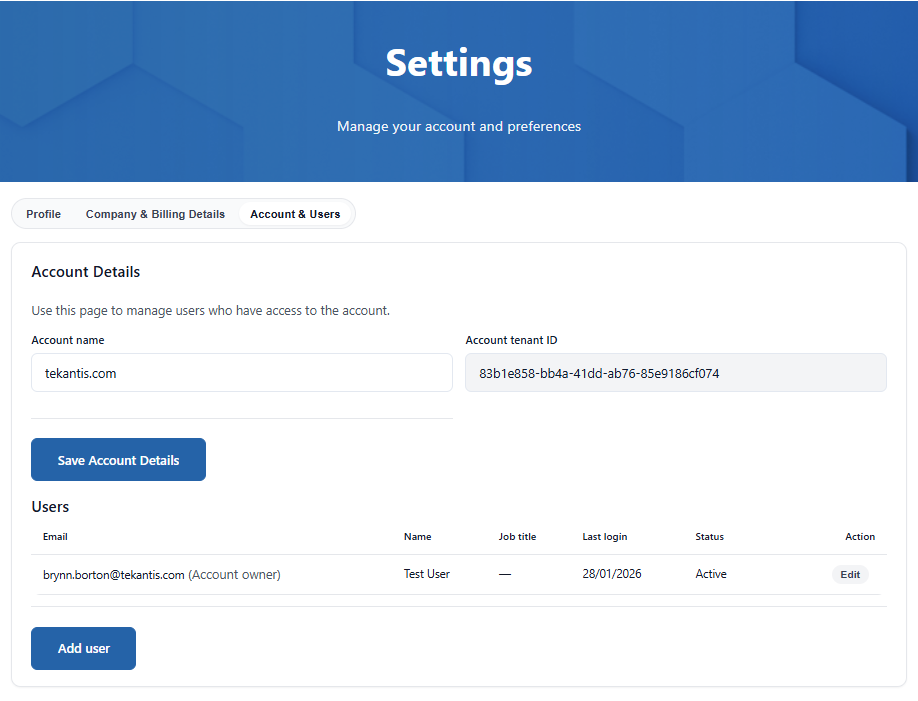
Open Settings to manage your profile, billing details, and account access. Users and roles are on the Account & Users tab.
Profile
Update your personal information:
- First name / last name
- Job title
Company & Billing Details
Manage the billing profile used for checkout and quotes, including:
- Billing contact details (including billing email)
- Company name and address
- Tax ID (VAT/EIN/TIN, etc.)
Account & Users
The portal has been designed to be as flexible as possible to meet the needs of all types of our customers, from small teams to large enterprises. We therefore allow as many accounts as you wish within a single organization.
When you first log in, an account will be created for you unless you have been specifically invited to another account, or you choose to request to join a discoverable account in your organization.
Discoverable Accounts
The Discoverable setting controls whether new users in your organization are shown this account when they sign in for the first time. When a new user signs in, the portal checks for discoverable accounts in the same Microsoft tenant and offers the option to request to join one.
The following logic is applied:
- Not set (default) — The account will automatically be discoverable if it has at least one active paid subscription (i.e. not a developer or trial license). This is the default behavior for all accounts.
- Yes — The account will always be shown to new users, even if it only has a developer or trial license. Use this if you want team members to find and join your account before purchasing a paid subscription.
- No — The account will never be shown to new users. Use this if you prefer to manage access entirely through direct invitations.
Once a user requests to join, all account owners will receive an email with a link to approve or decline the request. If approved, the user joins the account as a Member and receives a confirmation email. The account is available the next time they sign in.
:::note Tip If your organization has multiple accounts, give each one a meaningful name (e.g. the department or team name) so that new users can easily identify which account to join. :::
Managing users
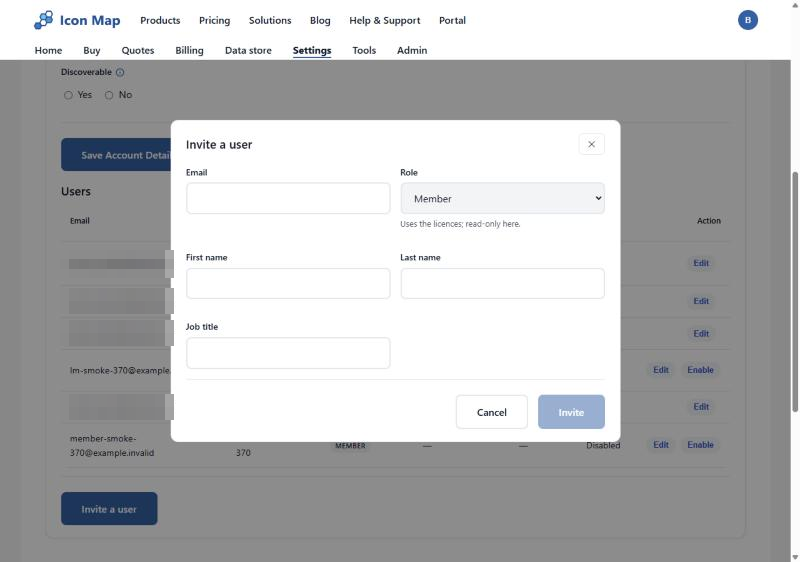
Account owners and license managers can invite users, change their roles and enable or disable them, on the Account & Users tab of Settings.
To invite a user:
- Select Invite a user.
- Enter their email address.
- Choose their role.
- Send the invitation.
The invited user receives an email with instructions to access the account. To change a user, select Edit on their row. To stop someone using the account, select Disable.
Invites are tenant-scoped. The invited user must be in the same Microsoft tenant as the account, unless the account was created against a personal account (e.g., gmail.com).
Some rules keep the account safe:
- Only an owner can make someone an owner, or change or disable another owner.
- Nobody can change their own role.
- The last owner on an account cannot be demoted or disabled.
Account roles
Each user on an account has one of three roles.
| Owner | License manager | Member | |
|---|---|---|---|
| View subscriptions, license keys and usage | ✓ | ✓ | ✓ |
| Copy license keys and download theme files | ✓ | ✓ | ✓ |
| Choose where every license applies in Fabric | ✓ | ✓ | ✗ |
| Change a license's credit mode | ✓ | ✓ | ✗ |
| Buy plans and data | ✓ | ✓ | ✗ |
| See billing history and invoices | ✓ | ✗ | ✗ |
| Invite and manage users | ✓ | ✓ | ✗ |
| Approve requests to join the account | ✓ | ✗ | ✗ |
- Owner: buys, sees billing, and manages every license and user. An account can have more than one owner.
- License manager: chooses where every license on the account applies, including licenses added later. A license manager has no access to billing.
- Member: uses the licenses, and can see them in the portal without changing anything.
A license manager manages all the licenses on the account; there is no way to limit the role to some licenses. If two parts of your organization need to manage their licenses separately, give each its own account.
If a Microsoft CSP or another partner manages Icon Map for you, add them to your account as a license manager. They can then assign licenses and choose credit modes without seeing your billing.
Requests to license a Fabric workspace, sent from Request access in Icon Map for Fabric, are emailed to the account's owners, with Tekantis sales copied. See Assigning a license.