
Subscription Details
When you click a subscription in the table it will display additional details of the subscription.
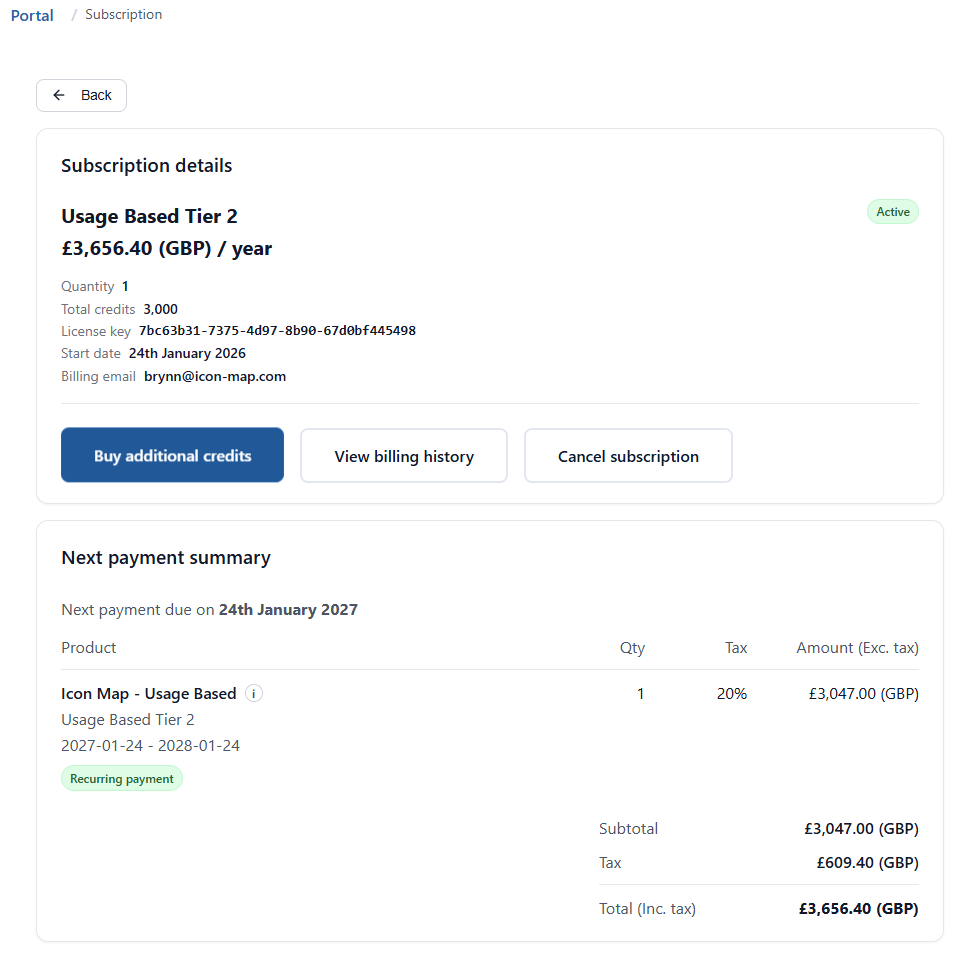
If this subscription has been purchased via the portal then you will see the following options.
Buy Additional Credits
For Paddle-managed usage subscriptions, Buy additional credits takes you to an "Amend subscription" flow where you can increase tier or quantity. The screen will automatically suggest what tier you require based on your current forecast shortage. This can be amended as desired, before clicking Update subscription now. At this point the subscription will be updated, and Paddle will automatically charge a prorated adjustment amount to the existing term.
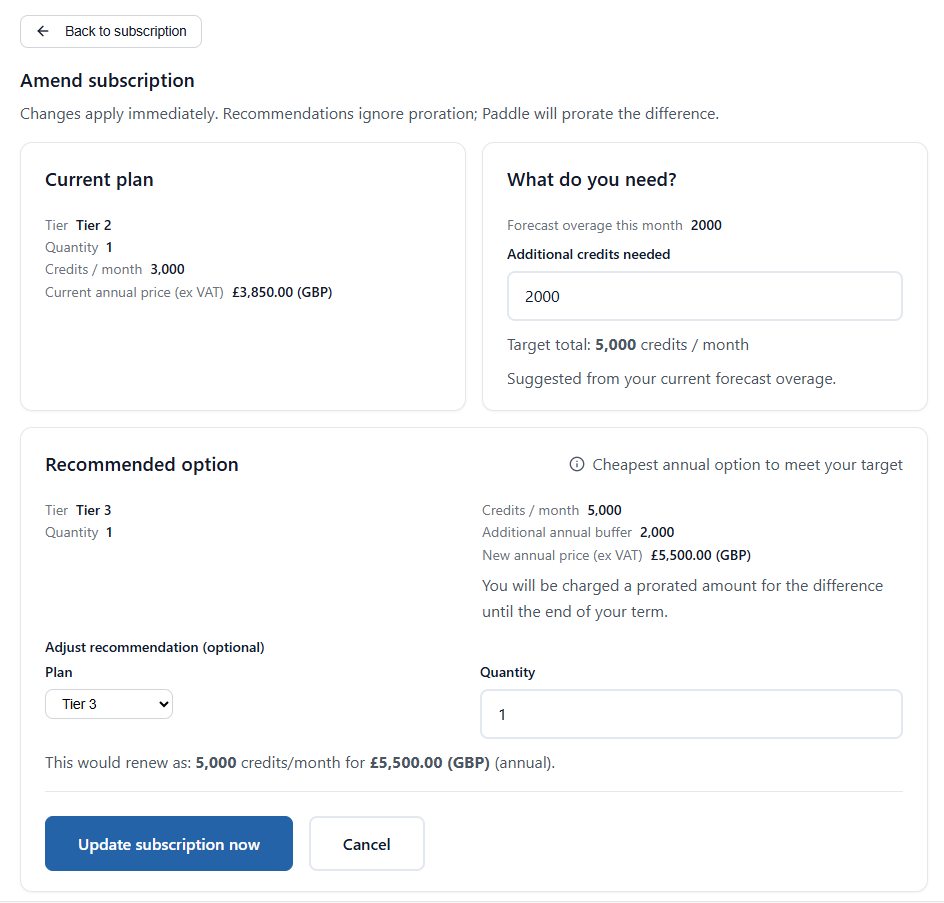
That depends on the subscription's credit mode. In Auto-upgrade, the default for plans bought in the portal, the subscription moves up a tier as soon as the monthly allowance and the annual buffer are both used up. See Credit mode below.
:::note Downgrading It is only possible to upgrade a subscription, not downgrade it. If you wish to downgrade you can cancel the existing plan and then renew on a lower tier at the end of the subscription term. :::
Credit mode
The Credit mode row shows what the subscription does when its monthly credits and annual buffer run out. Account owners and license managers can change it on the Credit mode card, which is on the Buy additional credits page. For a plan bought on Microsoft Marketplace, the card is on the subscription details page itself.
| Mode | What happens |
|---|---|
| Auto-upgrade | Draw on the buffer, then move to the next tier automatically. Nothing stops. |
| Fixed (hard stop) | Icon Map stops for everyone when the credits and any remaining buffer run out, until the allowance resets next month or you upgrade. |
| Fixed plus overage | Credits beyond the allowance and buffer are invoiced monthly in arrears at the published per-credit rate. |
Select a mode on the card to change it. The change applies straight away. Which modes you can choose depends on how the plan was bought. See Credits and credit modes.
Where the license applies in Fabric
Icon Map for Fabric uses a license only where it is assigned: the whole organization, a capacity or a workspace. See Fabric License Configuration.
View Billing History
For Paddle-managed subscriptions, you can click View billing history to see payments and download invoice PDFs.
Cancellations
For Paddle-managed subscriptions you can opt to cancel your subscription by clicking Cancel subscription. This will take effect at the end of the current subscription term - it effectively disables the automated renewal, and the license will remain available for the rest of the term.
Once canceled you will see a warning banner with a button to reverse the decision to cancel if required.
AppSource-Managed Subscriptions
If a subscription was purchased outside of the portal, either via Microsoft AppSource or directly from Tekantis, the portal will still show details for the following subscription types:
- Usage Based (including the old Embedded and Publish to Web plans)
- Capacity Based
- Enterprise Licenses
If you wish to move the subscription across to be managed within the portal please contact support@tekantis.com
:::note User-Based Licensing The portal does not currently show details of user-based licensing. Please go to the Microsoft 365 Admin Portal to see and manage these licenses. :::