
BIM to Icon Map Converter
The BIM to Icon Map Converter turns an IFC model, a Revit .rvt file or a GLB into two files for the BIM Models layer in Icon Map Pro and Icon Map Slicer:
<name>.glb.gz: the model, with one node for every part, kept in its tree (a host family and the families nested in it, or site, building, storey and element)<name>-parts.csv: the parts table, one row per part, to load into your Power BI semantic model
Rows in your report then bind to parts by their names, so you can color, hide and select parts from your data.
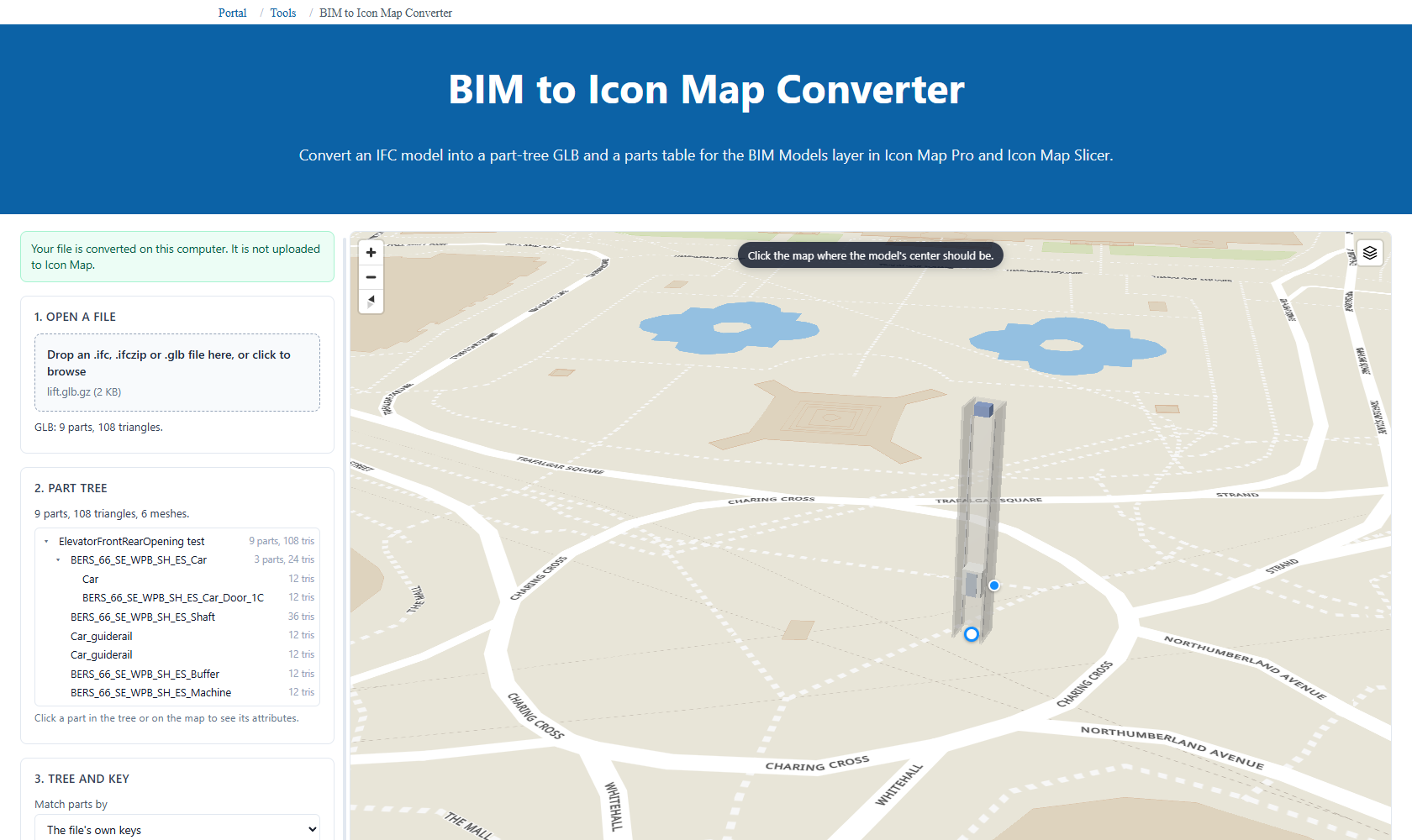
Your file is converted on this computer. It is not uploaded to Icon Map. The converter runs in your browser, and is open to everyone, signed in or not.
What you'll need
- An
IFCfile (IFC2X3,IFC4orIFC4X3), or an.ifczip - A Revit
.rvtfile (Revit 2023 to 2025; 2026 files are read experimentally). The converter reads it in your browser with Icon Map's Revit reader and never uploads it. Walls, floors, roofs, columns, beams and stairs are drawn from the file's own records, families (doors, windows, furniture, equipment) from the meshes Revit saved for display, and anything the reader cannot read yet as a box of its size; elements that draw nothing in a 3D view are left out, as Revit's own IFC export leaves them out. Beam systems, Revit's levels, the project's location and its material colors come through as they do in Revit's own IFC export, so the part tree, Match parts by and the placement work the same way. An IFC exported from Revit is still the most exact input: use it when you have one. - Or a
GLBfrom another tool (FBX, SketchUp or a Revit glTF exporter, converted to GLB keeping node names) - Optionally, a CSV exported from the Power BI table you want to bind, to check that its values find the parts
Revit files (.rvt, .rfa) are not read directly: export IFC from Revit first. See Models from Revit.
Step by step
Open BIM to Icon Map Converter in the Customer Portal (Tools -> BIM to Icon Map Converter). The page has a column of numbered steps on the left and a map on the right that shows the model as Icon Map Pro and Icon Map Slicer will draw it.
1. Open a file
Drop an .ifc, .ifczip or .glb file on Drop an .ifc, .ifczip or .glb file here, or click to browse. The progress list shows each stage: Reading the file, Geometry, Relationships, Properties and Building the model. When it is done, a summary gives the IFC schema, the number of elements and triangles, and how long it took.
Files over 250 MB can run out of browser memory, so the converter asks before it starts (Convert anyway or Cancel). A 100 MB IFC converts on a laptop with 16 GB of memory.
A .glb file skips the IFC steps: its named nodes become the parts, in their tree.
2. Part tree
The tree shows every part, with the number of parts and triangles in each branch. Click a part in the tree, or on the map, to highlight it and see its attributes (Name, Family, Type, IfcType, GlobalId, ElementId and any property values you add).
3. Tree and key
- Tree from decides which IFC relationships make the tree:
- Assemblies within the spatial structure (the default): site > building > storey, with assemblies and nested families inside
- Assemblies only: whole and part relationships only
- Spatial structure only (site, building, storey): site > building > storey > element, which also drops small sub-parts
- Flat (no tree): every part at the top
- Match parts by is the value rows in Power BI match. The default, Family (Revit), else Name, suits a Revit export: Revit names elements
Family:Type:ElementId, and the converter splits that into Family, Type and ElementId. Parts with no family use their Name. Other choices include Name, Type, ElementId, IfcType and GlobalId, when the file has them. For a.glb, The file's own keys keeps the names in the file. Rows match a part by this value, trimmed and ignoring case. - Compression:
- Quantized (works everywhere) is the default.
- meshopt (smaller, needs WebAssembly in Power BI) makes a smaller file. If a meshopt file does not draw in your report, convert again with Quantized.
- Include by IFC type: untick types you do not need.
IfcSpaceandIfcOpeningElementare left out by default. - Add property values: tick property set values to add them to every part's attributes and as columns of the parts table. Filter narrows the list.
4. Check against your data (optional)
Drop a CSV exported from your Power BI table, or paste a column of values, one per line. Tick First row is column names if it is, then tick the Level columns, in order: the columns you will put in the visual's Feature Reference well, outermost first. The converter matches the rows exactly as the visuals will and reports the result, for example "34 of 36 rows match. Not found: Binder binder, Object[] parameters". Matched parts are highlighted in the tree and on the map.
If the IFC lost which part sits inside which (Revit only exports a nested family as its own element when it is a shared nested family), open Build the tree from this table, pick a Child column and a Parent column, and select Build the tree from this table. Each part keyed by a child value moves under the part keyed by its parent, and the converter lists any keys no part has. Use the file's tree undoes it.
5. Place it
If the IFC is georeferenced (IfcMapConversion, or the IfcSite latitude and longitude Revit writes), the model is already placed: "Placed from the IFC site location."
Otherwise, place it yourself:
- Drag the model, or its white handle, to where it belongs. Drag the blue handle to turn it. Hold Shift to snap the turn to 15 degrees.
- Or select Place on the map and click where the model's center should be.
- Set Height (m) and Heading (degrees) for exact values.
- Reset to the IFC location puts a georeferenced model back.
The placement is written into the file, and Power BI uses it as the model's starting position. You can still move the model in Power BI, and you can download a model that is not placed yet and place it there.
6. Download
The summary gives the compressed size and number of parts.
- Download
<name>.glb.gz: the model for Icon Map (gzip-compressed; the visuals read it as it is) - Download
<name>-parts.csv: the parts table (UTF-8, opens in Excel) - Download a plain .glb for other viewers: the same model without the gzip compression
Next steps on the page sums up what to do in Power BI. See Using the files in Power BI.
The parts table
| Column | What it holds |
|---|---|
| PartId | p0412, stable within one conversion |
| ParentId | The parent part's PartId, blank at the top |
| Key | The value rows match |
| Level1 .. LevelN | The keys from the top of the tree down to the part, one column per level |
| Path | The same keys joined with / |
| Family, Type, IfcType, GlobalId, ElementId | From the IFC, blank when not present |
| Triangles | The part's own triangles |
| Property values | Any you ticked under Add property values |
Put the Level columns in the visual's Feature Reference well, in order, to bind rows to parts. Relate your own tables (status, cost, maintenance dates) to the parts table on Key or the Level columns.
Using the files in Power BI
- In Icon Map Pro (Modern engine) or Icon Map Slicer, turn on BIM Models in Format pane > Data Layers > Data Layers, then Choose BIM models under BIM Models - Models. In the BIM model picker, select Add a model:
- From a file: a copy of the
.glb.gzfile is saved in the report, up to 25 MB per file and 3 copies per report. It needs no hosting. - OneLake: link to the file in a Fabric lakehouse, or import a copy.
- From a link: any
https://host that allows cross-origin (CORS) reads.
- From a file: a copy of the
- Load the parts table into your semantic model and relate your own tables to it.
- Put the Level columns in the Feature Reference well, in order. The picker shows how many rows match.
- Color, hide and select the parts with conditional formatting on the layer's settings.
The full guide is on the BIM models page of each visual: BIM models in Icon Map Pro and BIM models in Icon Map Slicer.
Models from Revit
- Export the model as IFC from Revit, then open the
.ifcfile here. - Revit exports a nested family as its own part only when it is a shared nested family. A nested family that is not shared is merged into its host's geometry and cannot be split later. Make the nested families you want to bind shared before you export.
- If the export loses which family sits inside which, use Build the tree from this table (step 4) with your own host and nested family table.
Limits
The converter warns when the output passes the sizes the visuals handle well:
- over 25 MB compressed (the most a report can store as a copy; link a larger file from OneLake or another host)
- over 500,000 triangles
- over 20,000 parts
To make a model smaller, set Tree from to Spatial structure only (site, building, storey), or untick types such as IfcFurnishingElement.
The visuals do not read IFC or Revit files themselves: convert them here first.