
Icon Map Slicer documentation
Icon Map Slicer is a map visual for Power BI that filters your report. Put your locations on a map, then select them by click, lasso, radius, travel time or the area in view, and the rest of the report page filters to match. These pages show you how to build a map, how filtering works and what every setting does.
Start here
New to Icon Map Slicer? Read these three pages in order.
Filter your report from the map
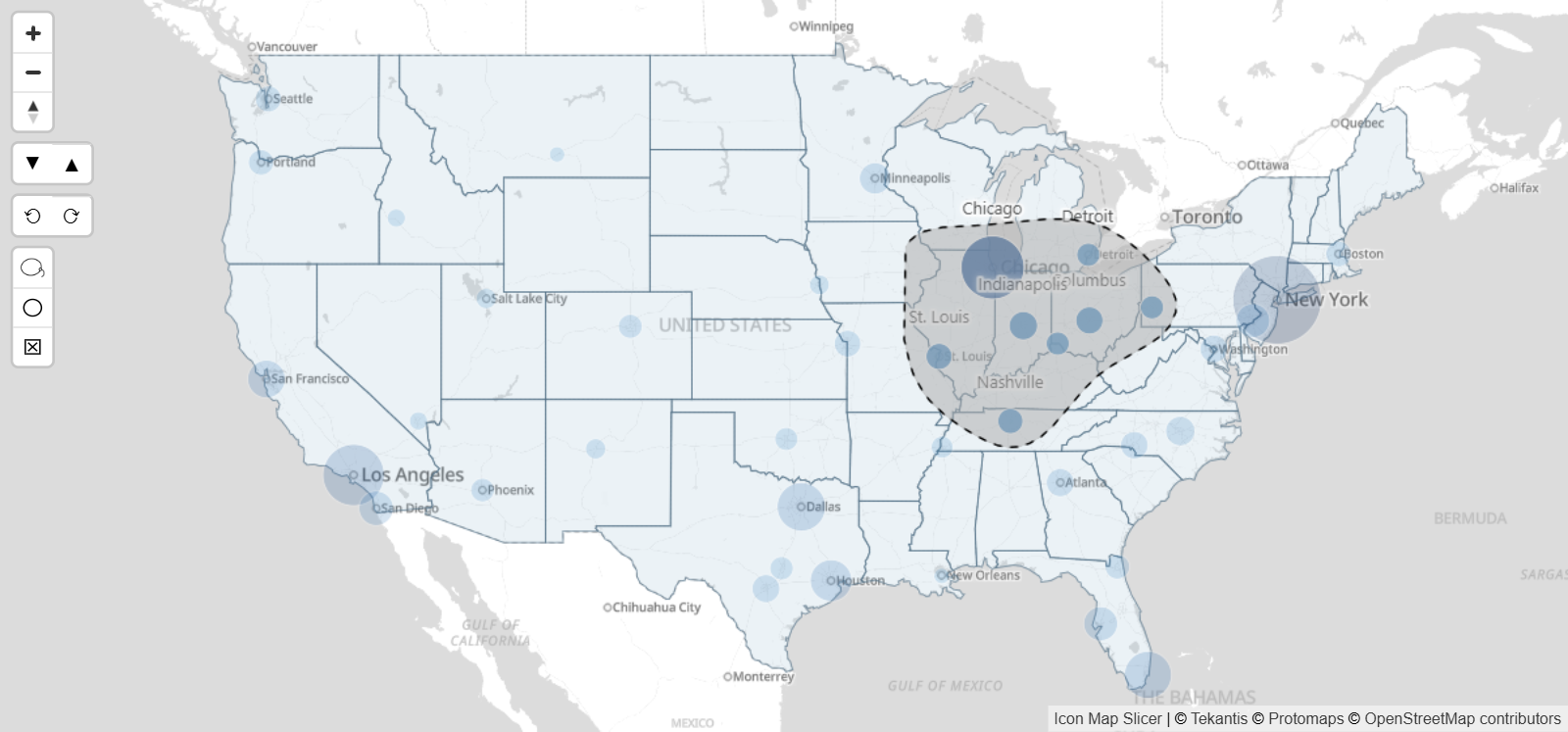
Selecting on the map applies a filter to the report page, in the same way as a Power BI slicer. The map keeps every item and fades the ones you did not select. Other visuals show only the data for your selection.
The Layer Manager
New in 1.1.0.11
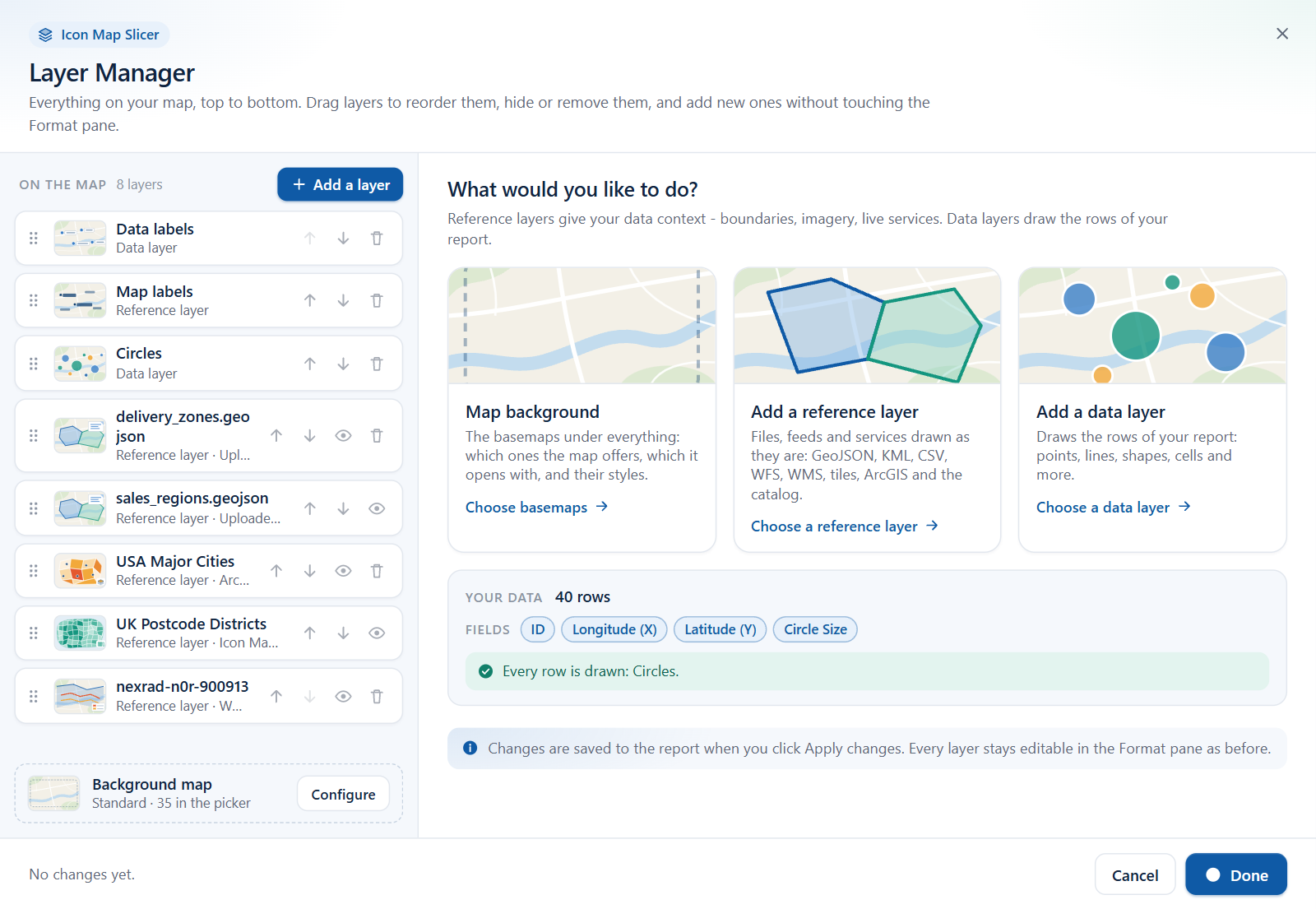
The Layer Manager is a dialog that shows everything on your map in drawing order. Use it to add data layers and reference layers step by step, restyle them, drag them into a new order, hide them or remove them. It also tells you how many of your rows each layer draws, and why a layer draws nothing. Every setting it writes is also in the Format pane, so you can move between the two at any time.
Browse by topic
Icon Map Slicer or Icon Map Pro?
Icon Map Slicer and Icon Map Pro are both full map visuals from Icon Map, and they share most of their layers, labels and styling. They differ in what the map is for.
| Icon Map Slicer | Icon Map Pro | |
|---|---|---|
| Selecting on the map | Filters the report page, like a Power BI slicer. The filter is saved with the report | Cross-filters or cross-highlights other visuals, like a standard Power BI visual |
| Ways to select | Click, lasso, circle select, items inside a shape, travel time, and the area in view | Click and lasso |
| Choice of layers and basemaps | The layers described in this documentation | A wider choice, including more basemap providers, weather and traffic layers and clusters |
Many reports use both: Icon Map Pro to show the data, and Icon Map Slicer to choose what the page shows.
Versions and languages
Use the version menu at the top of any page to match the documentation to the version of Icon Map Slicer in your report. The version number is shown on the start page you see when the visual has no fields, and in Format pane > Icon Map Slicer once it has data. What's new lists the main changes in each version. For version 1.1.0.9 and earlier, see the documentation for 1.1.0.9 and earlier.
Icon Map Slicer is available in English, German, Spanish, French and Portuguese. See Languages.