
Select by travel time
Click a place on the map and select every item that can be reached from it in a set time or distance, by road or path rather than in a straight line. Use it for questions such as "which stores are within a 20 minute drive of this depot" or "which customers live a 10 minute walk from this station".
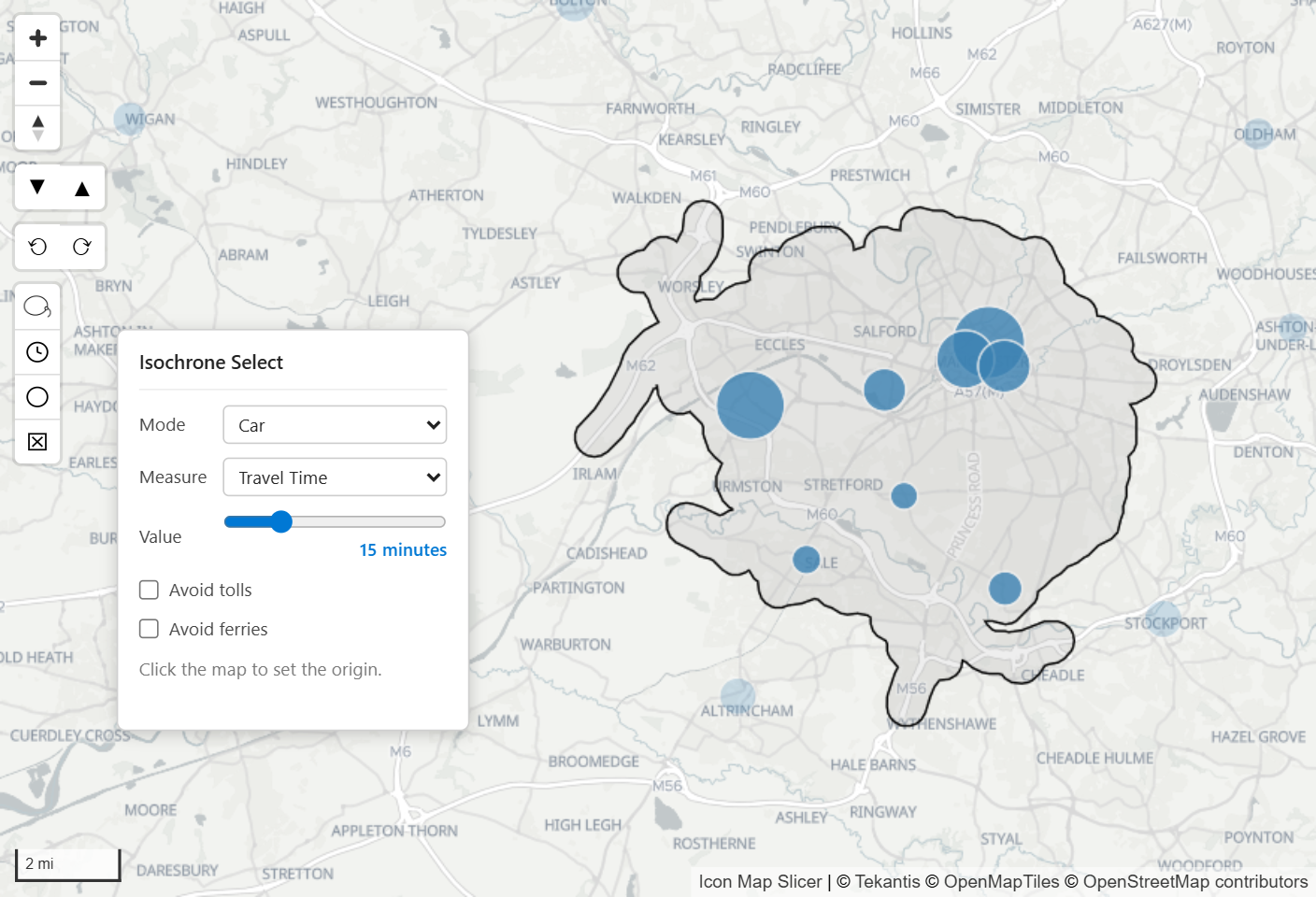
Turn it on
- In the Format pane, open Selection > User Selection and switch on Isochrone Select.
- Choose an Area Outline (see below).
- Optionally set the Fill and Outline colors of the area. They are shared with the lasso and circle select.
A button with a clock, Isochrone Select Tool, appears in the top left corner of the map.
Use it on the map
- Select the Isochrone Select Tool button. The Isochrone Select panel opens beside the buttons and the pointer becomes a crosshair.
- In the panel, choose the Mode and the Measure, and set the Value with the slider.
- Click the place to travel from. The panel shows "Calculating…" while the area is worked out.
- The reachable area is drawn on the map, and every item inside it is selected. The other visuals on the page are filtered to those items.
- Click another place, or change the panel and click again, to replace the selection with a new area. The tool stays on until you select its button again.
You can pan and zoom the map while the tool is on.
The panel
| Field | Options |
|---|---|
| Mode | Car, HGV, Walking or Cycling. |
| Measure | Travel Time (minutes) or Travel Distance (kilometers, with miles shown alongside, for example "5 km (3.1 mi)"). |
| Value | A slider. Its range depends on the mode and the measure: see the table below. |
| Avoid tolls | Car and HGV. |
| Avoid ferries | Every mode. |
| Avoid unpaved | Walking and Cycling. |
| Wheelchair accessible | Walking. |
| Mode | Travel Time | Travel Distance |
|---|---|---|
| Car, HGV | 1 to 60 minutes | 0.5 to 20 km |
| Walking | 1 to 90 minutes | 0.25 to 8 km |
| Cycling | 1 to 90 minutes | 0.25 to 15 km |
Each time you switch the tool on, the panel starts at Car, Travel Time and 5 minutes. When you change the mode or the measure, the value is kept if it fits the new range, or moved to the nearest end of the range.
What is selected
Every data item inside the area, including items outside the current view of the map. You do not need to zoom out to see the whole area first.
Items of Icon Map Catalog layers count only when they are in view.
Lasso Mode decides which lines and shapes count: Intersect or Contain includes those that touch the area, Fully Contain only those entirely inside it. Points are selected when they are inside the area.
Each click replaces the selection. Holding Ctrl or Shift does not add to it.
Items on layers whose Selectable setting is No are left out.
An area that holds exactly the items already selected keeps them selected.
The usual selection settings apply: Max Selections, and the selected and unselected transparency. See How Icon Map Slicer filters.
Area Outline
Area Outline decides how the boundary is drawn around the roads and paths that can be reached.
| Area Outline | Result |
|---|---|
| Follow roads (default) | The area is painted along the roads and paths that can be reached, with a rounded edge. It can have holes where no road reaches. |
| Single outline | One outline fitted around every point that can be reached, with an angular edge and no holes. |
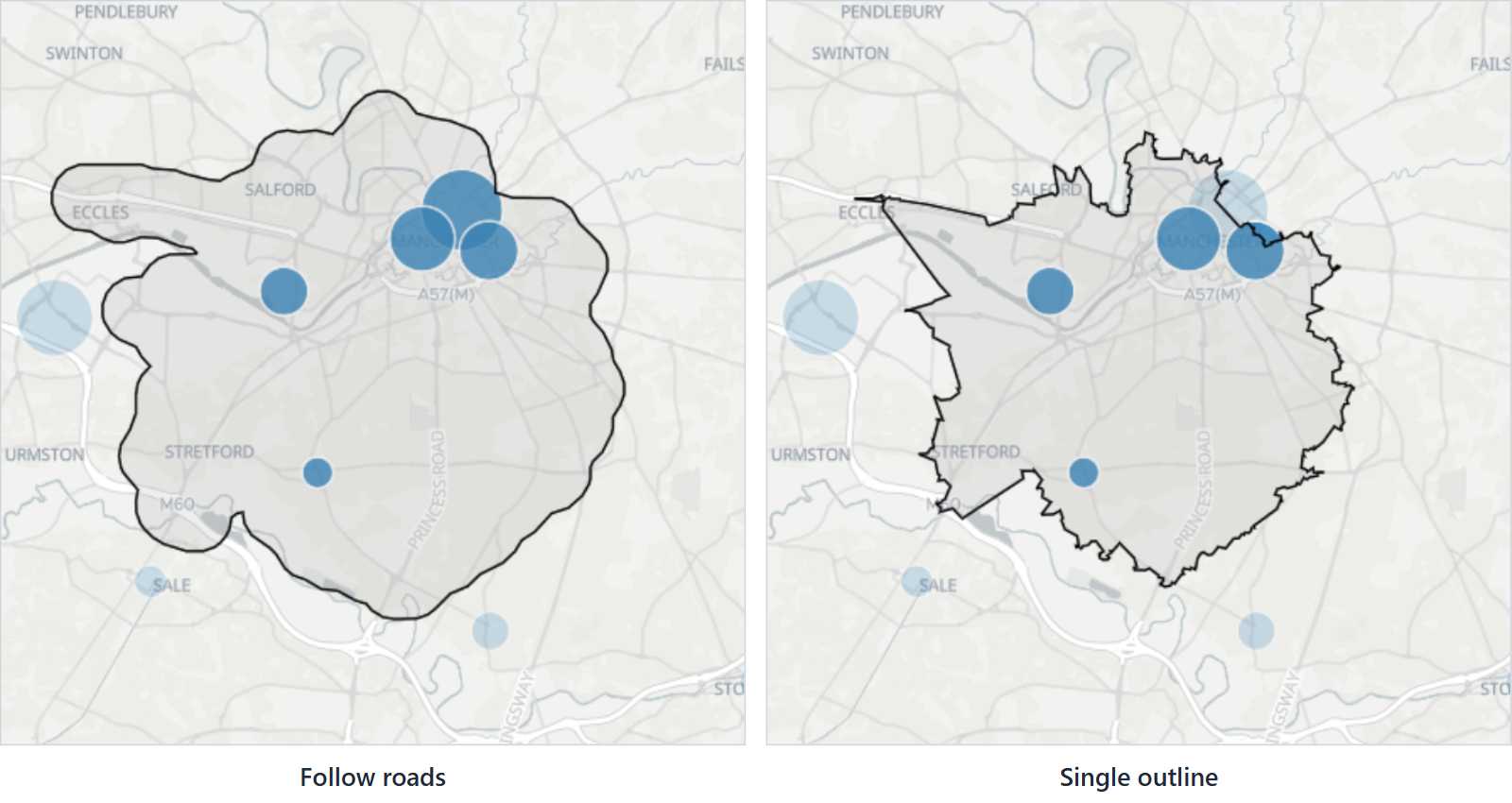
The outline changes what is selected, because the selection uses the area as drawn. Single outline includes places in the holes that Follow roads leaves out, while the rounded edge of Follow roads can reach a little further out.
Messages in the panel
| Message | Meaning |
|---|---|
| "Click the map to set the origin." | The tool is ready. |
| "Calculating…" | The area is being worked out. |
| "Area was capped (too large to fully compute)." | The value covers more roads than can be worked out, so the area is smaller than the full reach. Use a smaller value. |
| "Could not compute the isochrone." | No area could be worked out from that point, for example away from any road. An error message from the calculation may show instead. |
Clear the area
Clearing the selection removes the area too: click an empty part of the map (with Background Click Clears Selection on), or select the Clear All Selections button.
Where the area comes from
The area is calculated inside the visual, in the reader's browser, from Icon Map road tiles. Your report data is not sent anywhere for it, and it does not use an API key or a separate license. The visual needs to reach styles.iconmappro.com to read the road tiles. See Security and certification.
Settings
All in Format pane > Selection > User Selection.
| Setting | What it does | Default |
|---|---|---|
| Isochrone Select | Adds the Isochrone Select Tool button to the map. | Off |
| Area Outline | Follow roads or Single outline. Shown when Isochrone Select is on. | Follow roads |
| Lasso Mode | Intersect or Contain or Fully Contain. Decides which lines and shapes inside the area are selected. | Intersect or Contain |
| Fill | Fill color of the area. | #AAAAAA |
| Outline | Outline color of the area. | #000000 |
Lasso Mode is shown whenever Isochrone Select, Lasso or Circle Select is on.
Mode, measure, value and the avoid options are chosen in the panel on the map, by whoever uses the report. They are not saved with the report.
Tips and limits
- Larger values cover more roads and take longer to calculate.
- Travel times are estimates from typical speeds, not live traffic.
- The panel opens beside the map's buttons, so leave room on the left of a small visual.