
Images and icons
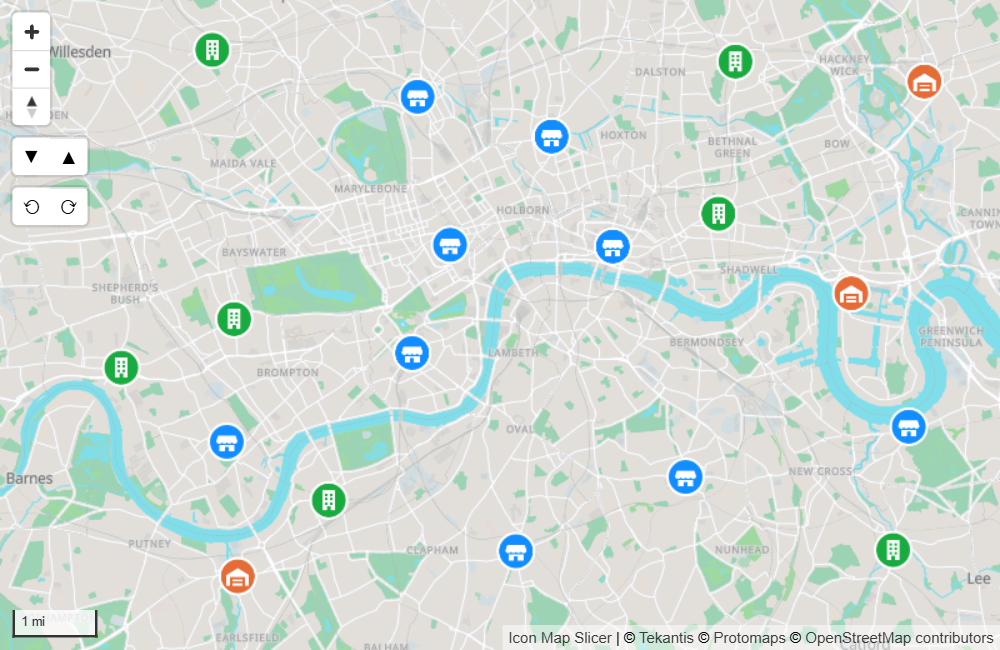
The Images / Icons layer places a picture at each longitude and latitude. The picture can come from your data, from one image link, from the built-in icon library, or it can be a short piece of text or an emoji drawn as a badge.
What you need
| Field well | What to put in it |
|---|---|
| * ID (required) | A unique value for each row |
| Longitude (X) | Longitude in decimal degrees, summarized as Average |
| Latitude (Y) | Latitude in decimal degrees, summarized as Average |
| Image / WKT / GeoJSON | The image for each row. Not needed when the image source is the icon library or one link for every point. |
These fields must be empty on an image's rows: Circle Size, Destination Longitude, Destination Latitude, Feature Reference, Heatmap Weight and Cell (H3/S2/A5/Geohash) Weight.
A row with a value in Circle Size is a circle, not an image. If you started with circles, take the field out of Circle Size or the images will not appear.
Add images to the map
- Add fields to * ID (required), Longitude (X) and Latitude (Y). Set the coordinates to Average.
- If your data holds an image for each row, add that field to Image / WKT / GeoJSON.
- If the panel What kind of map are you making? is showing, select the Images & icons tile. It turns the layer on and opens the Layer Manager on it. Otherwise, in the Format pane expand Layer Manager, switch on Open Layer Manager, and select Add a layer, Data layer, Images & icons.
- Under Images come from, choose where the pictures come from, and set the Width and Height.
- If you are adding the layer, select Add to map. Then select Apply changes.
The Layer Manager offers these settings. To change them later, open the Layer Manager and select the Images & icons row.
| Layer Manager setting | Same as, in the Format pane |
|---|---|
| Images come from | Image Source |
| Image link | Image URL |
| Icon name | Text or Icon Path |
| Width, Height | Image Width, Image Height (Icon Size when the source is Icon) |
| Icon color | Icon / Background Color |
| Transparency | Transparency |
| Visible at zoom | Minimum Zoom and Maximum Zoom |
The icon library browser, rotation, offsets and conditional formatting (fx) are in Format pane > Data Layers > Images - Configuration.
Where the image comes from
Image Source has three options.
URL from data
Each row carries its own image in the Image / WKT / GeoJSON field. The value can be:
| Value | Example |
|---|---|
A link starting with https:// |
https://example.com/icons/store.png |
| A data URI | data:image/png;base64,... |
| SVG text | <svg xmlns="http://www.w3.org/2000/svg" ...>...</svg> |
The word pin |
Draws a built-in map pin |
Links must use https://. A link starting with http:// is not treated as an image. The server that hosts the images must allow them to be read from other sites (CORS), otherwise they cannot be drawn. Data URIs and SVG text are held in your data, so they need no server.
Custom URL
One image link for every point, entered in Image URL. Rows need nothing in the Image / WKT / GeoJSON field. Image URL has an fx button, so a measure or rule can still choose a different link per row.
Icon
Icons from the built-in library of Material Design icons, in five styles, each on its own tab: Filled, Outlined, Round, Sharp and Two tone.
- Set Image Source to Icon.
- Switch on Show Icon Library. A dialog opens.
- Choose a style tab, type in the Search box and select an icon. The dialog shows the first 200 matches, so refine the search if you do not see the icon you want.
- Select OK. The icon's path is written to Text or Icon Path.
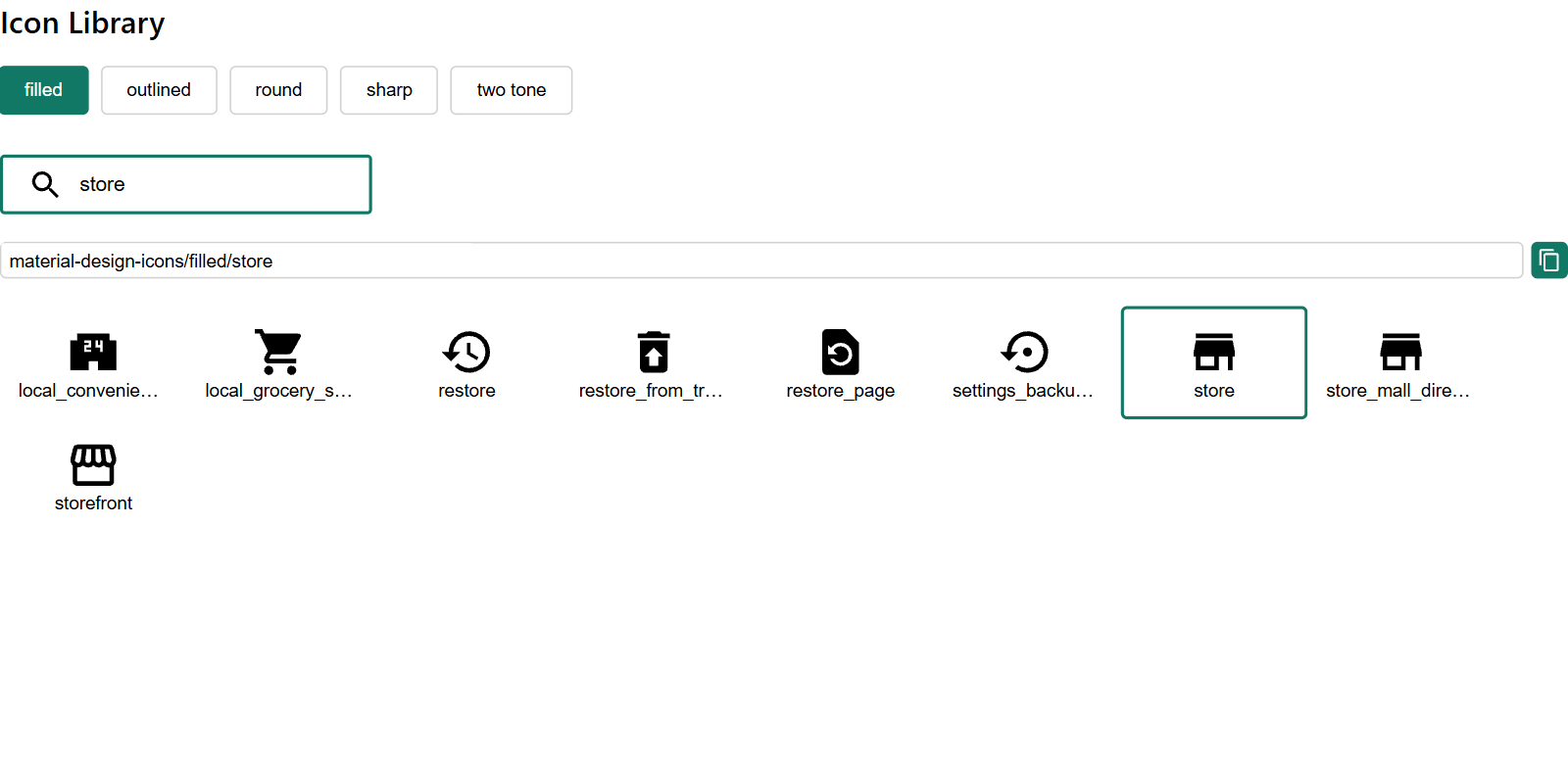
An icon path looks like material-design-icons/filled/home. Because Text or Icon Path has an fx button, you can hold icon paths in a column or return them from a measure, and show a different icon for each row. Set the icon's color with Icon / Background Color, which also takes fx. A library icon is square: with Icon selected, the width setting is named Icon Size and sets both its width and height, and the rotation setting is named Icon Rotation.
Text and emoji badges
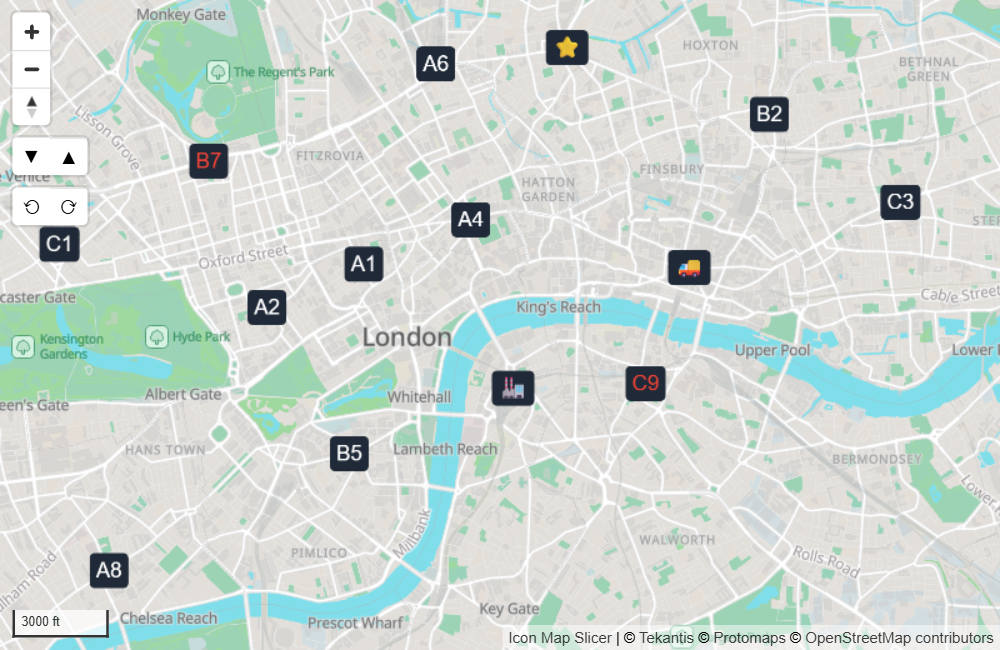
With Image Source set to Icon, any value in Text or Icon Path that is not a library icon path is drawn as text on a rounded badge. Emoji work too. Until you choose an icon, Text or Icon Path holds a triangle, ▲, so a new Icon layer shows a triangle badge at each point.
- The badge is as tall as Icon Size and as wide as the text needs.
- Icon / Background Color and Icon Background Transparency set the badge.
- Icon Text Color sets the text.
You can also set the text color in the value itself with a prefix:
| Value | Result |
|---|---|
Hello or text:Hello |
"Hello" in the Icon Text Color |
text-red:Hello |
"Hello" in red |
text-#884455:Hello |
"Hello" in the color #884455 |
The named colors are white, black, red, amber, orange, yellow, green, blue and gray.
Settings
All of these are in Format pane > Data Layers > Images - Configuration, shown when the Images / Icons switch is on.
| Setting | What it does | Default | fx |
|---|---|---|---|
| Image Source | URL from data, Custom URL or Icon. See above. | URL from data | |
| Image URL | The image link for every point. Shown for Custom URL. | Empty | Yes |
| Text or Icon Path | A library icon path, or text for a badge. Shown for Icon. | ▲ | Yes |
| Show Icon Library | Opens the icon browser, then switches itself off. Shown for Icon. | Off | |
| Icon Text Color | Text color of a badge. Shown for Icon. | #FFFFFF | Yes |
| Icon / Background Color | Color of a library icon, or background of a badge. Shown for Icon. | #000000 | Yes |
| Icon Background Transparency | Transparency of a badge's background. Shown for Icon. | 0 | Yes |
| Image Rotation | Rotates the image clockwise, in degrees, 0 to 360. Named Icon Rotation for Icon. Use fx to point each image in its own direction, for example a vehicle heading. | 0 | Yes |
| Rotation Alignment | Viewport keeps images fixed to the screen when the map rotates. Map rotates them with the map. | Viewport | |
| Pitch Alignment | Viewport keeps images upright when the map is tilted. Map lays them flat on the map. | Viewport | |
| Image Width | Width in pixels. 0 to 1000. Named Icon Size for Icon, where it sets both width and height. | 30 | Yes |
| Image Height | Height in pixels. 0 to 1000. Not shown for Icon. | 30 | Yes |
| Transparency | 0 is solid, 100 is invisible. | 0 | Yes |
| Offset Overlapping Images | Images at the same location are laid out side by side instead of on top of each other. | Off | |
| Offset Gap (pixels) | Space between images that have been offset. 0 to 100. | 2 | |
| Offset Tolerance (meters) | How close images must be to count as the same location. 0 means exactly the same coordinates. Up to 10000. | 0 | |
| Include in Auto Zoom | Whether an image counts toward the area the map zooms to. | Yes | Yes |
| Include Tooltip | Whether an image shows a tooltip. | Yes | Yes |
| Selectable | Whether an image can be selected. | Yes | Yes |
| Minimum Zoom | Images are hidden when the map is zoomed out past this level. | 0 | |
| Maximum Zoom | Images are hidden when the map is zoomed in past this level. | 24 | |
| Z Index | Drawing order among the layers. Higher draws on top. 0 to 1000. | 410 | |
| EPSG | Coordinate system of your longitude and latitude. | 4326 |
Offset overlapping images
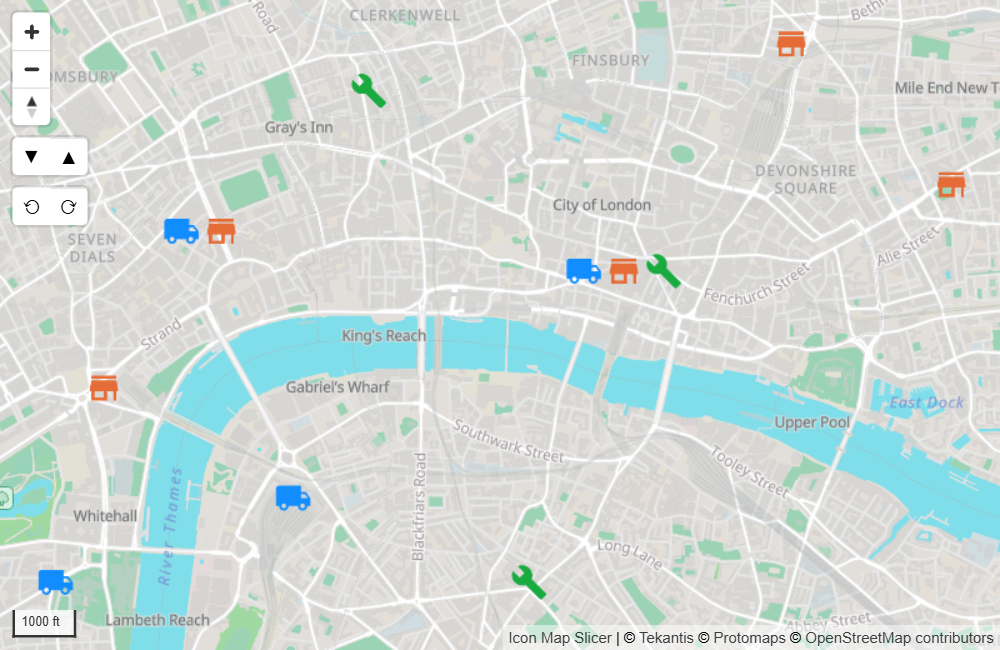
When several rows share a location, for example three assets at one site, their images sit exactly on top of each other. Turn on Offset Overlapping Images to lay them out in a horizontal row centered on the location, Offset Gap (pixels) apart. Raise Offset Tolerance (meters) to treat images within that distance as being at the same place.
Selection, tooltips and labels
- Selection. Select an image to filter the rest of the report page. Hold Ctrl or Shift to select several. Images you did not select fade, using the transparency values in Format pane > Selection > Formatting. See How Icon Map Slicer filters.
- Tooltips. With no fields in Tooltips, the tooltip shows the ID. Add fields to Tooltips to show those instead. See Tooltips.
- Labels. Images can carry data labels at the center, above, below, left or right of the image. See Data labels.
- Legend. Images appear in the legend as Icons. See Legend.
Tips and limits
- An image is anchored at its center. For a pin whose tip should touch the location, use an image with empty space below the tip so that the tip is at the center.
- Images never hide each other. Where they overlap, all of them are drawn.
- Images have their own position in the drawing order, set by the Images Z Index. The default, 410, draws them above Lines (409) and Circles (405). Their data labels stay with the other data labels, above the images.
- For images hosted on a web server, check that every link opens over
https://and that the server allows cross-origin requests. - Text badges and SVG values that repeat are drawn once and reused, so a few distinct values across many rows stay fast. Thousands of different remote images are slower: prefer small files, or library icons colored with fx.
- If your network blocks external sites, library icons can be served from your own server. See Power BI Report Server (on-premises).