
BIM models
New in 1.1.0.12
The BIM Models layer places building and asset models on the map, such as a lift, a plant room or a whole building, and binds their parts to the rows of your report. Put the names of the parts in Feature Reference, and each row colors, fades, hides and selects the parts it names. Clicking a part selects its row and filters the report page, so a table of the parts next to the map and the model on the map work together.
How it works
- Convert the model. Open your
IFCfile in the BIM to Icon Map Converter in the Icon Map Customer Portal. It runs in your browser, and the file is never uploaded. You get the model as a.glb.gzfile and a parts table as a.csvfile. - Name the parts in your data. Load the parts table into your semantic model, or use a table you already have that names the parts.
- Add the model to the map. Turn on the BIM Models layer and pick the
.glb.gzfile in the BIM model picker. - Place it. A model placed in the converter, or a georeferenced IFC, is already in the right place. Otherwise drag it into place on the map.
- Bind your rows. Put the part names in Feature Reference. Each row now colors, hides and selects its parts.
The geometry always comes from the file. Your rows carry the part names and the values you want to show, not geometry.
What you need
| Field well | What to put in it |
|---|---|
| * ID (required) | A unique value for each row, for example a part ID |
| Feature Reference | The names of the parts, outermost first. For example a host family, then the family nested in it. One field is enough when every part has its own name. See Bind rows to parts. |
| Tooltips | Optional. Fields to show when you point at a part. |
Rows need no Longitude (X) or Latitude (Y): the model's placement puts its parts on the map. A row is drawn by the BIM Models layer when it has a Feature Reference value and no longitude or latitude. Leave these fields empty on those rows: Longitude (X), Latitude (Y), Destination Longitude, Destination Latitude, Image / WKT / GeoJSON, Circle Size, Heatmap Weight and Cell (H3/S2/A5/Geohash) Weight.
The BIM Models layer does not take rows away from Shapes from files, Vector tiles or ArcGIS layers bound to data. Each of them matches its own features, so one row can color a building's footprint and the building's model, and select both at once.
You also need the model file: a .glb or .glb.gz file whose parts have names. See Files the layer reads.
Add a BIM model to the map
- Add fields to * ID (required) and Feature Reference. Put the outermost part name first.
- In the Format pane, expand Data Layers and turn on BIM Models in the Data Layers group. In the Layer Manager, select Add a layer, Data layer, BIM models instead. If the panel What kind of map are you making? is showing, you can select its BIM models tile.
- Under BIM Models - Models, turn on Choose BIM models. In the Layer Manager, select the BIM models row, then Choose BIM models. The BIM model picker opens.
- Select Add a model, add the
.glb.gzfile from the converter, and select Apply. - Zoom in to the model. The layer is shown from zoom 12, street level, by default. Tilt the map to see the model from the side.
- If the model is not where it belongs, turn on Move models on the map and drag it into place. See Place the model.
- Open the picker again to see how many of your rows match a part.
Choose BIM models
The BIM model picker holds the models of the layer. It opens from Choose BIM models in BIM Models - Models or from the Layer Manager. The switch turns itself off again.
Models lists the models in the layer, with where each one comes from, its number of parts and how many rows match it. Select Add a model to add one from:
| Tab | What it does |
|---|---|
| From a file | Drop a .glb or .glb.gz file, or select Browse.... A copy is saved in the report, so it needs no hosting. Up to 25 MB per file and 3 copies per report. |
| OneLake | Choose from OneLake browses the lakehouses you can open. Select a .glb or .glb.gz file, then Link to this file (every viewer loads it from OneLake with their own access, so changes to the file show up in the report) or Import a copy (a copy is saved in the report, and viewers need no access to OneLake). See Files in OneLake. |
| From a link | Paste the https:// link to a .glb or .glb.gz file and select Add. Viewers load the file from its host, which must allow Icon Map to read it (CORS). Use a lasting link, not one that expires. |
Select a model in the list to see:
- Name: the name of the model. It is the Model value rows use when the layer has several models. See Several models in one layer.
- Match parts by: the value of each part that rows are matched against.
- Converter key (default): the key the converter wrote into each part. Offered for files from the converter.
- Part name: the name of each part in the file. Use this for a GLB from another tool.
- Any attribute in the file, such as Family, Type, IfcType, GlobalId or ElementId.
- The match report, for example "34 of 36 rows match. Not found: Binder binder, Object[] parameters." It changes as soon as you change Match parts by. A model that has not been drawn on the map yet has no report: select Apply, then open the picker again.
- Parts: the part tree. Parts bound to a row are marked, and so are parts that take the row of a part above them.
- Where the model is placed, and Remove this model.
Nothing is saved until you select Apply.
A copy in the report or a link? A copy saved in the report needs no hosting and no access to anything else: every viewer gets the model with the report. The report grows by the size of the file, and a changed model has to be added again. Link to a file in OneLake, or on a web server, for files over 25 MB, for a model shared by many reports, or for a model that changes.
Files the layer reads
- A
.glbfile (glTF 2.0, self-contained), or a.glb.gzfile: the same file, gzip-compressed, as the converter writes it. A host that sends a.glbwith gzip compression works too. - The parts are the named nodes in the file, kept in their tree. Files from the BIM to Icon Map Converter also carry part attributes (Family, Type, IfcType and so on) and a placement.
- Any other GLB whose parts have names works too, for example an FBX, SketchUp or Revit glTF export converted to GLB keeping the node names. It has no attributes: match by Part name, and place it by hand. Opening it in the converter first adds the parts table and a placement.
- Geometry compressed with meshopt is read where WebAssembly is allowed. If a meshopt file does not draw in your report, convert it again with Compression set to Quantized, the converter's default, which works everywhere.
- Files compressed with Draco or KTX2 textures cannot be read. The pane says so.
- Up to 25 MB for a copy saved in the report. Models with more than 500,000 triangles or 20,000 parts may be slow to draw.
Bind rows to parts
Levels: matching along the part tree
The Feature Reference fields are read as a path, outermost first. With a host family field and a nested family field in that order:
- A row binds to every part whose name is its last value and that sits inside a part named by the value before it. Other parts may sit in between.
- A row whose later values are blank binds to the part named by its earlier values. A row with only a host family binds to the whole host family.
- With one field, a row binds to every part with that name, wherever it is in the model.
Names are compared trimmed and ignoring case. Several parts can share a name, for example two guide rails: a row then binds to all of them.
The parts table from the converter has a Level1, Level2 ... column for each level of the tree. Put them in Feature Reference in that order.
Fields to match, in BIM Models - Matching, chooses the fields. Leave it empty to use every Feature Reference field, in the order they are in the well. To use only some, list their names separated by |, outermost first, for example HostFamily|NestedType. The line above it says which fields parts are being matched by.
A row colors a part and everything in it
A row's settings apply to its parts and to every part below them, unless a lower part has a row of its own. So a row for the lift car can color the whole car red while a row for the car door colors just the door blue. When two rows have the same path, the first row wins.
Rows that match nothing
A row whose path matches no part draws nothing. BIM Models - Matching lists them for each model, for example "Lift: 34 of 36 rows match. Not found: Binder binder, Object[] parameters", and so does the picker. The usual reasons:
- Match parts by reads a different value from the one in your data. Try another choice in the picker.
- The fields in Feature Reference are in the wrong order, or one of them is not a level of the tree. Use Fields to match to leave it out.
- The part is not in the model. In Revit, a nested family is exported as its own part only when it is a shared nested family. See Models from Revit.
Several models in one layer
A layer can hold several models, each with its own placement. Rows are matched against every model. When two models have parts with the same names, such as two lifts of the same family in different shafts, use conditional formatting on Model in BIM Models - Models (shown when the layer holds more than one model): choose Field value and a field that holds the model's Name from the picker. A row whose Model is blank matches every model.
Place the model
Each model has its own placement. When you add a model:
- A model from the converter that was placed there, or from a georeferenced IFC file, is placed where the file says. BIM Models - Placement shows "Placed from the IFC location."
- Any other model is placed in the middle of the map view, and shows "Placed by hand."
BIM Models - Placement sets the placement of one model at a time. When the layer holds several, choose it in Model to place. Type an exact Latitude, Longitude and Heading (degrees clockwise from north) for a surveyed point, or drag the model on the map.
Move models on the map
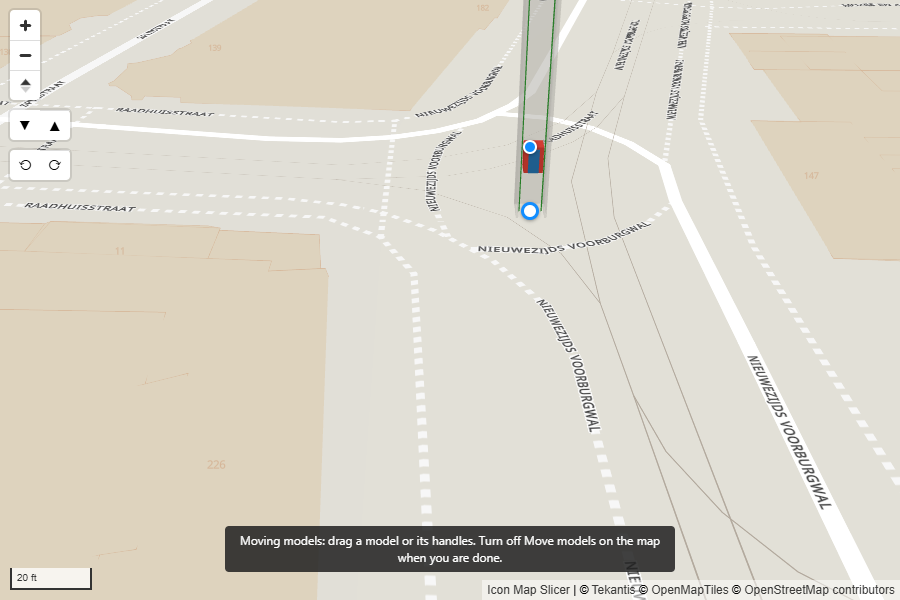
- Turn on Move models on the map, in BIM Models - Placement or in the Layer Manager. Handles show only while you are editing the report.
- Drag the model, or its white handle, to move it.
- Drag the blue handle to turn it. Hold Shift to snap the turn to 15 degrees.
- Turn Move models on the map off when you are done.
Each drag is saved when you let go, and the Latitude, Longitude and Heading boxes show the new values. While the switch is on, clicks on models do not select rows and models show no tooltips, so moving a model never filters the report. Reading view never shows the handles.
Moving a model that was placed from the IFC makes it placed by hand. Reset to IFC location puts it back.
Height
| Altitude | What it does |
|---|---|
| On the ground (the default) | The base of the model sits on the terrain under its center, raised or lowered by Height above ground. A negative value sinks the model, for a basement or a lift pit. |
| Explicit height | The base of the model is at Height above sea level, whatever the terrain. |
- The model is not bent to fit the terrain. On a steep slope, part of it can float or sink: adjust the height to correct it.
- Height units sets Meters or Feet for the height boxes.
- Hide parts below ground, on by default, cuts every model off at the ground under it, so foundations, piles and a lowered basement disappear under the map. Turn it off to see them through the ground.
- When the IFC file has an elevation, Use the IFC elevation sets Explicit height to it. Check the result against the terrain: the height datum of an IFC file often differs from the map's.
See Terrain, hillshade, sky and lighting. Models are lit by the map's Light settings.
Color and visibility
These settings apply to each row's parts, and take conditional formatting (fx), so your data colors, fades and hides the parts. They are in BIM Models - Color and visibility.
- Color parts off keeps the model's own colors. Turn it on to color each row's parts with Color. Use fx on Color with Gradient or Rules to color parts by a measure or a status column.
- Apply color as: Replace paints the part the row's color. Tint mixes the row's color into the model's own colors and textures.
- Transparency: 0 to 100 percent.
- Show part: No hides the row's parts. Use fx to hide parts by rule, for example where Status is Removed.
Parts with no data
Parts that no row matches are drawn as set in Parts with no data, in BIM Models - Matching:
| Parts with no data | What it does |
|---|---|
| Show as authored (the default) | Drawn as they are in the model. |
| Ghosted | Drawn faded. |
| Hidden | Not drawn. |
Turn on Color parts with no data to draw them in Color for parts with no data instead of their own colors.
Selection, tooltips and zoom
- Selection. Click a part to select its row and filter the rest of the report page. Hold Ctrl or Shift to add to the selection. A click on a part with no row of its own selects the row of the nearest part above it, so clicking a door handle selects the door. A click passes through parts that are mostly see-through, such as a glass shaft wall, to the part behind. The lasso, the circle, Travel time and Select everything inside a shape take each part by the ground point under its center. Parts that are not selected fade to Unselected Items Transparency in Format pane > Selection > Formatting. See How Icon Map Slicer filters.
- Tooltips. Pointing at a part shows its row's Tooltips fields. Add part attributes to tooltip adds the part's name and attributes from the model (family, type, IFC type and so on). Tooltip for parts with no data, on by default, shows the name and attributes of a part that no row matches. See Tooltips.
- Zoom. Auto zoom and zooming to the selection frame the parts themselves, so zooming to a door frames the door. Set Include in Zoom to No to leave a row's parts out, and turn off Include parts with no data in zoom to frame only the bound parts.
- Labels. Parts do not carry data labels.
Convert your model
The BIM to Icon Map Converter in the Icon Map Customer Portal turns an IFC model into the files this layer uses. It is free and open to everyone, signed in or not. The converter runs in your browser: your file is converted on your computer and is not uploaded to Icon Map.
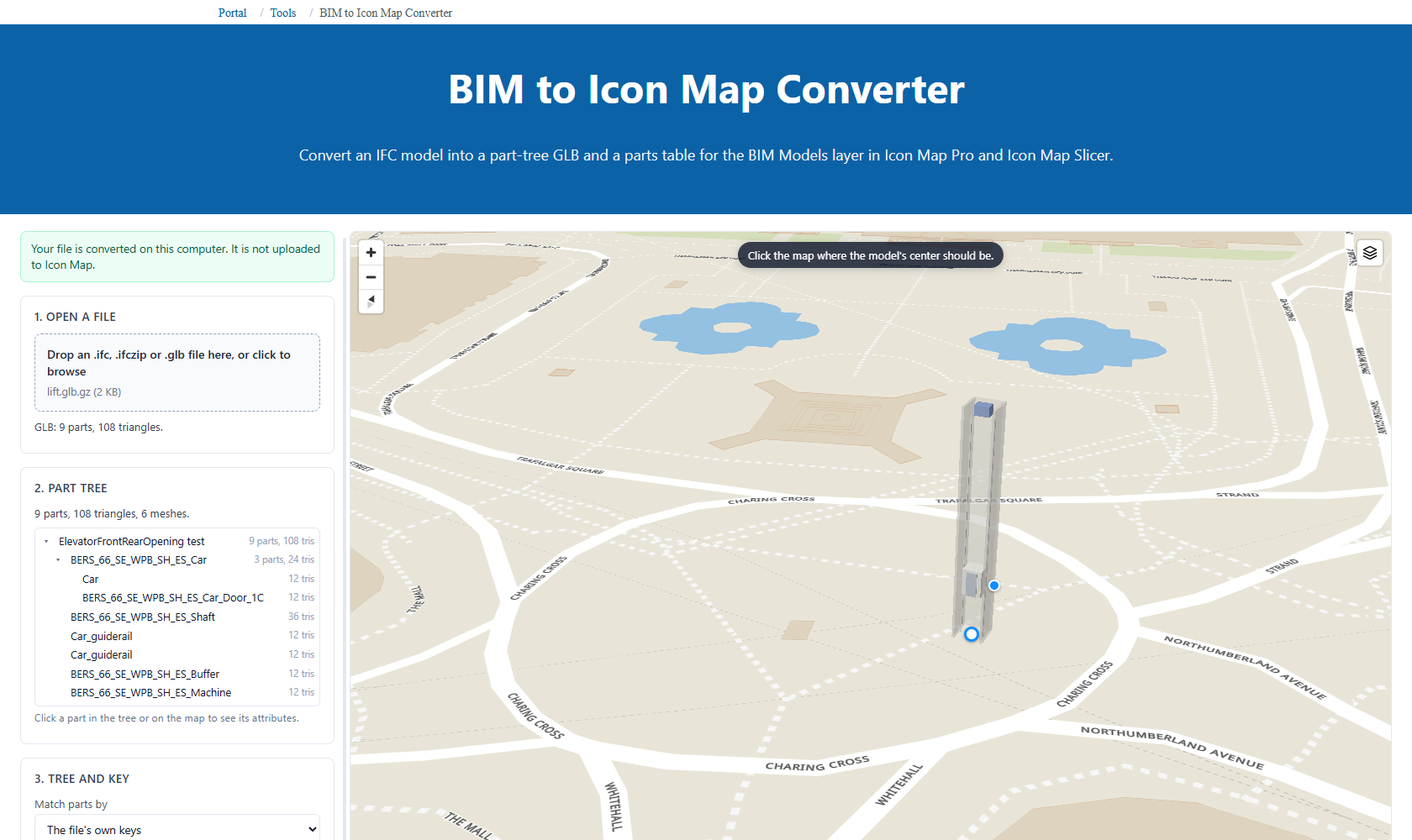
Open BIM to Icon Map Converter in the portal, under Tools, and work down its steps:
- Open a file. Drop an
.ifc,.ifczipor.glbfile on the page, or click to browse. IFC2X3, IFC4 and IFC4X3 are read. The converter asks before it opens a file over 250 MB, which can run out of browser memory. - Part tree. Check the tree, with the number of parts and triangles in each branch. Click a part in the tree or on the map to see its attributes.
- Tree and key.
- Tree from chooses which IFC relationships make the tree: Assemblies within the spatial structure (the default), Assemblies only, Spatial structure only (site, building, storey) or Flat (no tree).
- Match parts by is the value rows in Power BI match. The default, Family (Revit), else Name, suits a Revit export. For a
.glb, The file's own keys keeps the names in the file. - Compression: Quantized (works everywhere) is the default. meshopt (smaller, needs WebAssembly in Power BI) makes a smaller file.
- Include by IFC type leaves out types you do not need.
IfcSpaceandIfcOpeningElementare left out by default. Add property values adds property set values to the parts and to the parts table.
- Check against your data (optional). Drop a CSV exported from your Power BI table, or paste a column of values, and tick the Level columns, in order. The converter matches them as the visual will and reports, for example, "34 of 36 rows match. Not found: ...". If the IFC lost which part sits inside which, Build the tree from this table builds the tree from a child column and a parent column of your table.
- Place it. A georeferenced IFC is placed already: "Placed from the IFC site location." Otherwise drag the model into place on the map, or select Place on the map and click where the model's center should be. Drag the white handle to move it and the blue handle to turn it; Shift snaps the turn to 15 degrees. Set Height (m) and Heading (degrees). The placement is written into the file, and the visual uses it as the model's starting position.
- Download. Download <name>.glb.gz is the model for this layer. Download <name>-parts.csv is the parts table. Download a plain .glb for other viewers gives the same model without the gzip compression.
The parts table has one row per part: PartId, ParentId, Key, Level1 ... LevelN, Path, Family, Type, IfcType, GlobalId, ElementId and Triangles, plus any property values you added. The Level columns go straight into Feature Reference, in order. Relate your own tables to it on Key or the Level columns.
For every option, see BIM to Icon Map Converter.
Models from Revit
- Export the model from Revit as IFC, then open the
.ifcfile in the converter. Revit names elementsFamily:Type:ElementId, and the converter splits that into Family, Type and ElementId attributes. - Revit exports a nested family as its own part only when it is a shared nested family. A nested family that is not shared is merged into its host and cannot be told apart later. Make the nested families you want to bind shared before you export.
- If the export loses which family sits inside which, Build the tree from this table in the converter rebuilds the tree from your own host and nested family table.
Settings
All of these are in Format pane > Data Layers, shown when the BIM Models switch is on. Settings marked fx accept conditional formatting.
BIM Models - Models
| Setting | What it does | Default |
|---|---|---|
| Choose BIM models | Opens the BIM model picker. The switch turns itself off again. The line below it names the models in the layer. | Off |
| Model | Shown when the layer holds more than one model. Empty matches every row against every model. Set a field value to say which model a row's parts are in, by the model's name. fx | Empty |
A model that cannot be drawn is named in this group, with the reason.
BIM Models - Matching
| Setting | What it does | Default |
|---|---|---|
| Fields to match | The Feature Reference fields to match, by name, separated by |, outermost first. Empty uses every field in the well, in order. |
Empty |
| (match report) | For each model: how many rows match, and the values not found. | |
| Parts with no data | Show as authored, Ghosted or Hidden. | Show as authored |
| Color parts with no data | Draws parts no row matches in Color for parts with no data. | Off |
| Color for parts with no data | Shown when Color parts with no data is on. | #C8C6C4 |
BIM Models - Placement
| Setting | What it does | Default |
|---|---|---|
| Move models on the map | Drag and turn models on the map while you are editing the report. | Off |
| Model to place | Which model the boxes below change. Shown when the layer holds more than one model. | The first model |
| Latitude, Longitude | Where the model's center is. | From the file, or the middle of the map view |
| Heading | Degrees clockwise from north that the model faces. | From the file, or 0 |
| Altitude | On the ground or Explicit height. | On the ground |
| Height above ground (Height above sea level with Explicit height) | Raises or lowers the model. Negative values sink it. | 0 |
| Height units | Meters or Feet. | Meters |
| Hide parts below ground | Cuts every model off at the ground under it. | On |
| Reset to IFC location | Shown when a model placed from the IFC has been moved. | |
| Use the IFC elevation | Shown when the IFC file has an elevation. Sets Explicit height to it. |
BIM Models - Color and visibility
| Setting | What it does | Default |
|---|---|---|
| Color parts | Colors each row's parts with Color. Off keeps the model's own colors. | Off |
| Color | The color of the row's parts. Shown when Color parts is on. fx | #118DFF |
| Apply color as | Replace or Tint. Shown when Color parts is on. | Replace |
| Transparency | 0 to 100 percent. fx | 0 |
| Show part | Yes or No. fx | Yes |
BIM Models - Interaction and visibility
| Setting | What it does | Default |
|---|---|---|
| Allow Selection | Whether the row's parts can be selected. fx | Yes |
| Include Tooltip | Whether the row's parts show a tooltip. fx | Yes |
| Add part attributes to tooltip | Adds the part's name and attributes from the model to the tooltip. | Off |
| Tooltip for parts with no data | Shows the name and attributes of parts no row matches. | On |
| Include in Zoom | Whether the row's parts count toward the area the map zooms to. fx | Yes |
| Include parts with no data in zoom | Whether parts no row matches count toward it too. | On |
| Min Zoom | The layer is hidden when the map is zoomed out past this level. 0 to 24. | 12 |
| Max Zoom | The layer is hidden when the map is zoomed in past this level. 0 to 24. | 24 |
| Z-Index | Drawing order among the layers. Higher draws on top. 0 to 1000. | 460 |
In the Layer Manager
Select the BIM models row in the Layer Manager to change:
- Matching - Parts with no data.
- Placement - Move models on the map and Hide parts below ground.
- Interaction - Allow Selection, Include Tooltip and Visible at zoom.
Choose BIM models opens the BIM model picker. Colors and the other values per row are set with conditional formatting in the Format pane. See Edit, reorder and remove layers.
Tips and limits
- Cannot see the model? The layer is shown from zoom 12 by default: zoom in, or lower Min Zoom. A model placed by hand starts in the middle of the map view when it was added.
- Parts are missing. Check the match report in the picker, and Parts with no data. A part below the ground is hidden while Hide parts below ground is on.
- The model draws nothing. BIM Models - Models names the model and the reason, for example a host that does not allow the file to be read, or a file compressed with Draco.
- Models are drawn on the flat map and on the globe.
IFCfiles and native Revit files (.rvt,.rfa) are not read by the visual. Convert them first in the BIM to Icon Map Converter.- Rows hold the part names and values, never geometry. To draw lines and sections held in your data, use Shapes at their heights on the same map.