
Release notes
What changed in each version of Icon Map Slicer, newest first. Use this page to check whether a fix or feature is in the version you are running.
Which version am I running?
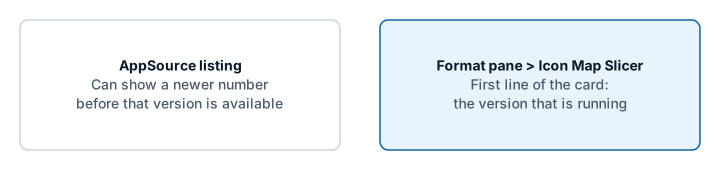
Select the visual and open Format pane > Icon Map Slicer. The first line of the card shows the version that is running. The start page of an empty visual shows it too.
Power BI loads the newest version that Microsoft AppSource has published, so a report picks up a new version without any action from you. When a new version is submitted, AppSource can list its number before the visual itself is available, so the number on AppSource may not match the one you are running. The number in the Icon Map Slicer card is the one to trust.
1.1.0.12
New in 1.1.0.12
3D models
- A new 3D Models data layer draws a glTF model at each point row. Turned on, it takes the rows that Circles, Images and 3D columns would draw. It is off by default, so existing reports are unchanged.
- A new model picker, opened with Choose models in the Format pane or the Layer Manager. Models come from the Icon Map Catalog, an organizational catalog, a link to a
.glbfile, or OneLake. Each model shows in a 3D preview, and models from a link or an organizational catalog can be calibrated: Up axis, Turn the model, Units and Lift (m). - One default model for every row, or a model per row through conditional formatting on Model. Values in your data matches each value to a model, and Match by name pairs values with models of a similar name. A row whose Model value is blank is left to the other layers.
- Heading, Pitch, Roll, Height above ground, Model height, Color and Animation speed take conditional formatting. Turn models by turns every model.
- Size in Meters or Pixels, with Size Behavior Explicit or Relative reading the Circle Size field. Scale models with zoom, off by default, keeps models at least Minimum size in pixels (12) on screen.
- Sit on terrain, on by default, measures heights from the 3D terrain. Off, heights are above sea level and follow the terrain exaggeration, for aircraft. Height units are Meters or Feet.
- Play animations plays the animations built into a model, up to 200 rows per model. Animation speed behavior is Explicit or Relative, where values outside From value to To value stop the model.
- Models are lit by the Light settings, and are drawn on the flat map and the globe.
- Click, Ctrl+click and Shift+click select models and filter the report page. Tooltips show on mouse over. The lasso and circle take a model where it is drawn on screen, so an aircraft in a tilted view is selected by drawing round it. Travel time and Select everything inside a shape take a model by the point it stands on.
- Auto zoom, zooming to the selection and zooming back out keep every model on screen at its height, aircraft in the sky included.
- The Layer Manager has a 3D models tile and row, counts the rows drawn as models, and opens the model picker. The "What kind of map are you making?" guide has a 3D models tile.
- Models from a link must be self-contained
.glbfiles of up to 25 MB on a server that allows other sites to read them. Files compressed with Draco, meshopt or KTX2 are refused with a message.
BIM models
- A new BIM Models data layer places BIM models on the map and binds their parts to your rows through Feature Reference. Rows need no longitude or latitude. It is off by default, so existing reports are unchanged.
- Models are
.glbor.glb.gzfiles with named parts, made from IFC by the new BIM to Icon Map Converter in the Icon Map Customer Portal, or any GLB whose parts have names. Geometry compressed with meshopt is read where WebAssembly is allowed. Draco and KTX2 are not read. - A new BIM model picker, opened with Choose BIM models in the Format pane or the Layer Manager. From a file saves a copy in the report (up to 25 MB, 3 copies per report), OneLake links to a lakehouse file or imports a copy, and From a link loads a file from a host that allows CORS. Match parts by chooses the converter key, the part name or an attribute, and a match report shows how many rows match and lists the values not found.
- The Feature Reference fields are matched along the model's part tree, outermost first. A row colors its parts and everything in them, unless a lower part has a row of its own. Fields to match picks the fields. Several models in one layer are told apart by conditional formatting on Model.
- Each model is placed from the IFC location or by hand: Latitude, Longitude, Heading, Altitude (On the ground or Explicit height) and a height that can be negative. Move models on the map drags and turns models on the map while you edit the report, and Hide parts below ground, on by default, cuts models off at the ground.
- Color, Transparency, Show part, Allow Selection, Include Tooltip and Include in Zoom take conditional formatting per row. Apply color as Replace or Tint. Parts with no data: Show as authored, Ghosted or Hidden. Add part attributes to tooltip adds the part's attributes from the model.
- Click, Ctrl+click and Shift+click select a part's row and filter the report page. The lasso, the circle, Travel time and Select everything inside a shape take a part by the ground point under its center. Auto zoom and zooming to the selection frame the parts themselves.
- The Layer Manager has a BIM models tile and row, and the "What kind of map are you making?" guide has a BIM models tile.
Shapes at their heights
- Use Z heights on Shapes (from data) draws WKT and GeoJSON with a height at each coordinate at those heights: lines, polygons and points. Off by default. See Shapes at their heights.
- Heights are above Sea level (the default, following the terrain exaggeration) or Ground, and Height units Meters or Feet. The three settings are in Shapes (from data) - Configuration and the Layer Manager.
- Reads
Z,ZMandMtags, a bare third number,MULTILINESTRING ZandMULTIPOLYGON Z, and the third number of GeoJSON positions.Mvalues are ignored. - A missing height between two heights on a line is filled in along the line. A line with no height at an end, or a point or polygon missing a height, is drawn flat.
- Rows drawn at their heights take their outline color, transparency, width, Outline Blur and gradient, and their fill color and transparency. Points are drawn as circles.
- While Use Z heights is on, Linestring Shape offers no Routes and Fill Style offers Solid only.
- Selection, tooltips, the lasso and the circle work where the shapes are drawn, and auto zoom and zooming to the selection frame them at their heights. The shapes keep the layer's Z Index place.
Files in OneLake
- A file in a Fabric lakehouse can be used by its OneLake URL in: reference layer links (GeoJSON, TopoJSON, KML, KMZ and CSV), Shapes (from files) links, image URLs from your data or the Format pane, reference layer point images, the Vector Tiles layer's PMTiles archives, and 3D models. See Files in OneLake.
- Choose from OneLake in the upload window browses workspaces, lakehouses and folders, then links to a file or imports a copy into the report, PMTiles archives included. The model picker's From a link tab has Choose from OneLake for
.glbmodels. - Choose from OneLake under the Format pane's image fields (Images, Lines, Shapes from data and reference layer point images) links an image in a lakehouse.
- Each viewer reads the file directly from OneLake with their own access. The file never passes through Icon Map's servers. A PMTiles archive keeps working however long the report is open.
- Viewers are asked to sign in only when the map loads a OneLake file, or when Choose from OneLake is selected.
- When a file cannot be read, the map explains why once: the Authenticate with OneLake user-delegated SAS tokens tenant setting, missing access, a file that was not found, missing consent, or sign-in turned off for custom visuals.
Shapes (from data) and Shapes (from files)
- Simplify When Zoomed Out, under Maximum Zoom and in the Layer Manager: Auto (the default), On or Off. Lines and polygons too small to see when zoomed out were left out of the map, so a road drawn as many short sections could vanish below a certain zoom. Auto keeps every shape unless the layer has more than about 250,000 coordinates. See Simplify when zoomed out.
- The images at the start and end of a line are drawn on every line. A line whose coordinates had a third number, or a multi-line whose first part had three or more points, lost them.
Icon Map Catalog
- Raster layers whose pixels hold values, such as habitat and species maps, can show a legend: a color ramp over the value range, or a swatch for each class. Turn on Show Legend in the layer's Legend group in the catalog window. For a layer group, the legend shows and names the variant on the map. See Raster catalog layers.
- Apply changes to all variants, at the top of a raster layer group's Formatting section, applies the palette, opacity, value cutoffs and zoom range to every variant.
- Editing the palette of a raster layer group now changes the map: the catalog window opens on the saved palette and saves it for each variant.
- Editing a raster layer no longer resets its zoom range, and editing a categorical raster keeps its classes.
- 3D terrain and hillshade from catalog elevation layers read each layer's encoding from the layer itself. The GEBCO global ocean and land elevation layer now draws correct heights, where it showed spikes and broken hillshade.
Controls
- A Home Button control, in User Interface > Controls, takes the map back to the view it opened with: the extent of the data while Auto Zoom is on, otherwise the default view (Default Latitude, Default Longitude, Default Zoom Level, Default Pitch and Default Bearing). See Map controls.
Fixes
- When a filter removes the rows of circles or images, their card labels are removed too. They used to stay on the map.
- Shapes measured from Ground, and models with Sit on terrain on, stay on the ground when the 3D terrain loads after them.
- Indoor maps (IMDF): the button that shows every level at once works with the new map library.
Map library
- MapLibre 6.16, up from 6.11. Map tiles are prepared by up to four background workers instead of one.
1.1.0.11
October 2026 - Download 1.1.0.11
Everything that changed since 1.1.0.9.
Map
- A new version of the underlying mapping library, MapLibre 6. WebGL 2 is now required. Where it is missing, the visual shows a clear message instead of a blank map.
- Globe projection, with an on-map Globe Toggle. The projection is saved with the report.
- Sky settings, and the Light settings now take effect.
- Improved 3D terrain handling.
- Smoother, antialiased map drawing.
- Right-to-left labels, such as Arabic and Hebrew, are drawn natively.
Getting started
- A new start page for an empty visual.
- A "What kind of map are you making?" guide replaces the field validation popup. It appears while you edit a map whose rows do not reach any layer, shows which fields each layer type needs, turns the layer on for you and opens the Layer Manager on it.
- Blank text cells in the fields that decide a row's layer are treated as empty, the same as BLANK().
Languages
- Now available in German, Spanish, French and Portuguese as well as English. The visual follows the language of the Power BI report: the Fields and Format panes, the map controls, the legend, the Layer Manager, Basemaps, Browse ArcGIS and Icon Map Catalog dialogs, and the messages. See Languages.
- Basemap place names follow the report's language. The label Language settings (Background Layer > Style > Language and the Map Labels reference layer's Language) have a new first option, Report language, which is the default: on styles that have several languages, labels are in German, Spanish, French or Portuguese when the report is, and in English otherwise. Choosing a language, English included, keeps that language. See Icon Map basemap styles.
- The Basemaps dialog's Language option offers Report language too, and choosing English keeps English.
- The style editor shows property names, layer types (the list reads, for example, "Line · transportation") and the Colors tab in the report's language.
- The Icon Library tabs are named Filled, Outlined, Round, Sharp and Two tone, and are translated.
- The Basemaps dialog's catalog screen is headed Add from the Icon Map Catalog.
Layer Manager
- A new Layer Manager dialog shows every layer on the map in drawing order. You can reorder, hide and remove layers, and add reference and data layers step by step.
- Links to files, tiles and services are checked as you add them, with a message that explains what is wrong when a link cannot be used.
- A Your data panel summarizes the rows the visual received. When a layer is on but draws nothing, the Layer Manager explains why, using your own rows.
- The Layer Manager replaces the Diagnostics card and its Data Configuration Summary.
- Circles and Images & icons have a row each when both are on, with its own editor, status, warnings and remove button. Each moves in the drawing order on its own, and the count of layers counts both.
Basemaps (maps added to a report in 1.1.0.11 or later)
- A new Basemaps dialog. Build a list of basemaps from Icon Map styles, the Icon Map Catalog, ArcGIS, tile servers, MapLibre style links, WMS and a blank color, and choose the default.
- Report readers can switch between the basemaps in the list with the basemap selector. Turn it on with Show basemap selector.
- A style editor, with a JSON view, to customize a basemap's layers, colors and zoom ranges.
- Hillshade, 3D terrain, light and sky are set in the same dialog, in a Terrain and lighting tab. A View and zoom tab holds the camera settings, with settings new to Icon Map Slicer: a Tilt switch, Steepest tilt (up to 180 degrees), Keep readers inside an area, Wrap the world, an Animation switch, and zooming to the selection with Zoom to selected items, Zoom back out afterwards and Zoom to the selection when the map redraws.
- The Pitch buttons are hidden when tilting is switched off, and stop at the steepest tilt.
- The reader's basemap switch is named Show basemap selector everywhere, on the Background Layer card and the User Interface card. It was Show Layer Selector.
- Maps created before 1.1.0.11 keep the Background Layer card, which now offers ArcGIS as a second basemap source.
ArcGIS (new to Icon Map Slicer)
- ArcGIS reference layers: feature layers, map, image, tile and vector tile services and web maps, up to five, with the layer's own symbology, labels and pop-ups, Pop-up on Click and a refresh interval.
- An ArcGIS data layer joined to your data, in Data Layers > ArcGIS Layer. Selecting its shapes filters the report like any other layer.
- ArcGIS basemaps and web maps.
- ArcGIS elevation for hillshade and 3D terrain, read with the report's ArcGIS credential.
- A Browse ArcGIS dialog to find content in ArcGIS Online or your own portal.
- Sign in with ArcGIS: each person signs in with their own ArcGIS account.
- With API Key authentication and no key, public tiled services, styles given by their URL and web maps load. Only Esri's basemap styles need a key, and a secured tiled service still says that the key is missing.
- Test Connection checks the portal, the credential and every ArcGIS layer in the map. Send Credential As sends the credential as a URL parameter or an authorization header.
- The ArcGIS Authentication card appears in the Format pane once the map uses ArcGIS. See ArcGIS sign-in and the proxy.
Connections
- Use proxy when required: a server that does not allow Power BI to read it can be fetched through the Icon Map proxy. Each server is tried directly first, and the proxy is off when Airgapped Environment is on or the license rules it out.
- With Airgapped Environment on and no Custom Styles URL, the list of Icon Map styles is not read: the map draws a fallback style.
- Custom Styles URL works with or without a trailing
/.
Reference layers (added through the Layer Manager)
- File reference layers added by link read GeoJSON, TopoJSON, KML, KMZ, CSV files with latitude and longitude columns, and WFS services, and can refresh on an interval.
- Raster reference layers accept a WMTS service link or a raster PMTiles link as well as a tile template.
- A file or raster layer's proxy can be changed after it is added, with Use proxy when required in its editor.
- Tooltips on file reference layers show HTML content, such as KML descriptions, as plain text.
Cells
- Geohash cells alongside H3, S2 and A5, aggregated from coordinates or drawn from geohash IDs. S2 cells can also be supplied as hex tokens.
- Custom shapes: count points into the shapes of a file you upload.
- Cell extrusions up to 10,000 km.
3D columns
- Column heights up to 10,000 km.
- Columns can be picked reliably with terrain on and the map tilted.
Uploads
- PMTiles archives can be uploaded as shapes from files and as reference layers.
- Data labels on uploaded PMTiles shapes.
- Zoom to a clicked PMTiles shape.
Lines
- New Flow Arcs line shape for origin-destination flows: outlined curved arcs, arrowheads, value labels, taper and a color per row.
- New Flow Tree line shape, which bundles the flows from one origin into branches, with optional labels at the branch midpoints.
- New Routes line shape, which draws lines that share a street side by side.
- 3D Arcs are drawn on the globe, are selectable, show tooltips, and take their Amplitude per row through conditional formatting. Switching to and from flat lines is clean, and arcs no longer draw through the globe.
- Animated dashed lines: dash patterns can differ per row and animate at a chosen speed, with a negative speed running them the other way.
- Lines without both an origin and a destination are no longer drawn. Flow rows whose origin and destination are the same are skipped.
- One Line Symbol Orientation list, and Line Shape first in Lines - Formatting. Fixes for Smoothed Flow.
Catalog
- Up to 20 Icon Map Catalog layers.
Labels
- New data label styles: Glass, Dark Glass, Card, Neon and Halo Text, with title, body, image and footer content.
- Body layout, solid fill, vertical alignment and a Label Visibility setting.
- The Pill style is retired, and corners are square when the border radius is 0.
- Label containers update as soon as their transparency, colors or margins change.
- Each file reference layer has its own label settings, with card styles and pointers (Callout Tail, Pin and Stem).
Legend
- File reference layers appear in the legend and the layer control, under their title, file name or "Reference layer n". Their Legend labels settings are named Reference layer 1 to Reference layer 5 (they were Overlay 1 to Overlay 5).
- ArcGIS reference layers and the ArcGIS data layer appear in the legend and the layer control, with their ArcGIS legends.
Selection and filtering
- Faster selection, with no tiles reloaded when the selection changes.
- Travel time selection uses a calibrated travel model, with a new Area Outline setting.
- Lasso Mode is now shown when Isochrone Select is on, because it decides which items a travel time area selects.
- A lasso, circle or travel time area that selects exactly the current items no longer clears the selection.
- The lasso, circle select and travel time leave out items whose Selectable setting is No.
- Clicking a selected cell or shape again now clears the selection.
- Ctrl+click on the last selected item clears the filter.
- Map Location works with fields summarized as Average.
- Selecting or clearing items keeps the map view (Map Location) filter. It used to be dropped until the map moved.
- The map view filter works when the view crosses the 180 degree meridian.
- Fix for zooming to the selected items.
- Reference layer filters read every row.
- Use Polygons for Selection works with reference layers from PMTiles archives.
Format pane
- Consistent "Subject - Section" group titles, and the Reference Layers card title.
Fixes
- Labels on circles and images no longer fail after the map is rebuilt while editing.
- Circle Size applies to the points of GeoJSON, TopoJSON, KML and shapefile reference layers.
- The daylight terminator's color and transparency change on the map straight away.
- WMS additional layers have Custom Parameter Name (optional) and Custom Parameter Value (optional), and Basic authentication is used to read the first layer's list of layers.
- The WMS Authentication Type list no longer offers ArcGIS, which added no credential, unless a report already uses it.
- Map labels are drawn in reports built in Icon Map Pro with another label source.
- The Images layer's Z Index takes effect: images are drawn at their own place in the drawing order, 410 by default, above Lines (409) and Circles (405).
- Shapes (from files): the link field is named File or Service Link, and the outline group is Shapes (from files) - Outline Formatting. A gradient or text color type saved by Icon Map Pro is drawn as the single fill and outline color.
- The map's credit links to the Icon Map Slicer page on icon-map.com.
- The lasso and circle select include the item in the first row of your data, which they used to miss.
- A lasso that ends where it started no longer clears the selection.
- Shapes (from files) drill-down draws the files from links at every level.
- Air-gapped license keys work without a connection to the licensing service.
- Fix for the visual showing blank on a Power BI Report Server reached over HTTP.
- Fix for reports opened through a Microsoft Defender for Cloud Apps session.
- Reports built in Icon Map Lite now draw Icon Map basemaps.
- No camera jump when flow lines and circles are on together.
- Fix for heatmap points being lost when the map style changed.
- Fixes for the vector tile overlay: it could fail to appear, stay on the map after being switched off, or disappear after a style change.
- The vector tile overlay: fonts that the basemap's font server lacks are swapped for the closest one it has, the overlay's icons and patterns draw, and a layer is no longer added twice on first load.
- Fix for layers that were blank on first load.
Privacy
- The visual now asks for the optional local storage privilege, used only to remember an ArcGIS sign-in. See Security and certification.
1.1.0.9 and earlier
Their documentation is the documentation for 1.1.0.9 and earlier.
1.1.0.9
August 2026 - Download 1.1.0.9
- Support for hillshade from Icon Map Catalog.
- Changes to license validation to prevent issues with corporate firewalls.
- Improvements to data labels.
- Improvements to data binding for large catalog layers.
1.1.0.8
July 2026 - Download 1.1.0.8
- New unified map legend, showing icons, colors and conditional formatting ranges, with an accompanying layer control to turn layers on and off.
- Per layer control over legend titles, descriptions and whether each layer appears in the legend.
- Legends for cluster, GeoJSON and vector tile layers.
- New search control for finding addresses and places on the map.
- Ability to browse and add layers from your organization's Icon Map catalog in Microsoft Fabric, signed in automatically with your Power BI account.
- Support for organization catalog reference layers (WMS, WMTS and XYZ) and uploaded raster layers, including services that require credentials.
- Ability to show data labels on H3 hexagon layers, displaying the aggregated value for each hexagon.
1.1.0.7
June 2026 - Download 1.1.0.7
- Travel time isochrones as a selection option.
- Ability to select catalog layer variants using conditional formatting.
- Ability to search catalog layer variants in the selector.
- Ability to import floor plans from a single file using Icon Map CAD converter.
- Fix for catalog filters with quoted comma values.
- Catalog "hide unmatched" fix for when no matching shapes included in the data.
- Removed formatting properties from tooltips.
- Auto-zoom for circles with size in meters.
- Combined some codebase between Icon Map Pro and Icon Map Slicer and forthcoming products.
1.1.0.6
June 2026 - Download 1.1.0.6
- Update to resolve unintentional breaking change in version 1.1.0.4 where GeoJSON files referenced by a URL no longer show. This can be resolved in the meantime by setting the source of the GeoJSON file to URL in the formatting pane.
- Ability for GeoJSON reference layer labels to inherit their min and max zoom settings from the source layer, rather than the global setting.
1.1.0.5
June 2026 - Download 1.1.0.5 - Sample report 1.1.0.5
- Performance improvements for shapes from files data layers.
- Fix for blurry maps when 3D terrain is on.
- Smoother dragging of the map on scaled screens when 3D terrain is on.
- Mapterhorn is the new default source for terrain and hillshade.
- Geojson loaded from URLs converts coordinate system to WGS84.
- More tolerance for invalid WKT.
- null raster overlay URLs no longer cause an error.
1.1.0.4
May 2026 - Download 1.1.0.4 - Sample report 1.1.0.4
- Fix for H3 cells not cross-filtering correctly.
- Fix for catalog layers not behaving correctly after additional slicers applied.
- Improved memory usage for maps with over 30000 rows of data.
- Performance improvement for data labels.
- Custom tooltips for H3.
- AI augmented search for Icon Map Catalog.
- Better support for WMS 1.3.0 layers.
- Better support for non-standard SVGs.
- Support for air-gapped Power BI Report Server environments.
1.1.0.3
April 2026 - Download 1.1.0.3 - Sample report 1.1.0.3
- Improvements to Icon Map Catalog.
- Heatmap data layer.
- Smoothed Flow option for line layers.
- Fixed issue with blank screen on editing existing catalog layer.
- Minimum extrusion height for H3 and cell layers.
- Added support for IMDF indoor mapping files.
- Fixed issue in catalog layers when combining databinding with filters.
- Improved autozoom for catalog layers with very small geometries.
- Base height option on 3D columns when using height in meters.
- Much improved autozoom capability for catalog layers.
- Ability to preview and download catalog layer reference data in parquet format.
1.1.0.2
March 2026 - Download 1.1.0.2 - Sample report 1.1.0.2
- Improvements to Icon Map Catalog.
- Background map selector.
1.1.0.0
March 2026 - Download 1.1.0.0 - Sample report 1.1.0.0
- Added Icon Map Catalog.
- Support for air-gapped background maps.
- Support for the proxy service for WMS layers.
1.0.0.6
January 2026 - Download 1.0.0.6 - Sample report 1.0.0.6
- Support for developer licenses.
1.0.0.5
- Internal release only.
1.0.0.4
December 2025 - Download 1.0.0.4
- Ability to filter vector tile overlays.
- Support for PMTiles in raster overlay layers.
- Support for PMTiles in custom DEM terrain models.
- Support for A5 and S2 geospatial grids, alongside H3.
- Ability to choose which layers to include in vector tile overlays.
- Fix for raster layers not updating when the URL is set with a DAX expression.
- Fix for reference labels not showing with GeoJSON overlays.
1.0.0.3
November 2025 - Download 1.0.0.3 - Sample report 1.0.0.3
- Ability to set the background map with conditional formatting.
- Ability to generate icons from text.
- Fix for the map not updating when settings change.
- Fix for blurry maps and images.
1.0.0.2
Not released - Download 1.0.0.2 - Sample report 1.0.0.2
- Flow option for lines.
- Fix for incorrectly sized circles.
- Improved support for GeometryCollection WKT objects.
- Fix for 3D terrain exaggeration.
- Fix for incorrect icon height.
- Fix for H3 cells crossing the antimeridian.
- Fix for an error calculating H3 color ranges.
1.0.0.1
August 2025 - Download 1.0.0.1 - Sample report 1.0.0.1
- Initial preview release.
Known issues
- Report page tooltips close as soon as they open. This is a known Power BI issue. Microsoft has not given a date for a fix.
Test a version before it reaches AppSource
You can import a downloaded version of the visual into Power BI Desktop with Import a visual from a file. If AppSource holds a different version, Power BI uses the AppSource version instead of the file you imported. This applies to sample reports too. To test your file:
- In Power BI Desktop, open File > Options and settings > Options.
- Under Current file, select Report settings.
- Under Develop a visual, turn on Override the available AppSource visual's version for this session, so you can upload and test a visual file.
- Import the visual file. You may need to move to another report page and back before the map shows the imported version.
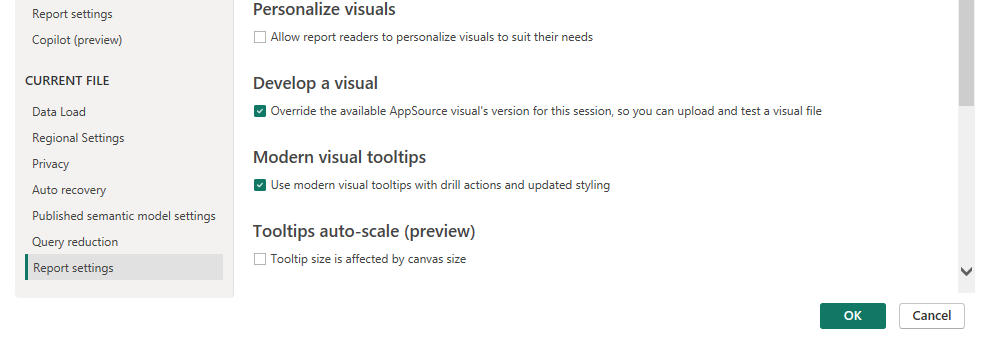
Check Format pane > Icon Map Slicer to confirm the version that is running.