
3D models
New in 1.1.0.12
The 3D Models layer draws a glTF model at each longitude and latitude: vehicles at a depot, aircraft in the sky, wind turbines on a hillside. Pick the models in the model picker, and let your data turn, raise, size, color and animate each one. Models can be selected, show tooltips and cross-highlight the report like any other layer.
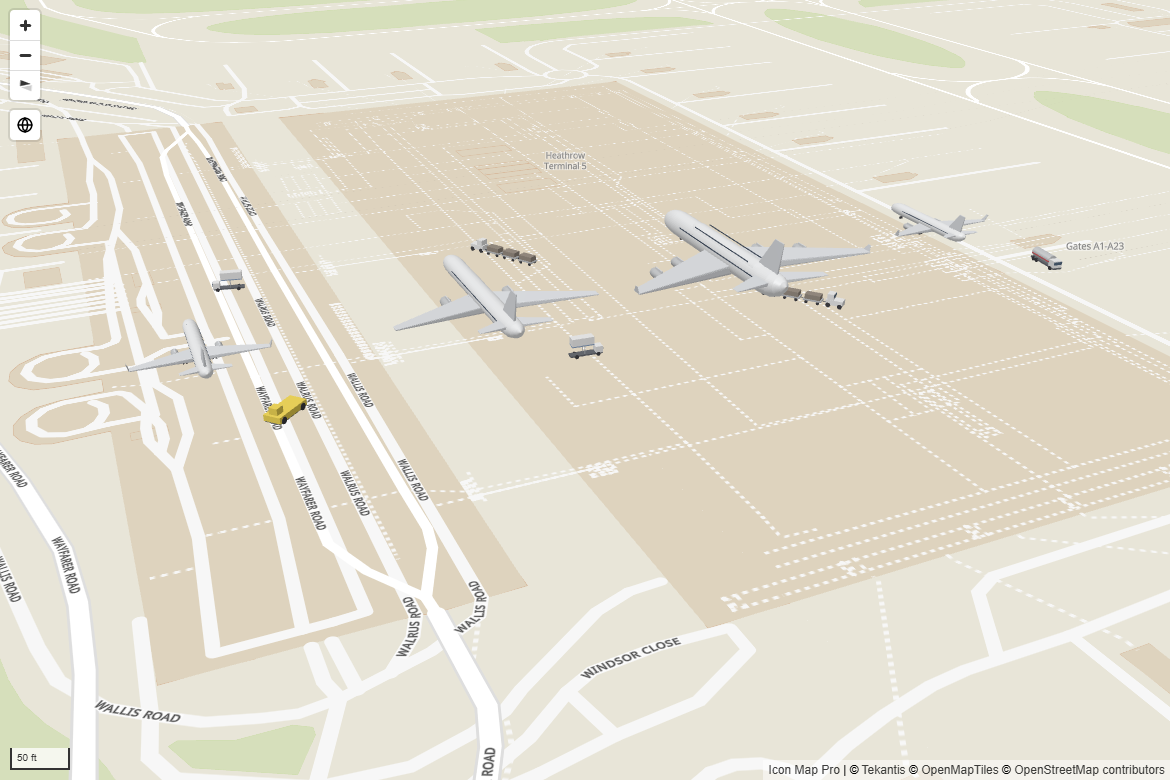
What you need
| Field well | What to put in it |
|---|---|
| * ID (required) | A unique value for each model |
| Longitude (X) | Longitude in decimal degrees, summarized as Average |
| Latitude (Y) | Latitude in decimal degrees, summarized as Average |
| Circle Size | Optional. A number that sizes each model. See Size. |
That is all the layer needs. There is no model field well: with the layer on, every point row is drawn as the default model you pick. To draw a different model on each row, use conditional formatting on Model. See A model for each row.
These fields must be empty on a model's rows: Destination Longitude, Destination Latitude, Feature Reference, Heatmap Weight and Cell (H3/S2/A5/Geohash) Weight. Image / WKT / GeoJSON must be empty too, unless Model is set by a field. See Which rows become models.
The layer needs the Modern engine. On the Legacy engine its switch is unavailable. See Modern and Legacy engines.
Add models to the map
- Add fields to * ID (required), Longitude (X) and Latitude (Y). Set the coordinates to Average.
- In the Format pane, expand Layer Manager, switch on Open Layer Manager, and select Add a layer, Data layer, 3D models. If the panel What kind of map are you making? is showing, you can select its 3D models tile instead.
- Set the options under Style and options, select Add to map, then Apply changes.
- Select the 3D models row in the Layer Manager, then Choose models. The model picker opens.
- Pick one or more models, star the one every row draws by default, and select Apply changes.
- Tilt the map to see the models from the side.
In the Format pane, the same switch is Data Layers > Data Layers > 3D Models, and 3D Models - Models > Choose models opens the picker. Until you choose a model, every row draws a car.
Turning the layer on gives it the rows that Circles, Images and icons and 3D columns would otherwise draw. See Which rows become models.
Choose models
The model picker holds the models of the layer. It opens from Choose models in the Format pane or from the Layer Manager.
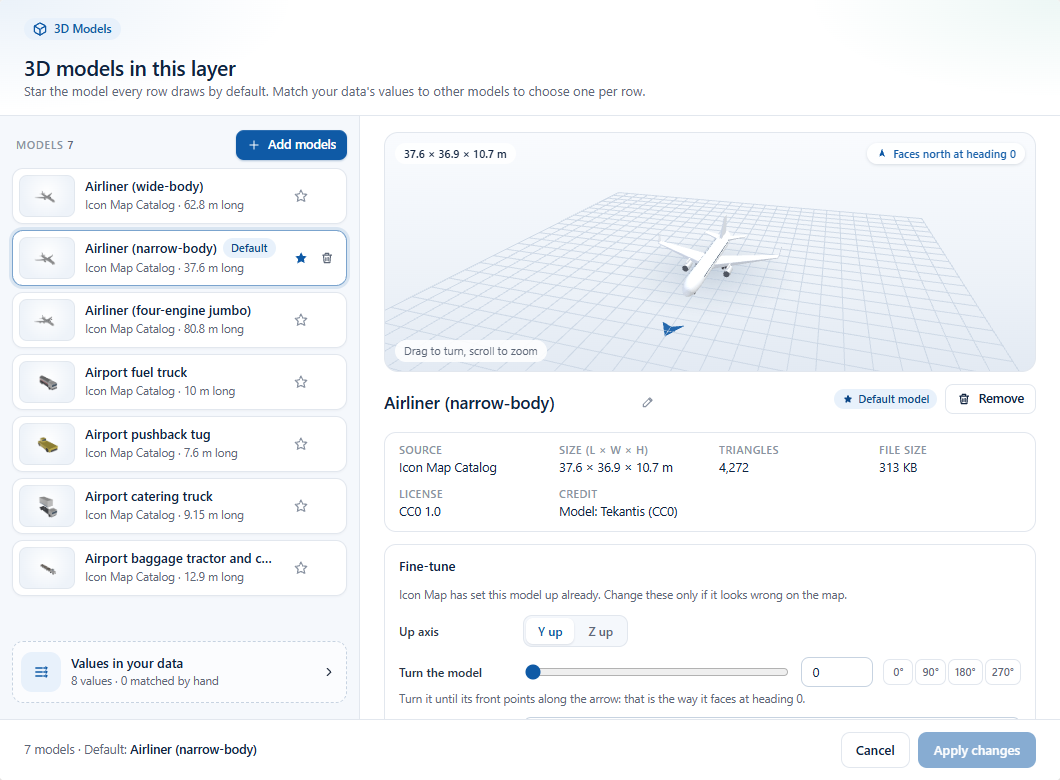
- 3D models in this layer lists the models the layer can draw. A layer with no models yet offers a few to start with: vehicles, an aircraft, a wind turbine, a mast and a substation. The star marks the Default model, which every row draws unless it picks another. Select Make default to move the star.
- Add models opens the sources:
- Icon Map Catalog - search the catalog's 3D models, for example "bus stop" or "crane", or browse them by category.
- Organization - models your organization publishes to an organizational catalog in Icon Map for Fabric. Sign in with your work account to see the ones shared with you.
- From a link - paste the
https://link to a.glbfile and select Load model. Choose from OneLake picks a.glbfile in a Fabric lakehouse. See Files in OneLake.
- Each model shows in a preview that you can drag to turn and scroll to zoom. It is turned the way the map draws it at heading 0.
- Values in your data matches the values of the Model field to models. See A model for each row.
Nothing is saved until you select Apply changes. The picker saves only which models the layer uses: conditional formatting on Model, Heading and the other settings is kept.
When Airgapped Environment is on, the picker offers From a link only. See Power BI Report Server (on-premises).
Models from a link
A model from a link must be:
- A self-contained
.glbfile (glTF 2.0), up to 25 MB, overhttps://. - On a server that allows other sites to load it (CORS). When it does not, the picker says so.
- Not compressed with Draco, meshopt or KTX2. A file that uses them is refused with a message.
Everyone who views the report loads the file from its server. If the file moves, the model disappears from the map. Models from the Icon Map Catalog and your organizational catalog are not affected.
Calibrate a model
Models from the Icon Map Catalog are already set up to face the right way at their real size. For a model from a link or from your organization, Calibrate in the picker sets:
| Setting | What it does |
|---|---|
| Up axis | Y up or Z up, whichever the file uses. |
| Turn the model | 0 to 359 degrees. Turn it until its front points along the arrow: that is the way it faces at heading 0. |
| Units | Meters, Centimeters, Millimeters or Feet: the unit the file was made in, so the model is drawn at its real size. |
| Lift (m) | Raises the model above the ground, in meters. |
For a catalog model the same panel is named Fine-tune. Change it only if the model looks wrong on the map. Reset returns a model to its original setup. Calibration belongs to the model, so every row that draws it is turned and sized the same way.
A model for each row
Leave Model empty and every row draws the default model. To choose a model per row:
- In Format pane > Data Layers > 3D Models - Models, select fx next to Model.
- Choose Field value and a field, for example a Vehicle Type column. The field does not need to be in a field well.
- Open the model picker. Values in your data lists each value with the number of rows, and the model it draws. Pick a model for each value, or select Match by name to match values to models with similar names, such as "HGV lorry" to a lorry.
A row's value picks its model in this order:
- A value you matched in Values in your data.
- The name of a model in the layer, in any case.
- A link to a
.glbfile. - Otherwise, the default model.
A row whose Model value is blank is not a model. It is left to the other layers, so the same table can draw some rows as models and others as circles or icons.
Which rows become models
While the 3D Models layer is on, a point row (a row with Longitude (X) and Latitude (Y), and none of the fields of lines, shapes, cells or heatmaps) is drawn as:
| The row | Drawn as |
|---|---|
| Model is set by a field, and the row's value is not blank | A 3D model |
| Image / WKT / GeoJSON holds an image, and Model is not set by a field | An image |
| Model is not set by a field | A 3D model, ahead of Circles, 3D columns and Images with Custom URL or Icon Library |
| Model is set by a field, and the row's value is blank | A circle, column or image, as usual |
A row with a Circle Size value is drawn as a model, and the value sizes the model. Column Height is not read on a model row.
With Model not set by a field, every point row is a model, so the Images layer has nothing left to draw when its Image Source is Custom URL or Icon Library. Set Model to a field value and leave the icon rows blank: those rows are drawn as icons.
One row is one layer. To show a circle and a model at the same place, use two rows.
Size
Size in decides what a size means:
| Size in | What it does |
|---|---|
| Meters | Models are drawn to scale, and grow as you zoom in. A size of 1 is the model's real size, 2 is twice its real size. |
| Pixels | The size is the model's height on screen in pixels, whatever the zoom. |
The size of each row comes from:
- Model height (fx), when it has a value. The model is scaled to exactly that height, in Height units. Bind a hub height or a building height and every model stands at its real height. A blank or 0 value uses the size below.
- Otherwise the Circle Size field, read as set by Size Behavior:
- Explicit - the value is the size.
- Relative - the smallest value in your data gets Minimum Size, the largest gets Maximum Size, and the rest are scaled in between.
- Otherwise Size, for rows without a Circle Size value.
Keep models easy to find
Real-size models soon get too small to see as you zoom out: a car is a fraction of a pixel on a map of a whole country. With Scale models with zoom off, the default, models in meters are never drawn smaller on screen than Minimum size in pixels (12 by default), so they stay easy to find. Turn Scale models with zoom on to draw them at their true size at every zoom.
Height and terrain
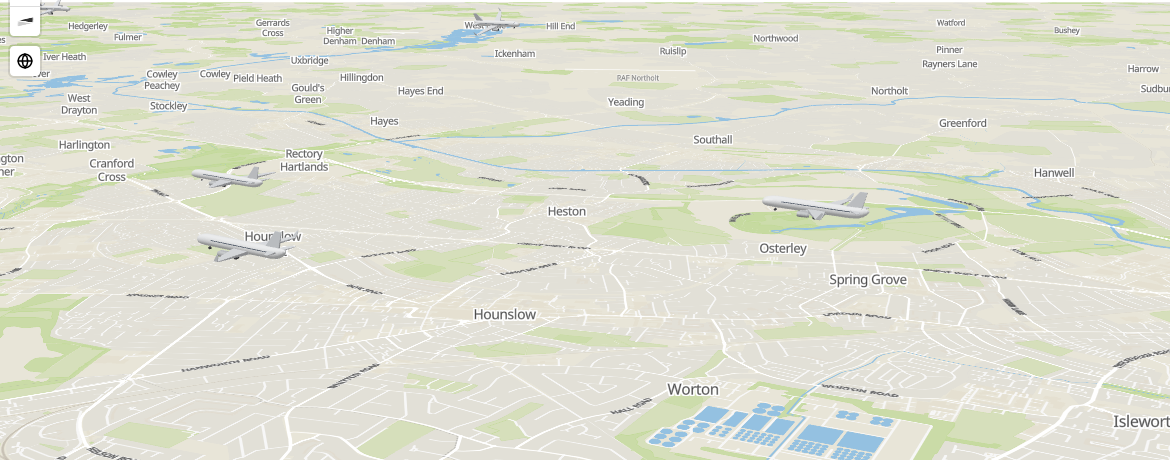
Sit on terrain decides what Height above ground is measured from:
| Sit on terrain | What the height means | Use it for |
|---|---|---|
| On (the default) | Height above the 3D terrain under the model. 0 stands the model on the ground, on hills too. | Vehicles, turbines, buildings, anything on the ground |
| Off | Height above sea level. The setting is then named Height above sea level. | Aircraft, drones, balloons |
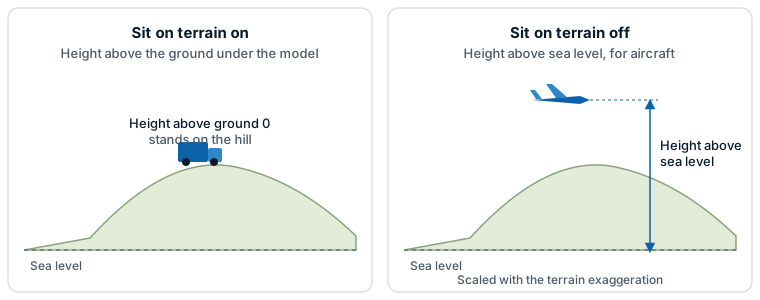
- The height takes conditional formatting (fx), so an altitude field can raise each model. Height units sets Meters or Feet for the height and for Model height.
- With 3D terrain exaggerated, a height above sea level is multiplied by the same exaggeration, so an aircraft at 300 meters stays above a 250 meter hill.
- With no 3D terrain, both choices measure from sea level.
- When the terrain loads after the models, the models move onto the ground as its tiles arrive.
See Terrain, hillshade, sky and lighting. Models are lit by the map's Light settings, like 3D columns and 3D buildings.
Turn, pitch and roll
| Setting | What it does | Range |
|---|---|---|
| Heading | The way the model faces, in degrees clockwise from north. 0 faces north, 90 east. | -360 to 360 |
| Pitch | Tilts the nose up or down. Nose up is positive. | -90 to 90 |
| Roll | Tilts the model sideways. Right wing down is positive. | -180 to 180 |
| Turn models by | Turns every model by the same amount, for a model that faces the wrong way. | 0 to 359 |
Heading, Pitch and Roll take conditional formatting (fx), so a field such as a vehicle's bearing or an aircraft's attitude can turn each model. They are applied in the order an aircraft uses: heading, then pitch, then roll, so flight data lands the right way up.
Color and animation
- Color models off keeps each model's own colors. Turn it on to tint every model with Color. Color takes conditional formatting (fx), so a measure can color each model, for example by status.
- Play animations plays the animations built into a model, such as a turbine's rotor. Models without animations are not affected.
Animation speed takes conditional formatting (fx), so a field such as wind speed can drive it. Animation speed behavior decides how the value is read:
| Animation speed behavior | What it does |
|---|---|
| Explicit | The value is the speed. 1 is the speed the model was made with, 2 twice as fast, and 0 or blank stops it. |
| Relative | Values from From value to To value are mapped onto Minimum speed to Maximum speed. A value outside that range stops the model, like a wind turbine below its cut-in speed or above its cut-out speed. An empty From value or To value uses the lowest or highest value in the data. |
Up to 200 rows of each model play their animation. The rest are drawn still, and the Format pane says how many.
Selection, tooltips and zoom
- Selection. Click a model to select its row and cross-filter or cross-highlight the report page. Hold Ctrl to add to the selection. The lasso selects models where they are drawn on screen, so an aircraft in a tilted view is selected by drawing round it. Models that are not selected fade to Unselected Items Transparency in Format pane > Interactivity. When another visual highlights rows, the models use Cross-Highlighted Items Transparency and Unhighlighted Items Transparency. See Selection, cross-filtering and highlighting.
- Tooltips. Pointing at a model shows the fields in Tooltips. Set Include Tooltip to No to turn tooltips off. See Tooltips.
- Zoom. Auto zoom, Zoom to Selected Items and Zoom to Cross-Highlighted Items frame every model at its height, so aircraft in the sky stay on screen. Set Include in Zoom to No to leave the models out.
- Labels. Models do not carry data labels.
Settings
All of these are in Format pane > Data Layers, shown when the 3D Models switch is on. Settings marked fx accept conditional formatting.
3D Models - Models
| Setting | What it does | Default |
|---|---|---|
| Choose models | Opens the model picker. The switch turns itself off again. The line below it names the models in the layer. | Off |
| Model | Empty draws the default model on every row. Set a field value to choose a model per row: a value matched in the model picker, a model's name, or a link to a .glb file. Rows whose value is blank are left to the other layers. fx |
Empty |
A model that cannot be drawn is named in this group, with the reason.
3D Models - Size and placement
| Setting | What it does | Default |
|---|---|---|
| Size in | Meters or Pixels. | Meters |
| Size Behavior | Explicit: the Circle Size value is the size. Relative: the smallest to largest value maps onto Minimum Size to Maximum Size. | Explicit |
| Size | The size of rows without a Circle Size value, 0 to 100,000. | 1 |
| Minimum Size, Maximum Size | The sizes for the smallest and largest value. Shown for Relative. | 0.5, 3 |
| Model height | Makes each model exactly this tall, in Height units. 0 or blank uses the size. fx | 0 |
| Height units | Meters or Feet, for Model height and the height above the ground or sea level. | Meters |
| Scale models with zoom | On: models are drawn at their true size and shrink as you zoom out. Off: they are never smaller than Minimum size in pixels. | Off |
| Minimum size in pixels | The smallest a model is drawn on screen, 1 to 200. Shown when Scale models with zoom is off. | 12 |
| Sit on terrain | On: the height is measured from the terrain. Off: it is the height above sea level. | On |
| Height above ground (Height above sea level with Sit on terrain off) | How high each model is drawn, -100,000 to 100,000. fx | 0 |
3D Models - Orientation
| Setting | What it does | Default |
|---|---|---|
| Heading | Degrees clockwise from north. fx | 0 |
| Pitch | Degrees, nose up positive. fx | 0 |
| Roll | Degrees, right wing down positive. fx | 0 |
| Turn models by | Turns every model, 0 to 359 degrees. | 0 |
3D Models - Color and animation
| Setting | What it does | Default |
|---|---|---|
| Color models | Tints every model with Color. Off keeps the models' own colors. | Off |
| Color | The tint. Shown when Color models is on. fx | #1F6FD6 |
| Play animations | Plays the animations built into the models. | Off |
| Animation speed behavior | Explicit or Relative. See Color and animation. Shown when Play animations is on. | Explicit |
| Animation speed | The speed, or the value mapped onto a speed. 0 stops the animation. fx | 1 |
| From value, To value | The range of values that animate. Empty uses the lowest and highest values in the data. Shown for Relative. | Empty |
| Minimum speed, Maximum speed | The speeds for From value and To value, 0 to 100. Shown for Relative. | 0.3, 1.6 |
3D Models - Interaction and visibility
| Setting | What it does | Default |
|---|---|---|
| Allow Selection | Whether models can be selected. | Yes |
| Include Tooltip | Whether models show a tooltip. | Yes |
| Include in Zoom | Whether models count toward the area the map zooms to. | Yes |
| Min Zoom | Models are hidden when the map is zoomed out past this level. 0 to 24. | 0 |
| Max Zoom | Models are hidden when the map is zoomed in past this level. 0 to 24. | 24 |
| Z-Index | Drawing order among the layers. Higher draws on top. 0 to 1000. | 450 |
In the Layer Manager
Select the 3D models row in the Layer Manager to change:
- Size and placement - Size in, Size Behavior, Size, Scale models with zoom, Sit on terrain and Turn models by.
- Color and animation - Color models, Color and Play animations.
- Interaction - Allow Selection, Include Tooltip and Visible at zoom.
Choose models opens the model picker. Heading, size and the other values per row are set with conditional formatting in the Format pane. See Edit, reorder and remove layers.
Tips and limits
- Cannot see the models? Real-size models are small on a map of a large area. Keep Scale models with zoom off, raise Size, or zoom in. Tilt the map to see them from the side.
- A model faces the wrong way. Calibrate it in the model picker, so every row that draws it is fixed. Turn models by turns every model in the layer instead.
- A model draws nothing. The Format pane names the model and the reason, for example a server that does not allow the file to be read, or a file compressed with Draco.
- Models are drawn on the flat map and on the globe. On the globe, models on the far side are hidden.
- Each row is one model. A layer can draw tens of thousands of rows of a few models. Animated models are limited to 200 rows each.
- Only
.glbfiles are read. A.gltffile with separate files beside it cannot be used: pack it into a.glbfile first.