
Icon Map Lite documentation
Icon Map Lite is a map visual for Power BI, for reports where a certified visual is a hard requirement. It draws your report data as circles, images, heatmaps, cells, 3D columns, lines and shapes over a world map that is built into the visual, and it makes no network requests. These pages show you how to build a map and explain every setting.
If your organization does not require a certified visual, use Icon Map Pro or Icon Map Slicer. They are the most capable mapping visuals for Power BI, with detailed basemaps for the whole planet and layers read from servers and links, which Lite cannot offer. Lite, Pro and Slicer sets out what Lite does not do.
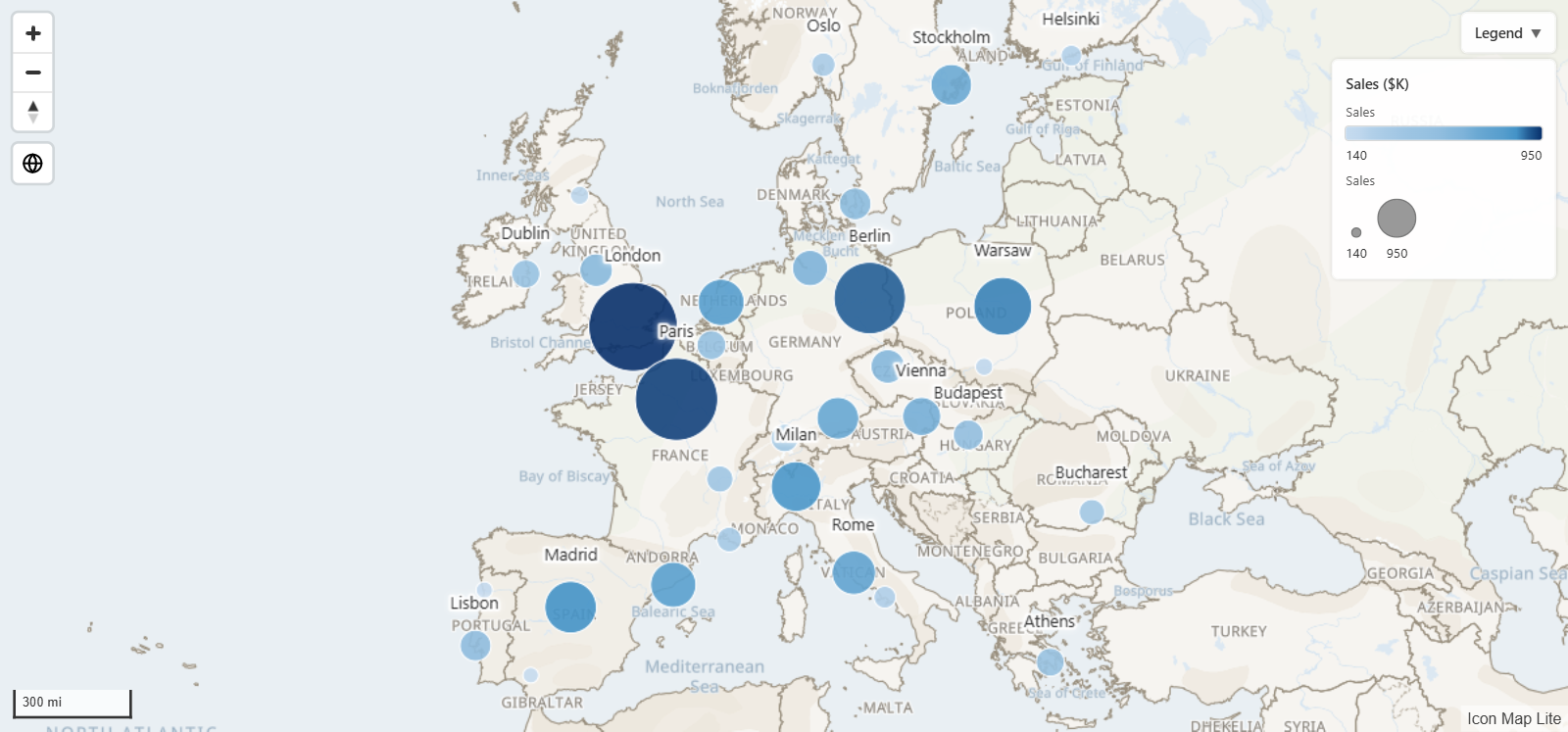
Start here
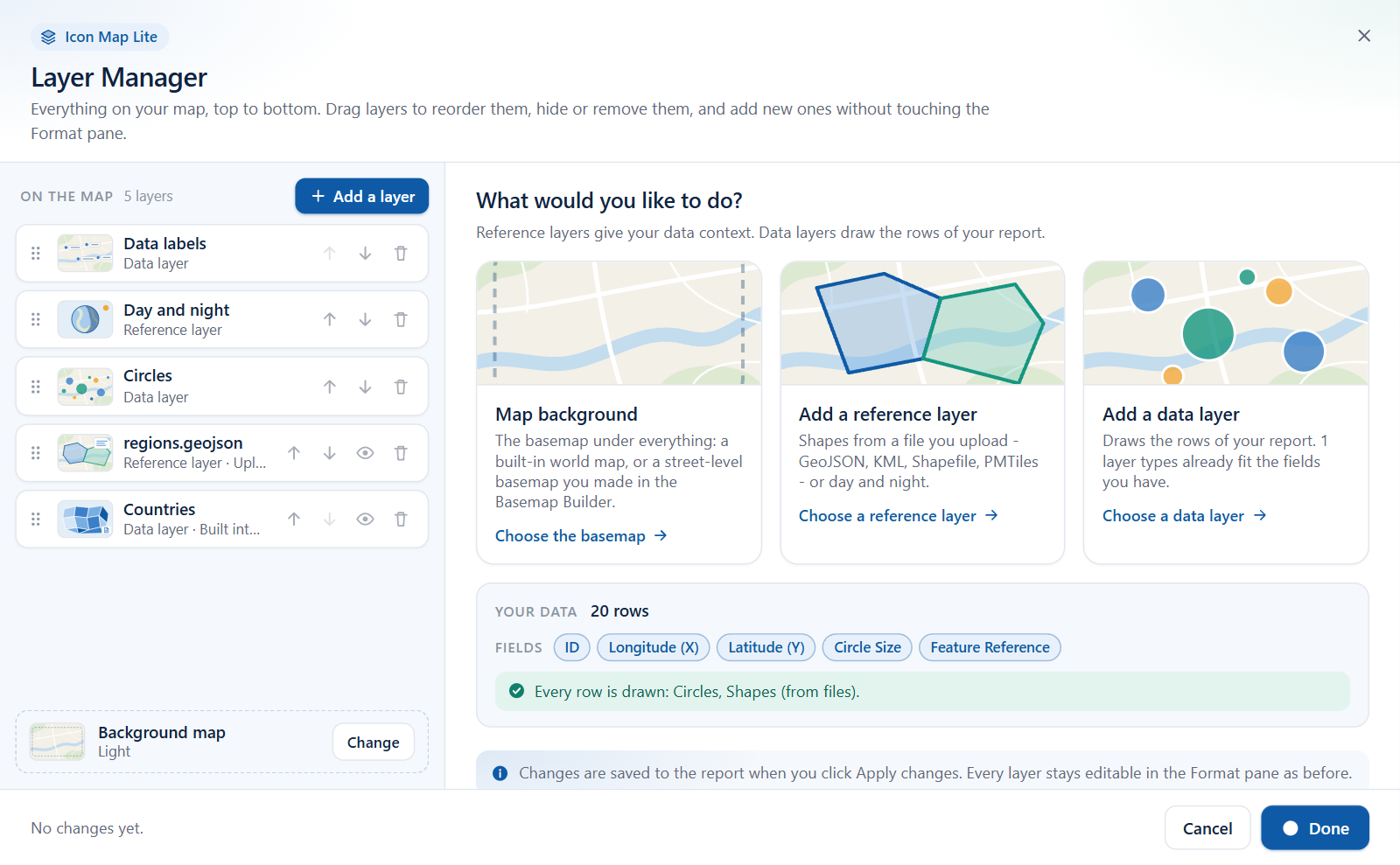
The Layer Manager
New in 1.0.1.2
The Layer Manager is a dialog that shows every layer on your map in drawing order. Use it to add data layers and reference layers step by step, restyle them, reorder, hide or remove them, and see how many of your rows each layer draws. Its Background map page picks the built-in theme and uploads a custom basemap. Every setting it writes is also in the Format pane.
Browse by topic
Where Icon Map Lite works
Icon Map Lite works in Power BI Desktop and the Power BI service. It does not support Power BI Report Server, Publish to web, Power BI Embedded or government clouds such as GCC. See Supported environments and privacy.
Versions and languages
Use the version menu at the top of any page to match the documentation to the version of Icon Map Lite in your report. The version number is shown on the page you see when the visual has no fields, and in Format pane > Icon Map Lite once it has data. What's new lists the main changes in each version.
Icon Map Lite is available in English, German, Spanish, French and Portuguese, and the place names on the built-in map follow the same language. See Languages.