
Add a layer
The Layer Manager adds a layer in a few guided steps: pick the type, say where its shapes come from if it needs any, choose its main options, and add it to the map. This page lists every tile and every step.
The quick path
- Open the Layer Manager and select Add a layer above the list of layers.
- Choose Reference layer for context such as boundaries from a file or day and night shading, or Data layer to draw the rows of your report.
- Select a tile. The wizard for that layer type opens.
- Work down the numbered steps.
- Select Add to map. The layer joins the list with a New badge. For an uploaded file, select Choose a file instead: the upload window opens.
- Select Apply changes to save the report and see the layer on the map.
You can also start from the home view with the cards Add a reference layer and Add a data layer.
How the wizard works
- The title reads Add followed by the layer type. The trail above it (Layers › Data layer › Circles, for example) takes you back to the picker or the home view.
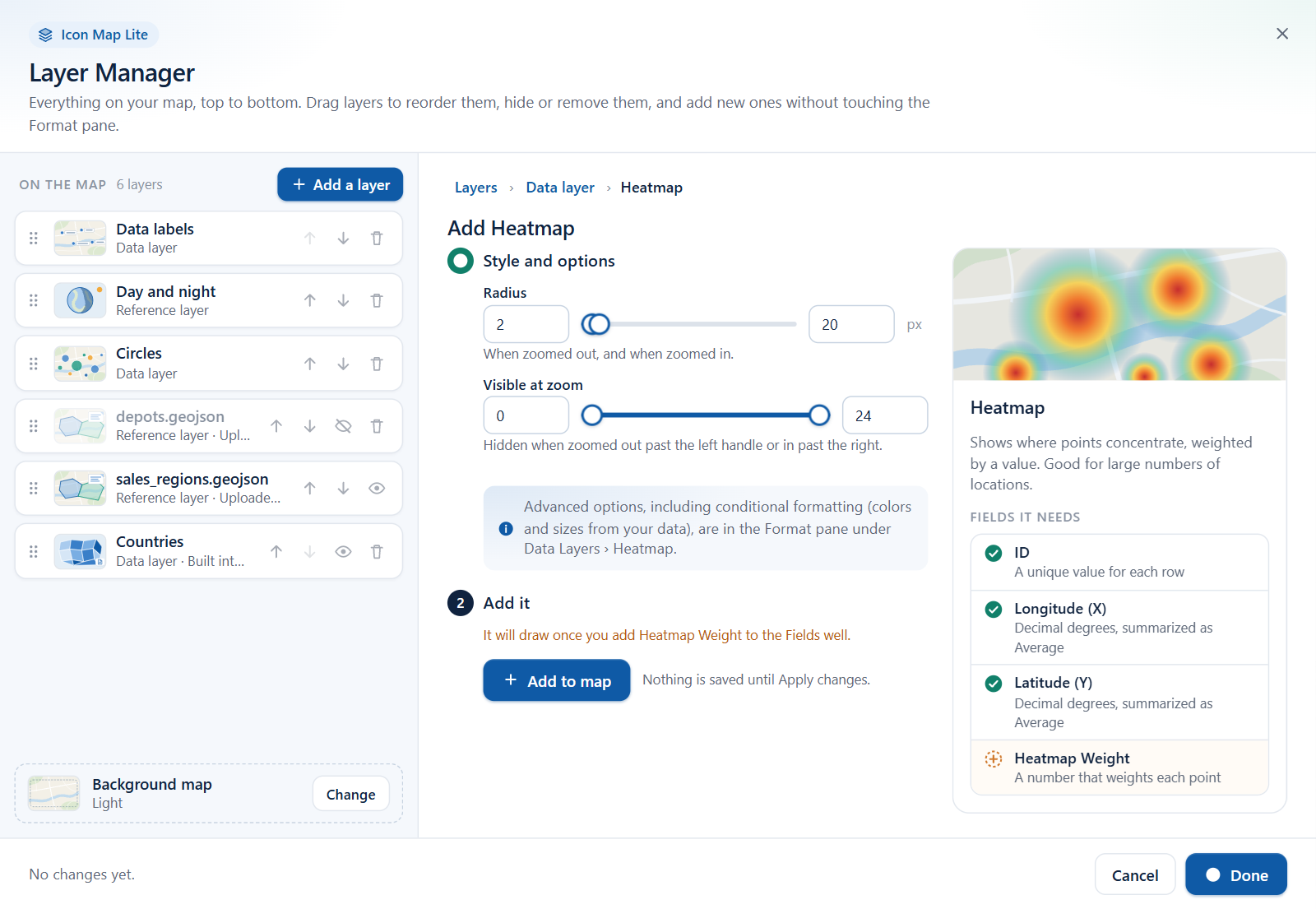
- The numbered steps are on the left. They are numbered as they appear, and a finished step shows a mark instead of its number. On the right is a panel with the layer type's picture and description. For data layers it also lists Fields it needs, with a tick against each field you have already added.
- Choices you make in the steps wait until you add the layer. For most layers the last step is Add it, with the Add to map button and the reminder "Nothing is saved until Apply changes."
- A data layer whose fields are not all in the visual can still be added. The last step tells you which fields to add: "It will draw once you add ... to the Fields well."
After Add to map, the right column confirms that the layer is on the list, for example "Circles is on the list", and offers three buttons:
| Button | What it does |
|---|---|
| Apply changes | Saves everything and closes the dialog. |
| Style it | Opens the new layer's editor. |
| Add another layer | Returns to the picker you came from. |
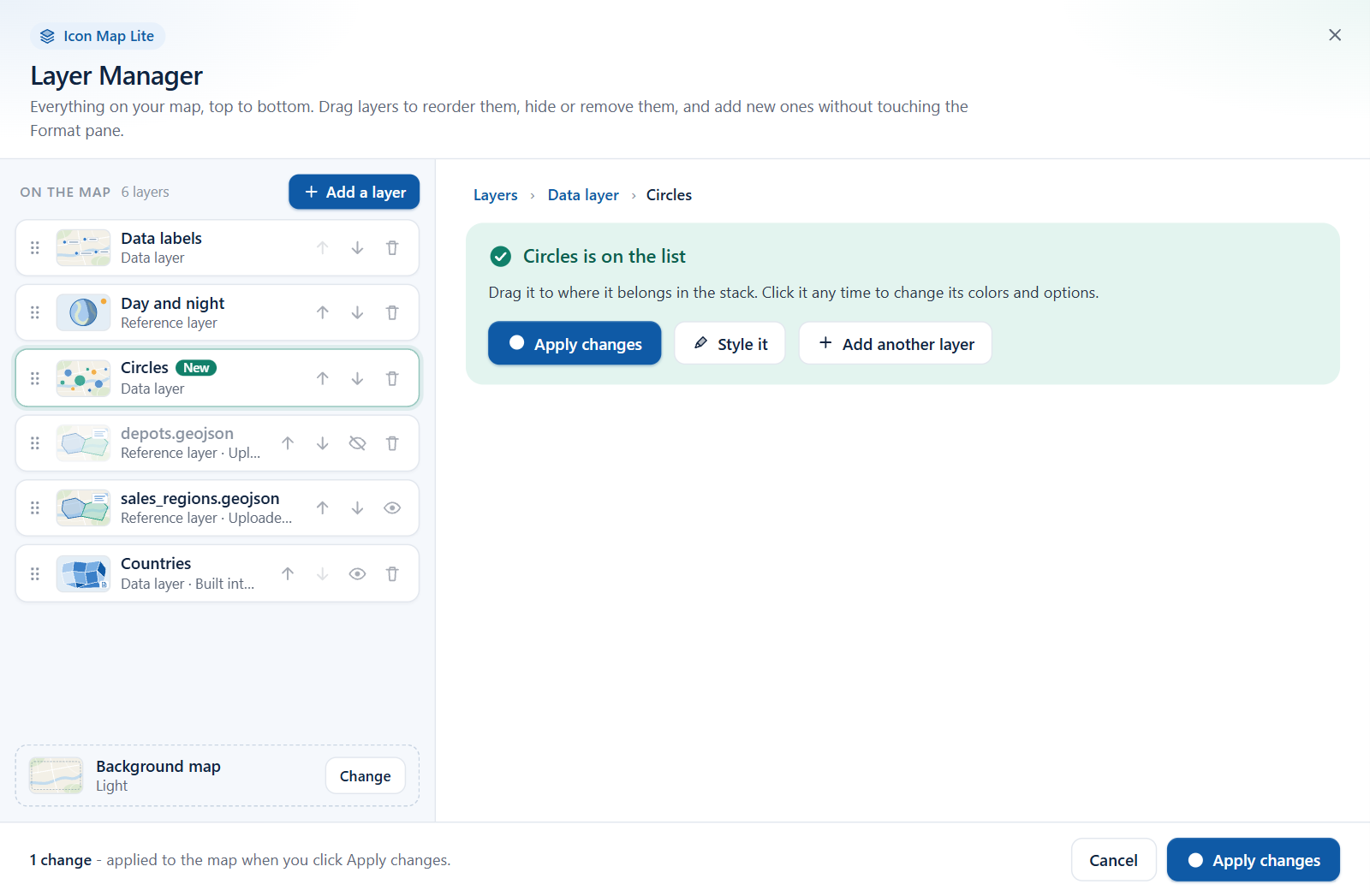
A new layer takes its default place in the drawing order. Drag it in the list if it belongs higher or lower. See Edit, reorder and remove layers.
Reference layer tiles
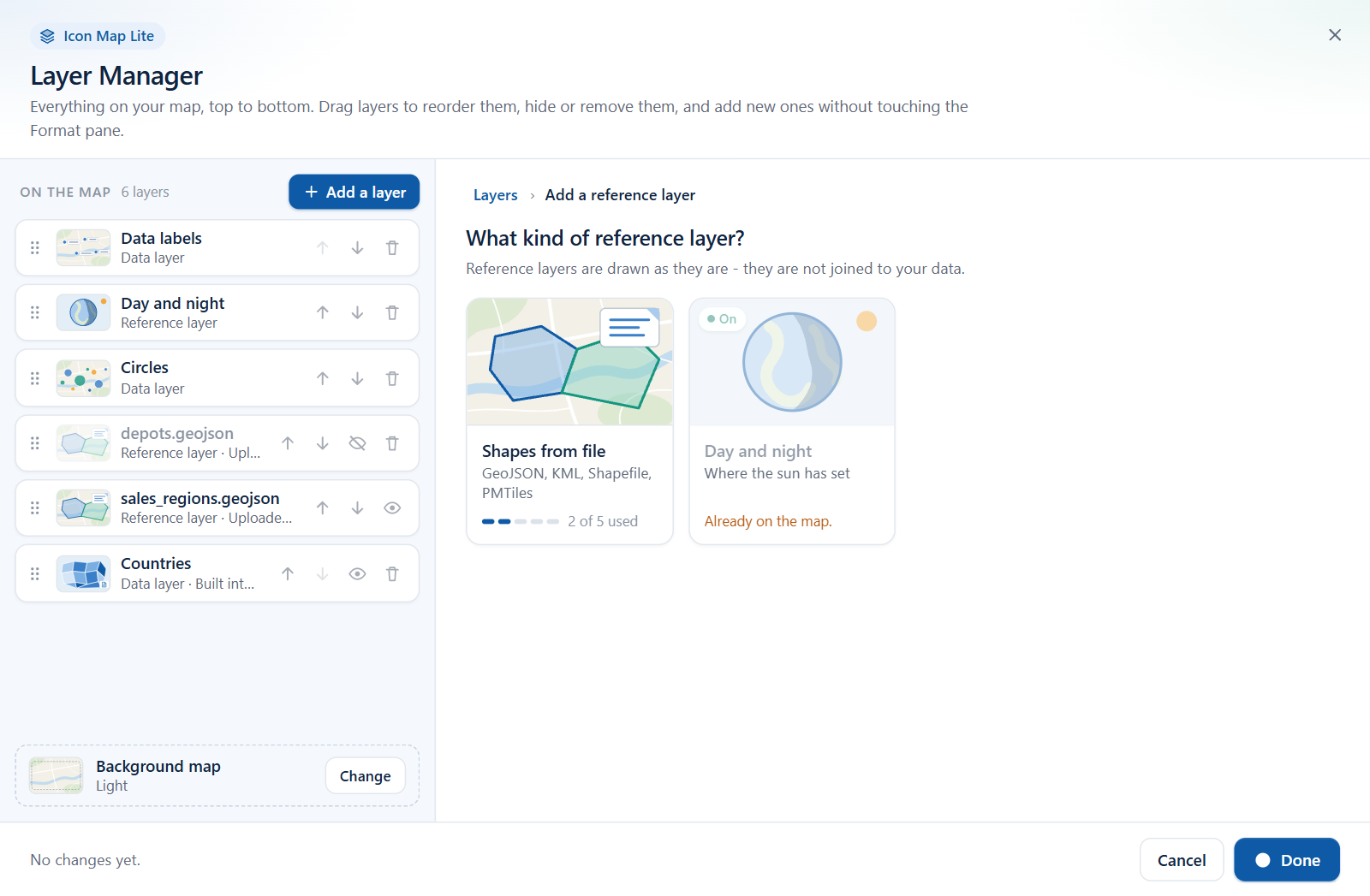
The picker is titled What kind of reference layer?. Reference layers are drawn as they are. They are not joined to your data.
| Tile | What it adds | How many | Where it comes from |
|---|---|---|---|
| Shapes from file | Boundaries, points or routes from a file you upload: GeoJSON, TopoJSON, KML, a zipped Shapefile, IMDF or a PMTiles archive. The file is stored in the report. | 5 | Upload |
| Day and night | Shades the part of the world where the sun has set. | 1 | A few options |
Icon Map Lite reads nothing from the internet, so there are no reference layers from links, tile services or other providers. See Reference layers overview.
What the tiles tell you
- Shapes from file shows dots and a count, for example "2 of 5 used".
- Day and night reads "A few options", or shows an On badge when it is already on the map.
- A tile you cannot use is dimmed and gives the reason: "All 5 are in use." when every slot of Shapes from file is taken, or "Already on the map." for Day and night.
Data layer tiles
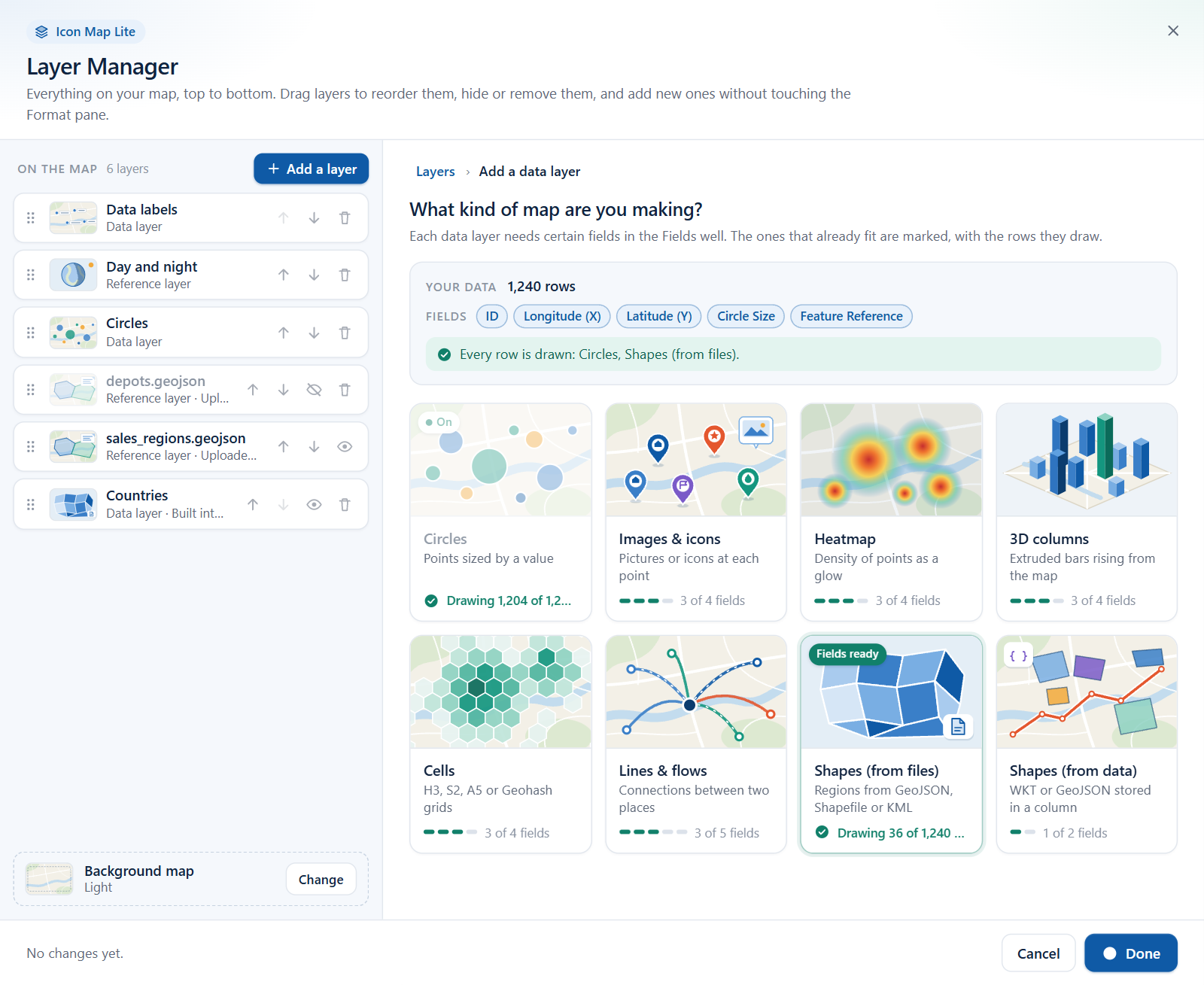
The picker is titled What kind of map are you making?, like the layer guide, and offers the same eight layer types. Each data layer needs certain fields in the visual. The tiles that already fit your fields are marked, with the number of rows they would draw. The Your data panel sits above the tiles: see Check your data.
| Tile | What it draws | Fields it needs | How many |
|---|---|---|---|
| Circles | A circle at each location, sized and colored by your data. Nearby circles can be clustered. | ID, Longitude (X), Latitude (Y), Circle Size | 1 |
| Images & icons | An image, or text and emoji, at each location. | ID, Longitude (X), Latitude (Y), Image / WKT / GeoJSON (not needed when the images are text or emoji) | 1 |
| Heatmap | Where points concentrate, weighted by a value. Good for large numbers of locations. | ID, Longitude (X), Latitude (Y), Heatmap Weight | 1 |
| 3D columns | A 3D column at each location with its height set by your data. | ID, Longitude (X), Latitude (Y), Column Height | 1 |
| Cells | Points aggregated into a grid of H3, S2, A5 or Geohash cells, or cells drawn from their IDs. | Points: ID, Longitude (X), Latitude (Y), Cell Weight. Cell IDs: ID (the cell ID), Cell Weight | 1 |
| Lines & flows | Lines, arcs or flows from an origin to a destination. | ID, Longitude (X), Latitude (Y), Destination Longitude, Destination Latitude | 1 |
| Shapes (from files) | Boundaries colored by joining each shape to a row of your data: the built-in boundaries or a file you upload. | ID, Feature Reference | 5 |
| Shapes (from data) | Polygons and lines whose geometry is held in your dataset as WKT or GeoJSON text. | ID, Image / WKT / GeoJSON | 1 |
"Cell Weight" is the field the Build pane calls Cell (H3/S2/A5/Geohash) Weight. For every field, see the Fields reference.
Badges and status on data tiles
| On the tile | Meaning |
|---|---|
| Fields ready | Every field the layer needs is in the visual. |
| On | The layer is already on the map. Shapes (from files) can be added up to five times, so it keeps showing Fields ready instead. |
| "Would draw 1,240 rows" | The layer is off, and this many rows fit it. |
| "All fields ready" or "2 of 4 fields" | The layer is off. A dot per field shows how many of its fields you have added. |
| "Drawing all 1,240 rows" or "Drawing 1,180 of 1,240 rows" | The layer is on and drawing. |
| "On, but needs ..." or "On, but no rows reach it" | The layer is on but draws nothing. Open the layer from the list to see why. |
A data layer type you can add once cannot be added again while it is on: its tile shows its drawing status, and you select its row in the list to edit it. The reason "Already on the map." appears only on reference tiles such as Day and night.
A dimmed tile gives its reason:
| Reason on the tile | When |
|---|---|
| "All 5 are in use." | Every slot of Shapes (from files) is taken. |
| "This report uses the older Shapes layer: set it up in the Format pane." | The report was built with the earlier, single Shapes layer. |
Steps for each layer type
Layers with options only
Day and night, Circles, Images & icons, Heatmap, 3D columns, Cells, Lines & flows and Shapes (from data) have two steps.
- Style and options - the same fields as the layer's editor. Change what you want, or leave the defaults. The fields are listed in Edit, reorder and remove layers.
- Add it - select Add to map.
Shapes from file
- Style and options - fill, outline, points, labels, tooltips, visibility and zoom range.
- Upload - select Choose a file. The file upload window opens for a GeoJSON, TopoJSON or KML file, a zipped Shapefile, an IMDF archive or a PMTiles archive. The Layer Manager closes while you upload and comes back when the upload is done.
See Shapes from file for the upload window and its size limits.
Shapes (from files)
- Which shapes? - choose one:
- Built-in boundaries - countries, or states and provinces, already in the visual. Nothing to find or upload.
- Upload a file - your own boundaries, stored in the report, up to 25 MB.
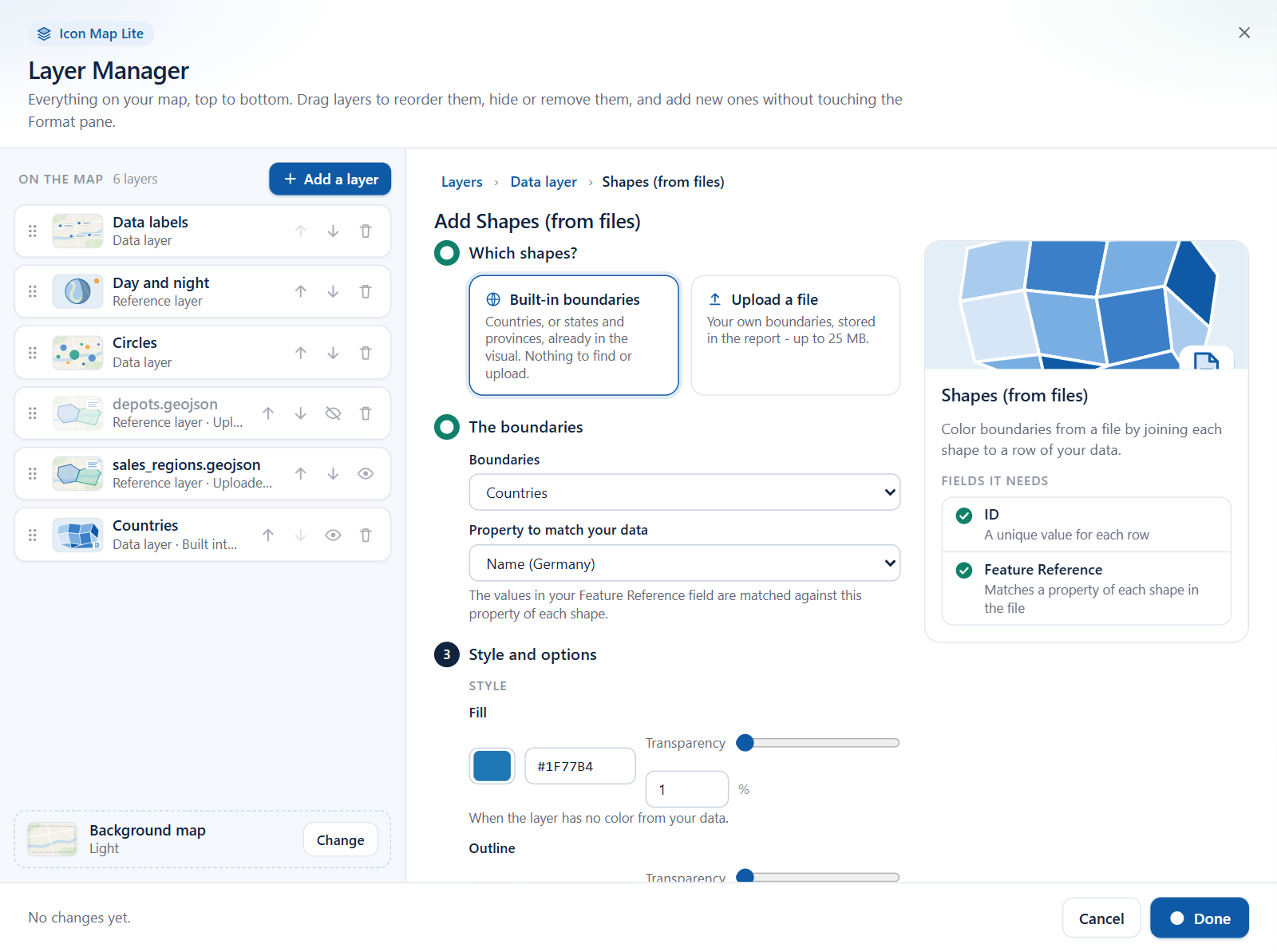
If you chose Built-in boundaries, these steps follow:
- The boundaries - two dropdowns:
- Boundaries - the set: Countries, Countries, split or States and provinces.
- Property to match your data - the property of each shape that your Feature Reference values are matched against. Each choice shows an example value from the set.
- Style and options - fill, outline, visibility, zoom range and tooltip.
- Add it - select Add to map.
| Boundaries | Property to match your data (example) |
|---|---|
| Countries | Name (Germany), ISO 3166-1 alpha-2 (DE), ISO 3166-1 alpha-3 (DEU), Natural Earth code (DEU) |
| Countries, split | Name (England), Map unit code (ENG), Country code (GBR) |
| States and provinces | Name (Texas), ISO 3166-2 (US-TX), Country code (USA) |
Countries, split divides some countries into their parts, for example England, Scotland, Wales and Northern Ireland.
If you chose Upload a file, these steps follow:
- Style and options - as above.
- Upload - select Choose a file. The upload window opens for a GeoJSON, TopoJSON or KML file, a zipped Shapefile or a PMTiles archive. You pick the property that matches your data as you upload.
When you add a second Shapes (from files) layer, Display multiple layers as is set to Multiple Layers so that both are drawn together, unless the report already uses the layers as drill-down levels. See Shapes from files and built-in boundaries.
What a new layer is called
| Layer | Name in the list |
|---|---|
| Shapes from file | The uploaded file's name, or "File 2" (with its slot number) until a file is uploaded. |
| Shapes (from files) | The built-in set's name, such as "Countries", or the uploaded file's name, or "Shapes 2" until a file is uploaded. |
| Every other layer | The layer type, such as "Heatmap" or "Lines & flows". Circles and Images & icons have a row each, even when both are on. |
There is no rename.
Windows that open on the way
Power BI shows one dialog at a time. These buttons need another window, and the Layer Manager closes while it is open.
| Button | Window | When you return |
|---|---|---|
| Choose a file, in the Upload step | The file upload window | The Layer Manager reopens. The footer reads "The uploaded file is on the map and saved." |
| Upload a basemap file or Replace the basemap file, on the Background map page | The file upload window, for an .imbase file | The Layer Manager reopens. The footer reads "The basemap file is saved." and the map switches to Custom. |
| Open the Basemap Builder, on the Background map page | The Basemap Builder on icon-map.com, in your browser | The Layer Manager does not reopen. Open it again when you are ready to upload the file you made. |
What happens:
- The Layer Manager saves every change you have made so far, as if you had selected Apply changes.
- The other window opens.
- After an upload, the Layer Manager reopens on its home view. Layers you added keep their New badge.
Because your changes are saved before the other window opens, Cancel afterwards does not undo them. If you close the upload window without uploading a file, the layer you started is still on the list, marked "No file yet". Remove it with the bin button on its row, or select it and upload a file with Replace the file or Change the shapes.
Tips and limits
- Everything you add is built into the visual or uploaded and stored in the report. The Layer Manager never asks for a link.
- Shapes from file and Shapes (from files) have five slots each. Every other layer type can be added once.
- Data labels are not a tile. Switch them on in Format pane > Labels > Content > Display Label; they then appear in the list. See Data labels.
- To take colors or sizes from your data, add the layer here, then set conditional formatting (fx) in the Format pane. See Conditional formatting.
- Custom shapes for Cells, and clustering options beyond the on/off switch, are set up in the Format pane. See Cells: H3 hexagons and grids and Clusters.