
Troubleshooting
Most problems fall into four groups: a license page, a blank map, data that does not draw, or shapes that do not pick up your data. Work through them in this order.
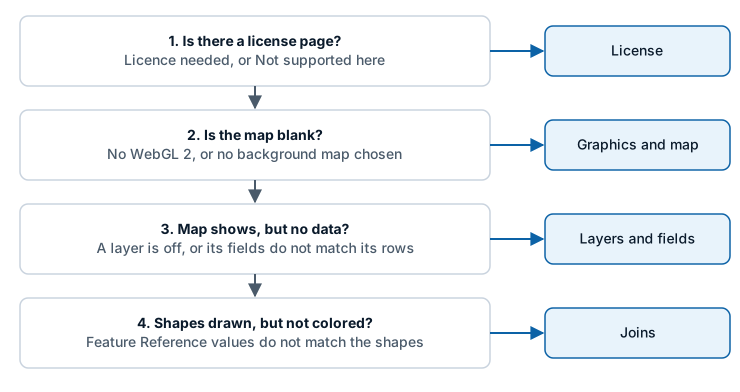
1. The visual shows a license page
| You see | What it means | Do this |
|---|---|---|
| License needed and "Get Icon Map Lite to see this map" | Power BI reports that you have no Icon Map Lite license | Start the free trial or buy a license from the buttons on the page, or ask whoever manages your licenses to assign you one |
| The same page, right after you bought a license | The license has not reached Power BI yet | Close and reopen the report. In the Power BI service press F5. Then check in the Microsoft 365 admin center that the license is assigned to you |
| Not supported here and "Icon Map Lite does not support this environment" | The report is open somewhere Power BI cannot report licenses, such as Report Server, Publish to web, Power BI Embedded or a government cloud | Icon Map Lite works in Power BI Desktop and the Power BI service only. Use Icon Map Pro or Icon Map Slicer there, or select Contact us about options |
See How Icon Map Lite is licensed.
2. The map is blank
Icon Map Lite makes no network requests, so a blank map is never caused by a blocked address or a firewall. Check these instead.
WebGL 2 is not available
Icon Map Lite needs WebGL 2. Where it is missing, the map is not drawn and a message starting "WebGL 2 is not available in this environment." gives the reason the browser reported.

- Enable hardware acceleration in your browser settings.
- Update your graphics drivers.
- On a virtual desktop (VDI, Citrix, RDP), ask your IT administrator about enabling GPU passthrough.
- Try a different browser.
The background map is set to None or Custom
| Check | What you see | Fix |
|---|---|---|
| Background Layer > Map > Background map is None | No map at all: the report page shows through, and only your data is drawn | Choose a theme such as Light |
| Background map is Custom, and no file is uploaded | No map, as with None. Custom basemap shows "Create a custom basemap at icon-map.com/products/lite/basemap-builder" | Upload an .imbase file with Upload basemap file, or choose a built-in theme |
| Background map is Custom, and the map is moved away from the file's area | A custom basemap covers one area. Outside it there is no background, and the built-in world map is not drawn under it | Move back to the area, or set a default view inside it with Auto Zoom off. See View, zoom and projection |
| Custom basemap shows "The stored basemap could not be opened" | The uploaded file cannot be read | Upload the file again, or build a new one with the Basemap Builder |
See The background map and Custom basemaps (.imbase).
Power BI shows its own message in place of the visual
If your organization does not allow visuals from AppSource, or allows certified visuals only, Power BI replaces the visual with a message about your admin settings. Ask your Power BI administrator. See Certification, security and privacy.
3. The map shows, but a data layer draws nothing
Each row is drawn by the layer whose fields it fills in. A layer draws nothing when it is switched off, when a field it needs is missing, or when its rows also fill in a field that belongs to another layer.
Let the Layer Manager explain it
Open Format pane > Layer Manager > Open Layer Manager. The Your data panel shows how many rows the visual received and whether every row is drawn. For a layer that is on but draws nothing, the Layer Manager explains why using example rows from your data, and suggests a fix. See Check your data.
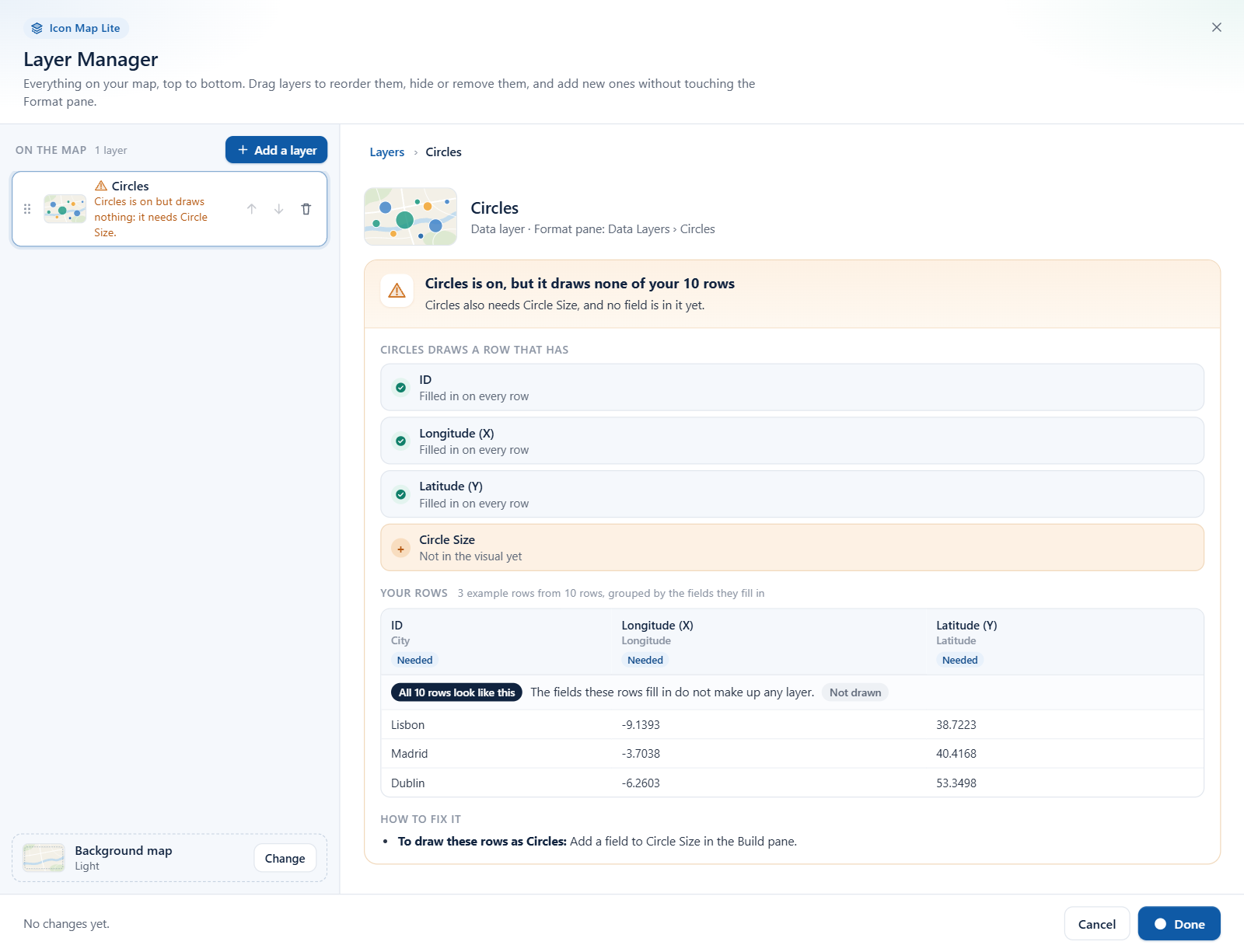
Check these in turn
| Check | How |
|---|---|
| The layer is switched on | Format pane > Data Layers > Data Layers |
| The visual has an ID | * ID (required) must hold a field. Without it Power BI sends no rows |
| The layer has every field it needs | See Fields reference |
| Its rows leave other layers' fields empty | A column in a field well has a value on every row. Use a measure that returns BLANK() on the rows that belong to another layer. A zero is a value, not an empty field. See Combine several layers in one map |
| Longitude and latitude are not summed | Set Longitude (X) and Latitude (Y) to summarize as Average |
| The values are valid | A coordinate out of range, or text where a number is expected, stops a row being drawn |
| Images are held in your data | Icon Map Lite reads no images from the web. A row whose image is a web address is not drawn. Use a data: URI, SVG markup or the word pin, or set Image Source to Text or emoji. See Images and icons |
| Rows are not being cut off | Power BI sends 30,000 rows by default. See Data rows and limits |
| A filter or slicer is not removing every row | Clear the filters on the visual and the page |
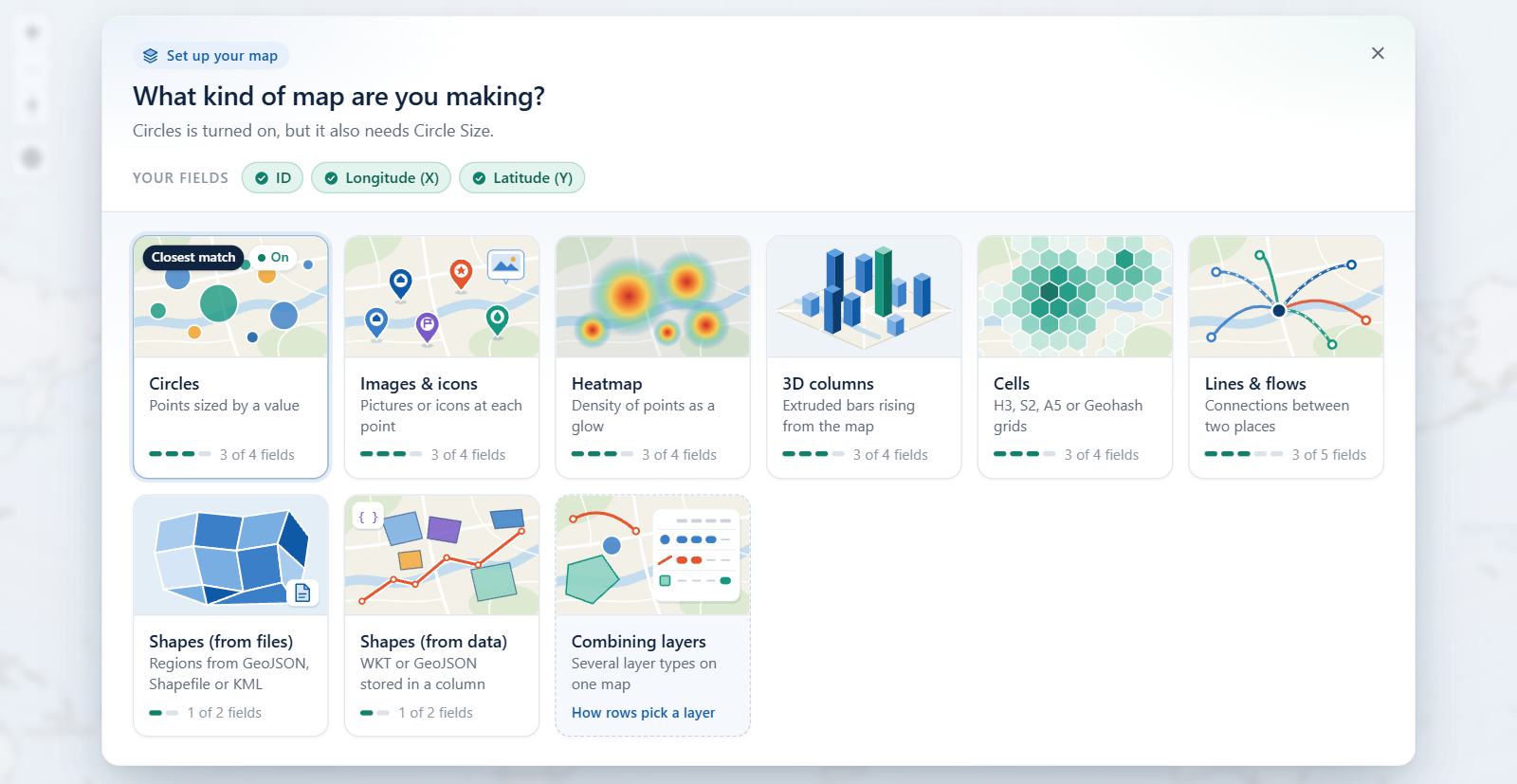
While you edit a map whose rows reach no layer, the "What kind of map are you making?" guide appears over the map and shows which fields each layer type needs. See Choose a layer type.
See what Power BI is sending
To see the values the visual receives, including values from measures, copy the map visual, paste the copy on the same page and change it to a table. The table shows one row per ID with the value of every field.
Shapes from WKT or GeoJSON text are missing
Power BI can hold 32,766 characters in one text value. A longer shape is cut off and cannot be drawn. Check the length with a measure such as WKT Length = LEN ( MAX ( 'Table'[WKT Column] ) ), and see Shapes from data (WKT and GeoJSON) for ways to shorten shapes.
4. Shapes are drawn, but not colored by your data
Shapes from a file or the built-in boundaries are joined to your rows through Feature Reference.
| Check | How |
|---|---|
| The join property is the right one | In the layer's configuration group, Property to Match to Feature Reference Field must name the property that holds the same codes or names as your Feature Reference field |
| The values match exactly | For the built-in boundaries, the pane shows an example of what your data should look like, such as a country name or an ISO code. Compare your values with it |
| The rows are not also points | A row with a longitude and latitude is not joined to a shape. Leave those fields empty on shape rows |
| The color comes from your data | Set Fill Color with conditional formatting (fx). See Conditional formatting |
See Shapes from files and built-in boundaries.
Other problems
The background map has no detail when I zoom in
The built-in world map covers zoom levels 0 to 3, from world to country scale. Beyond that it adds no detail, while your data stays sharp. For street-level detail of one area, upload a custom basemap. See Custom basemaps (.imbase).
An upload is refused
| Message | Fix |
|---|---|
| "This archive is ... MB. The most that can be stored in a report is 25 MB ..." | Rebuild the PMTiles archive with a lower maximum zoom or fewer layers |
| "This file is ... MB. The most a report can store is 25 MB." | Build a smaller custom basemap, for example of a smaller area or without buildings |
| "This is an .imbase basemap, not a layer. ..." | Upload it under Background Layer, with Background map set to Custom |
| "This is a PMTiles archive. A custom basemap is an .imbase file ..." | Upload the archive as a data layer or reference layer, or build an .imbase file with the Basemap Builder |
| "Unable to process. ZIP file must contain .shp, .dbf and .prj files" | Zip the shapefile together with its .dbf and .prj files |
A fix or feature in the release notes is not there
Check the version that is running in Format pane > Icon Map Lite. Power BI uses the version AppSource has published. See Release notes.
Tooltips or selection do nothing
Check Include Tooltip and Selectable in the layer's settings. To select by lasso or radius, the tools must be turned on in Format pane > Selection > User Selection. See Select and filter with the map and Tooltips.
The visual is in the wrong language
The visual follows the report's language. See Languages.
Still stuck?
Get support. Include the version number, whether the report is open in Power BI Desktop or the Power BI service, and what you have already checked.