
You are reading the Icon Map Lite documentation for version 1.0.1.2, which has not been released yet. Go to the latest version (1.0.1.1).
Filter by the map's location
Icon Map Lite can filter your report by where the map is looking. Pan or zoom the map, and the other visuals on the page show only the rows whose longitude and latitude are inside the view. The map becomes a way to explore the whole report by place.
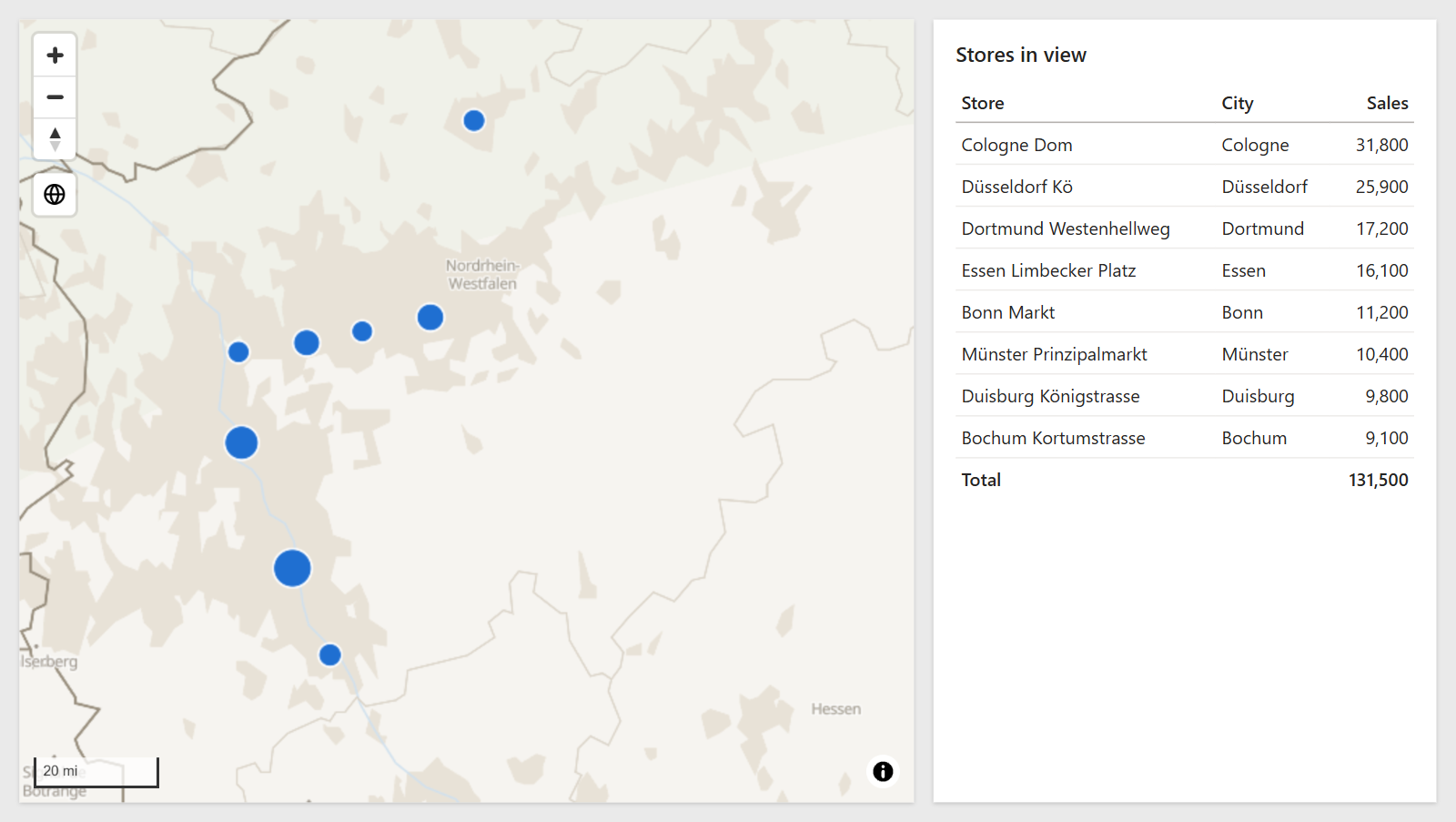
What you need
- A longitude column and a latitude column in your data model, for the rows you want to filter. They do not have to be the fields the map draws.
Set it up
- Select the map, and open Format pane > Selection > Map Location.
- Next to Longitude Field to Slice, select fx and choose the longitude field.
- Next to Latitude Field to Slice, select fx and choose the latitude field.
- Pan or zoom the map. The other visuals on the page now show only the rows inside the view.
Both fields must be set. Any summarization of the fields works, including Average.
How it works
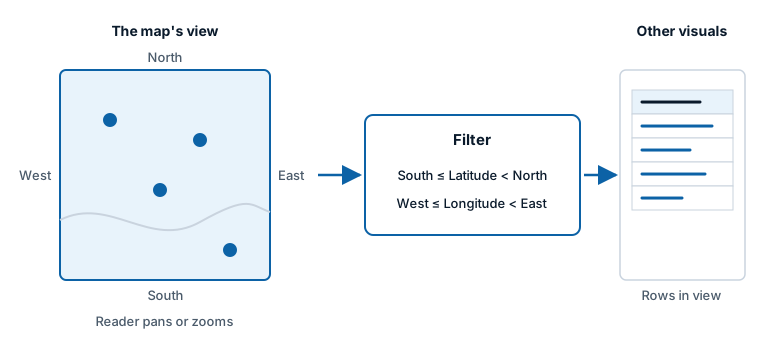
- The filter follows the reader. Each time a reader finishes panning, zooming, tilting or rotating the map, Icon Map Lite filters the two fields to the edges of the view: latitude from the south edge to the north edge, and longitude from the west edge to the east edge.
- It starts when the map is first moved. Moves the map makes by itself, such as auto zoom, do not change the filter. Until a reader moves the map, nothing is filtered.
- It filters the other visuals, not the map. Icon Map Lite keeps drawing all its own items.
- It works with selection. A selection made on the map and the map location filter both apply at the same time. See Select and filter with the map.
- It works in reading view and while editing. While you edit the report with Auto Zoom off, the same moves also save the map's default view. See View, zoom and projection.
Draw one thing, filter another
The fields you filter do not have to be the ones the map draws. For example, the map can draw a circle for each region from summary data, while the location filter narrows a detailed table of transactions that has its own longitude and latitude columns.
Tips and limits
- Set a Min Zoom Level so readers cannot zoom out so far that the filter covers everything. See View, zoom and projection.
- If a visual does not change when the map moves, check that both Longitude Field to Slice and Latitude Field to Slice are set, and that the visual's rows come from the table those fields belong to, or from a table it filters.