
Layer Manager
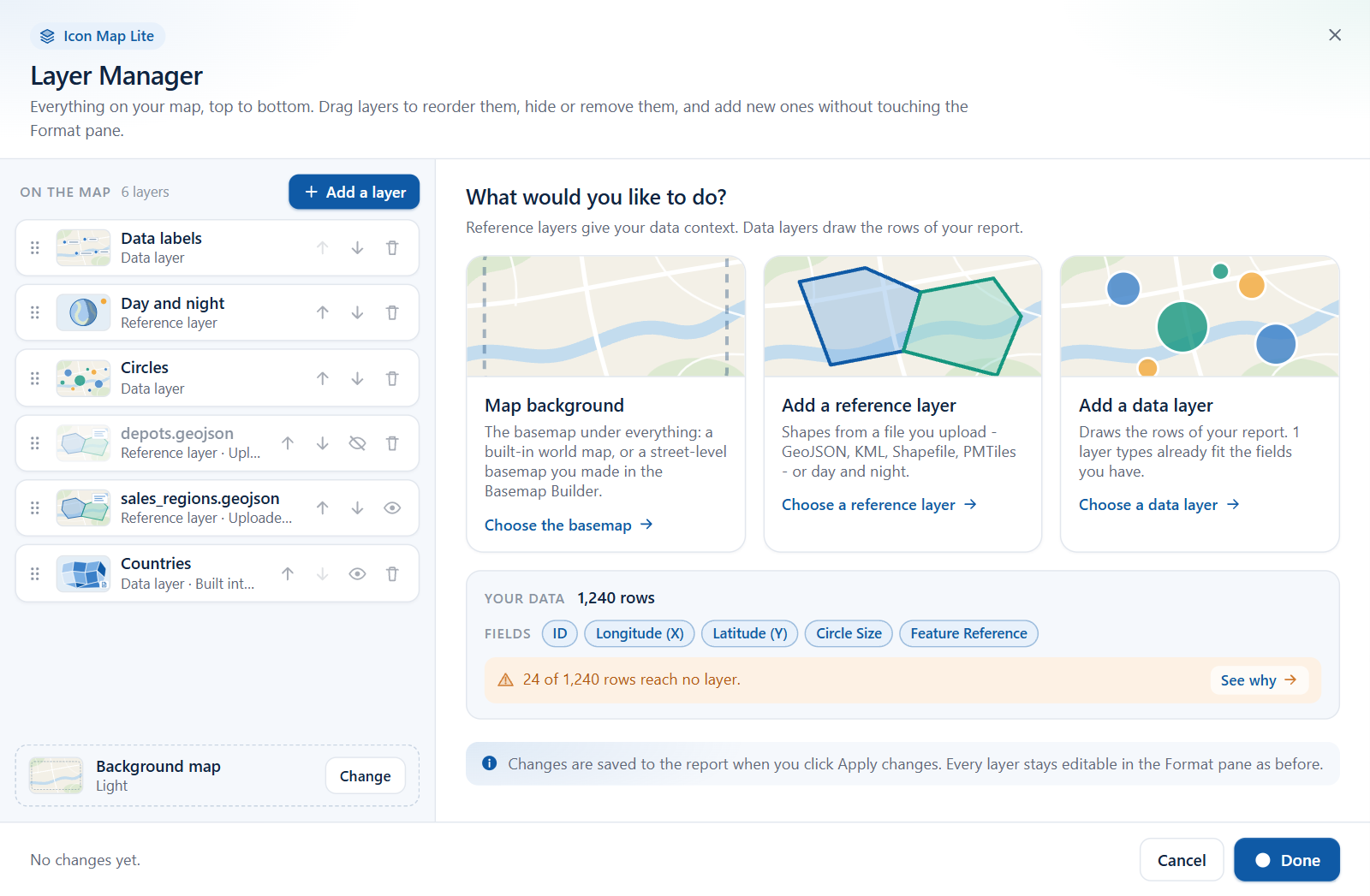
The Layer Manager is a dialog that shows everything on your map in one list, top to bottom. Use it to add data layers and reference layers step by step, change their main settings, reorder them, hide them or remove them, check which of your rows are drawn, and choose the background map.
Before you start
- You open the Layer Manager while editing a report in Power BI Desktop or the Power BI service. Report readers do not see it.
- Add your fields to the visual first if you want to add a data layer. The dialog uses them to tell you which layer types fit your data.
- The Layer Manager reads nothing from the internet. Everything it adds is built into the visual or uploaded into the report.
Open the Layer Manager
There are four ways in.
- From the Format pane. Switch on Format pane > Layer Manager > Layer Manager > Open Layer Manager. The Layer Manager card is the first card in the pane. The switch opens the dialog and then turns itself off again, so it is ready for next time.
- From the layer guide. When your rows do not reach any layer, the map shows the guide What kind of map are you making?. Select Open Layer Manager at the bottom of the guide.
- By picking a layer in the layer guide. Selecting a tile in the guide turns that layer on and opens the Layer Manager on that layer, ready to set up. See Choose a layer type.
- From the map's notes. When the map shows notes about your data, the notes have an Open Layer Manager button.
A tour of the dialog
The dialog has a header, two columns and a footer.
| Area | What it holds |
|---|---|
| Left column - On the map | Every layer that is switched on, top-most first, with a count of layers and the Add a layer button. The last row is always Background map. |
| Right column | The home view to start with. It changes to a picker, an add wizard, a layer's editor or the Background map page as you work. |
| Footer | The number of changes you have made, the Cancel button and the main button. The main button reads Done while nothing has changed, and Apply changes once something has. |
The list of layers
The list shows your layers in the order the map draws them: the row at the top of the list is drawn on top of everything below it. Each row has buttons to move the layer, and some rows also have buttons to hide or remove it. Select a row to open its editor. See Edit, reorder and remove layers.
When nothing is switched on yet, the list reads "Nothing is on the map yet. Add a data layer to draw your report, or a reference layer for context."
The home view
The right column starts on What would you like to do? with three cards and a summary of your data.
| Card | What it does |
|---|---|
| Map background | Opens the Background map page, where you choose the built-in theme or a custom basemap. See The Background map page below. |
| Add a reference layer | Opens the list of reference layer types: Shapes from file and Day and night. |
| Add a data layer | Opens the list of data layer types. When layer types you can still add fit the fields you have, the card tells you how many do. Otherwise it reads "Draws the rows of your report: points, lines, shapes, cells and more." |
Below the cards, the Your data panel shows how many rows the visual has, which fields are filled in, and whether every row is drawn. See Check your data.
Add a layer
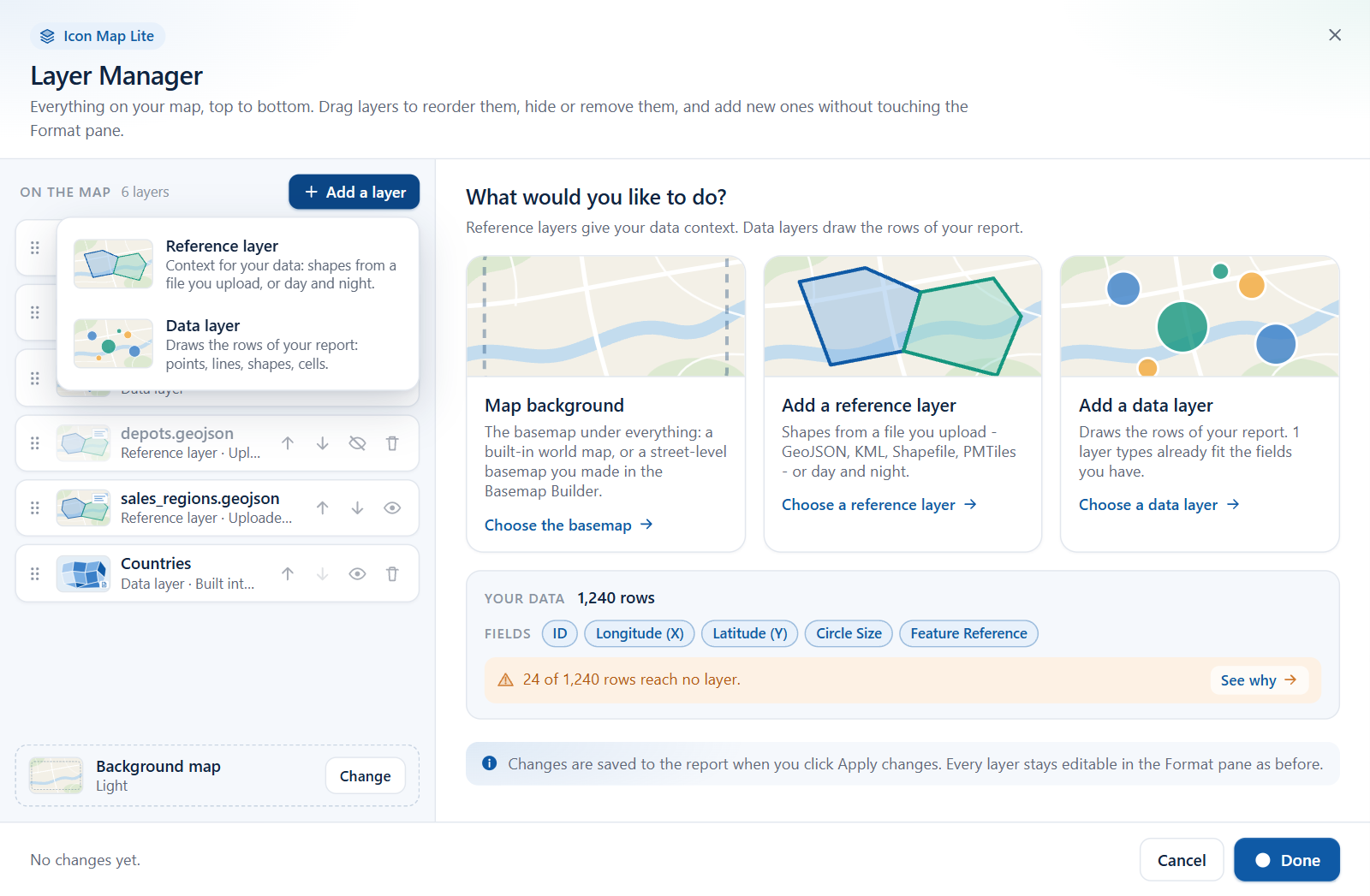
Select Add a layer above the list at any time. A short menu offers two choices.
| Choice | What it is for |
|---|---|
| Reference layer | Context for your data: shapes from a file you upload, or day and night shading. Reference layers are drawn as they are and are not joined to your data. |
| Data layer | Draws the rows of your report: points, lines, shapes, cells. |
Each choice opens a picker of tiles, and each tile starts a short wizard. See Add a layer.
Apply or cancel
Nothing you do in the dialog changes the report until you select Apply changes.
| Footer shows | Meaning |
|---|---|
| "No changes yet." and a Done button | Nothing to save. Done closes the dialog. |
| "1 change" or "3 changes - applied to the map when you click Apply changes." | Each reorder, hide, show, removal, added layer and edited setting counts as one change. Apply changes saves them all and closes the dialog. |
| Cancel, or the close button in the top corner | Discards the changes you made since the dialog opened. |
The Esc key steps back: it closes the Add a layer menu, then returns the right column to the home view, then cancels the dialog.
Power BI shows one dialog at a time. When a step needs the file upload window, or opens the Basemap Builder in your browser, the Layer Manager first saves every change you have made so far, then closes. After an upload it reopens by itself. Cancel after that point cannot undo the changes that were already saved.
The Background map page
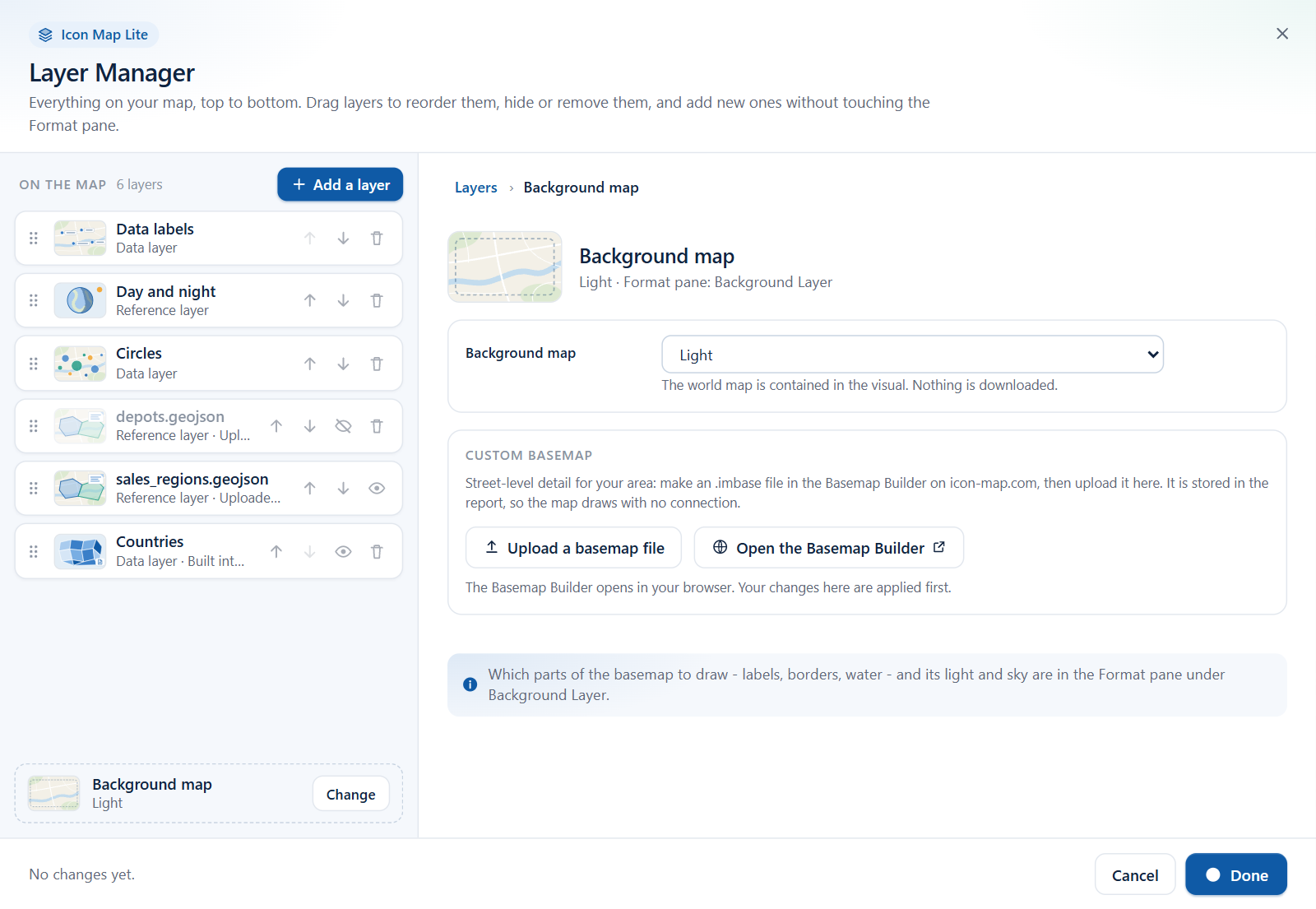
The last row of the list, Background map, names the basemap the map draws: one of the built-in themes, None, or the name of your uploaded basemap file. Select Change on that row, or the Map background card on the home view, to open the Background map page.
| On the page | What it does |
|---|---|
| Background map | A dropdown of the basemaps: Light, Dark, Colored light, Colored dark, Mono light, Mono dark, High contrast, None and Custom. The built-in world map is contained in the visual, so nothing is downloaded. |
| Upload a basemap file | Opens the file upload window for an .imbase file. When the upload succeeds, the map switches to Custom by itself. Once the report holds a file, the button reads Replace the basemap file. |
| Open the Basemap Builder | Opens the Basemap Builder on icon-map.com in your browser, where you make an .imbase file for your area. Your changes in the dialog are applied first. |
The heading line names the place in the Format pane, Background Layer. Which parts of the basemap to draw (labels, borders, water) and its light and sky are set there. The Layer Manager does not edit a basemap's style.
When Custom is chosen but no file has been uploaded yet, the Background map row reads "Custom (no file yet)". See The background map and Custom basemaps (.imbase).
Layer Manager and the Format pane
The Layer Manager and the Format pane edit the same settings. A layer you add in the dialog appears in the Format pane, and a change you make in the Format pane shows in the dialog the next time you open it. A report built entirely in the Format pane opens in the Layer Manager unchanged.
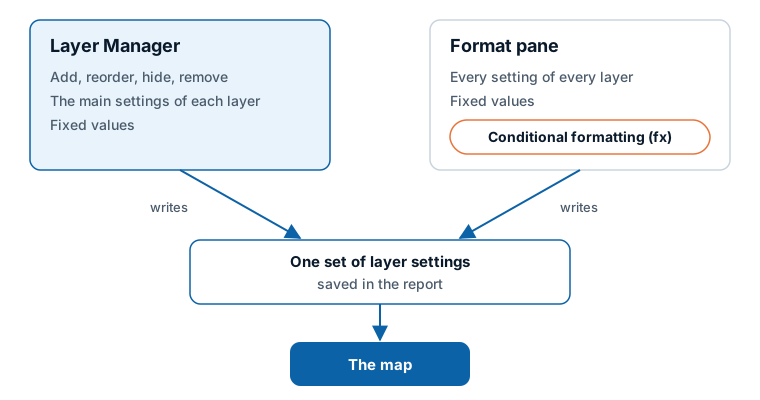
The two differ in how much they show:
- The Layer Manager shows the settings most maps need, in plain words, and sets fixed values: one color, one size, one width for a layer.
- The Format pane holds every setting. It is also the only place for conditional formatting (fx), where a color, a size or another setting takes its value from your data.
Each editor in the Layer Manager names the place in the Format pane where the rest of that layer's settings are.
What still needs the Format pane
- Conditional formatting (fx) on any setting, for example circle colors from a measure. See Conditional formatting.
- The advanced options of each layer that the editors do not show. See the list in Edit, reorder and remove layers.
- Switching data labels on. Labels appear in the Layer Manager list once they are on. See Data labels.
- The basemap's detail switches, light and sky.
- Tooltips, the legend, map controls, selection behavior and the map view. These are not layers and have their own cards: see the Format pane map.