
Reference layers overview
Reference layers give your data context: boundaries, routes or sites from a file you upload, and shading over the part of the world that is in darkness. They do not come from your data model, and everything they draw is stored in the report.
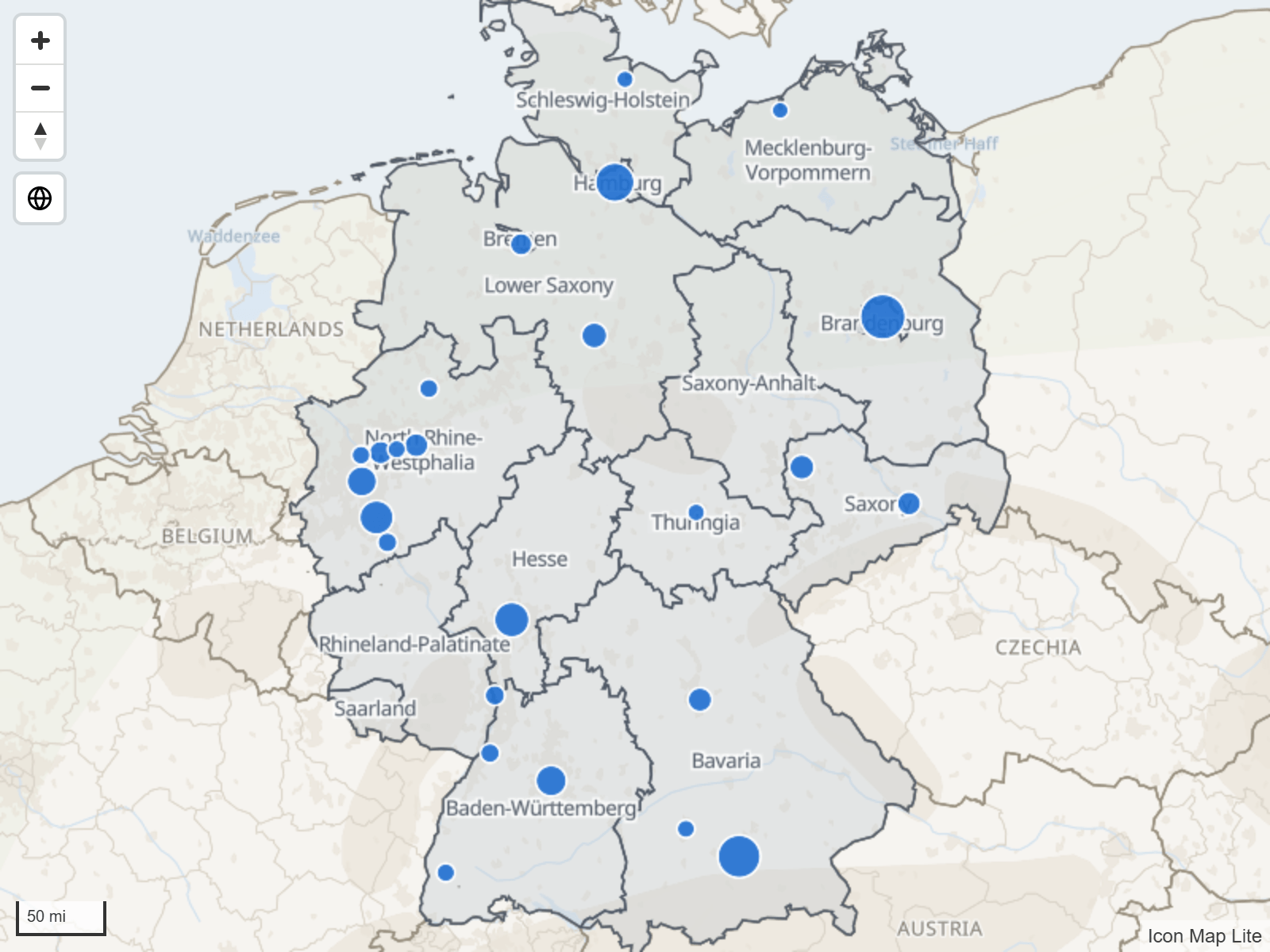
Reference layers and data layers
A map in Icon Map Lite is a background map, plus data layers, plus reference layers.
| Data layers | Reference layers | |
|---|---|---|
| Where the content comes from | The rows of your report, through the field wells | A file you upload into the report, or the day and night shading |
| What a row does | One row draws one thing | Rows are not needed. A reference layer draws with no fields at all |
| Click and select | Selects the row and filters the report | Hovering can show a tooltip. Polygons can be made a selection tool |
| Styling from data | Conditional formatting (fx) on most settings | Fixed styling, or styling by a property inside the file |
Icon Map Lite never reads a reference layer from a link. A file is read once, when you upload it, and is then stored in the report, so it draws wherever the report does.
A reference layer is not joined to your data, but your data can still control it. Several settings take conditional formatting (fx), so a measure or a slicer can decide what is drawn:
- Visible shows or hides a file layer.
- Filter Value keeps only the features whose property matches your data. See Shapes from file.
- Label Property Name chooses which property names the features.
If you want shapes that are colored by your data and that filter the report when clicked, use a data layer instead: Shapes from files and built-in boundaries or Shapes from data.
Types of reference layer
| Type | Name in the Format pane | What it draws | How many |
|---|---|---|---|
| Files | Shapes from file | Points, lines and polygons from an uploaded GeoJSON, TopoJSON, KML, zipped shapefile, IMDF or PMTiles file | 5 |
| Day and night | Daylight Terminator | Shading over the part of the world that is in darkness | 1 |
File layers can also carry their own text labels. See Labels on reference layers.
Add a reference layer
New in 1.0.1.2 In the Layer Manager, add a reference layer and choose Shapes from file (an upload, up to five) or Day and night. See Add a layer.
Every reference layer can also be set up in the Format pane, and some settings are only there, such as filters, conditional formatting (fx) and Z-Index numbers:
- Select the map, and open Format pane > Reference Layers.
- Switch on Shapes from file or Daylight Terminator. Each is a group with its own switch.
- For a file layer, open Shapes from file layer 1 - Configuration and switch on Display File Upload Button to upload the file.
More than one file layer
There are five file layers. The Format pane shows the settings of one at a time.
- In the Shapes from file group, set Number of Layers (1 to 5).
- Choose the layer to edit in Apply settings to. Each layer is listed as "Layer 1", "Layer 2" and so on, followed by its file name once a file is uploaded.
Drawing order
Every layer on the map, reference or data, has a Z-Index. A layer with a higher Z-Index is drawn nearer the viewer. Reference layers and data layers share one scale, so a reference layer can sit under your data, between two data layers, or on top of everything.
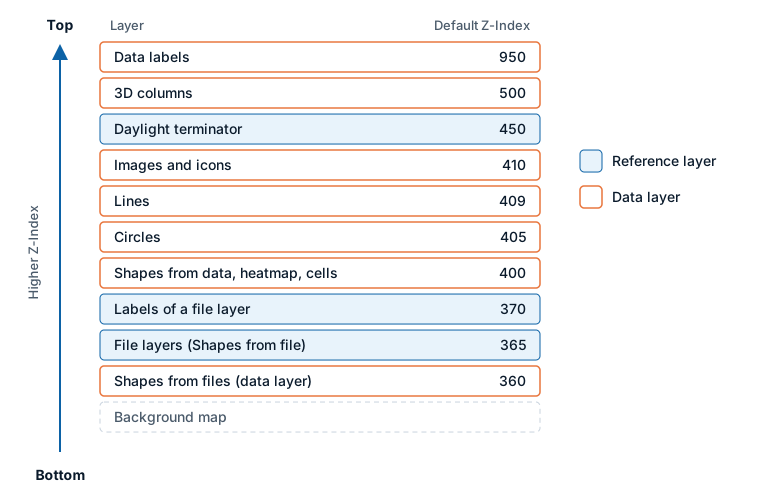
| Layer | Default Z-Index |
|---|---|
| Daylight terminator | 450 |
| Labels of a file layer | 370 |
| File layers | 365 |
For comparison, images and icons default to 410, circles to 405, shapes from data, heatmaps and cells to 400, and Shapes from files data layers to 360. So by default the night shading is drawn over your data, and file layers are drawn under most data layers but over a Shapes from files layer.
To change the order, edit the Z-Index of a layer in the Format pane. File layers and the daylight terminator take values from 0 to 1000; the labels of a file layer take 0 to 10000.
In the Layer Manager you do not need the numbers. Drag a row in the list of layers and the Z-Index values are rewritten for you. See Edit, reorder and remove layers.
Zoom range and visibility
Each file layer has a Minimum Zoom and a Maximum Zoom. Outside that range the layer is not drawn. Use this to show detailed boundaries only when the reader has zoomed in.
File layers also have a Visible setting that takes conditional formatting (fx). Return "Yes" or "No" from a measure to show a layer only for a slicer choice or a bookmark.
Tips and limits
- Everything a reference layer draws is stored in the report. There is nothing to allow-list and nothing that can stop loading.
- A PMTiles archive can be up to 25 MB. Other files are simplified in the upload window if they are large. See Shapes from file.
- The background map has its own place names, borders, lakes and rivers, which you can switch on and off. See The background map.