
Add Icon Map Lite to a report
Icon Map Lite is a Power BI custom visual. You add it to a report from Microsoft AppSource and then place it on a report page like any other visual. It works in Power BI Desktop and the Power BI service.
Get the visual
- Open your report in Power BI Desktop, or in the Power BI service in edit mode.
- In the Visualizations pane, select the ... button under the visual icons, then Get more visuals.
- Search for Icon Map Lite and select Add.
The Icon Map Lite icon appears in the Visualizations pane for that report.
If your Power BI administrator has added Icon Map Lite to your organization's visuals, you can also find it under Get more visuals > My organization.
Add it to a report page
- Select the Icon Map Lite icon in the Visualizations pane. An empty visual appears on the page.
- Resize it. Maps work best with room to breathe.
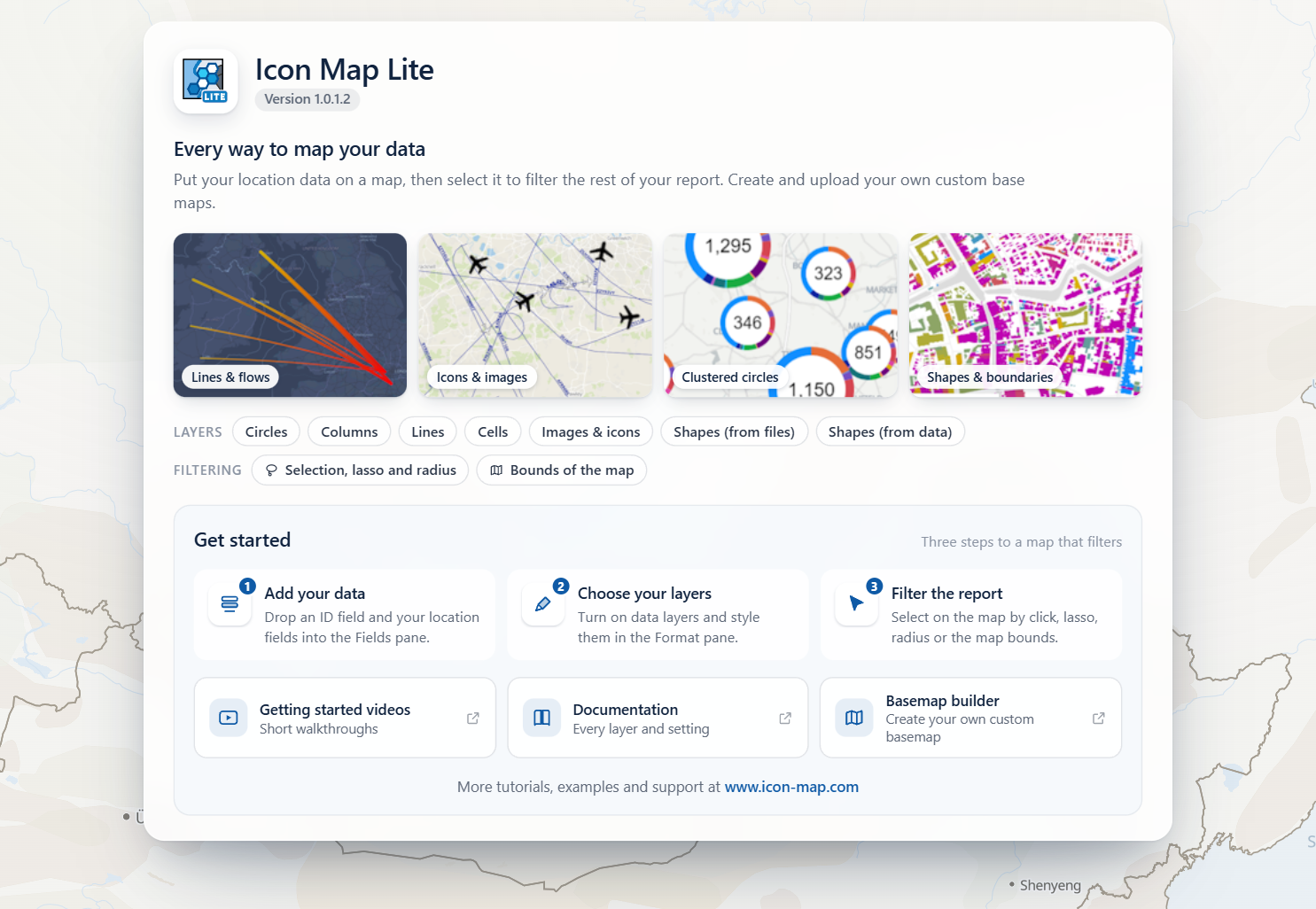
With no fields, the visual shows a start page over a live world map that moves to a new place every few seconds. Depending on the size of the visual, the start page shows:
- The name and the version number.
- Four example maps.
- The layer types and the ways to filter, each linking to its page in this documentation.
- A Get started panel with the three steps to a map that filters: add your data, choose your layers, filter the report.
- Buttons for getting started videos, this documentation, and the Basemap builder, which creates a custom basemap for street-level detail.
On a small visual some of these sections are left out. The start page goes away when you add the first field. To build a map from here, follow Build your first map.
Check the version
The version is shown on the start page. Once the visual has data, it is also shown in Format pane > Icon Map Lite, the last card in the pane. Until the visual has a field, the pane shows a single Icon Map Lite card with the message "Add data to the visual before configuring formatting options." and the version.
License the visual
Icon Map Lite is licensed per user through Microsoft AppSource. Everyone who views a report that contains it, including the report's authors, needs a license, and one license covers every report that person opens. There is no license key and nothing to set up in the report: Power BI tells the visual whether the person viewing the report has a license.
To try it first, start the free one-month trial on AppSource.
When a viewer has no license, the visual covers the map with a sheet headed "Get Icon Map Lite to see this map", with buttons to start the free trial or buy a license. This happens once the visual has data with an ID, so as an author you first see the start page, and then the license page when you add fields.
See How Icon Map Lite is licensed and the Licensing FAQ.
What you need
- Power BI Desktop, or the Power BI service. Power BI Report Server, Publish to web, Power BI Embedded and government clouds such as GCC are not supported.
- A browser or machine with WebGL 2 available. Without it, the map cannot be drawn and a message explains why. See Supported environments and privacy.
- No network setup. Icon Map Lite makes no network requests, so there are no addresses to allow through a firewall.