
Shapes from file
A file layer draws the points, lines and polygons of a file you upload as context for your data: sales territories, a delivery network, the sites of a project. The file is stored in the report. You can have up to five.
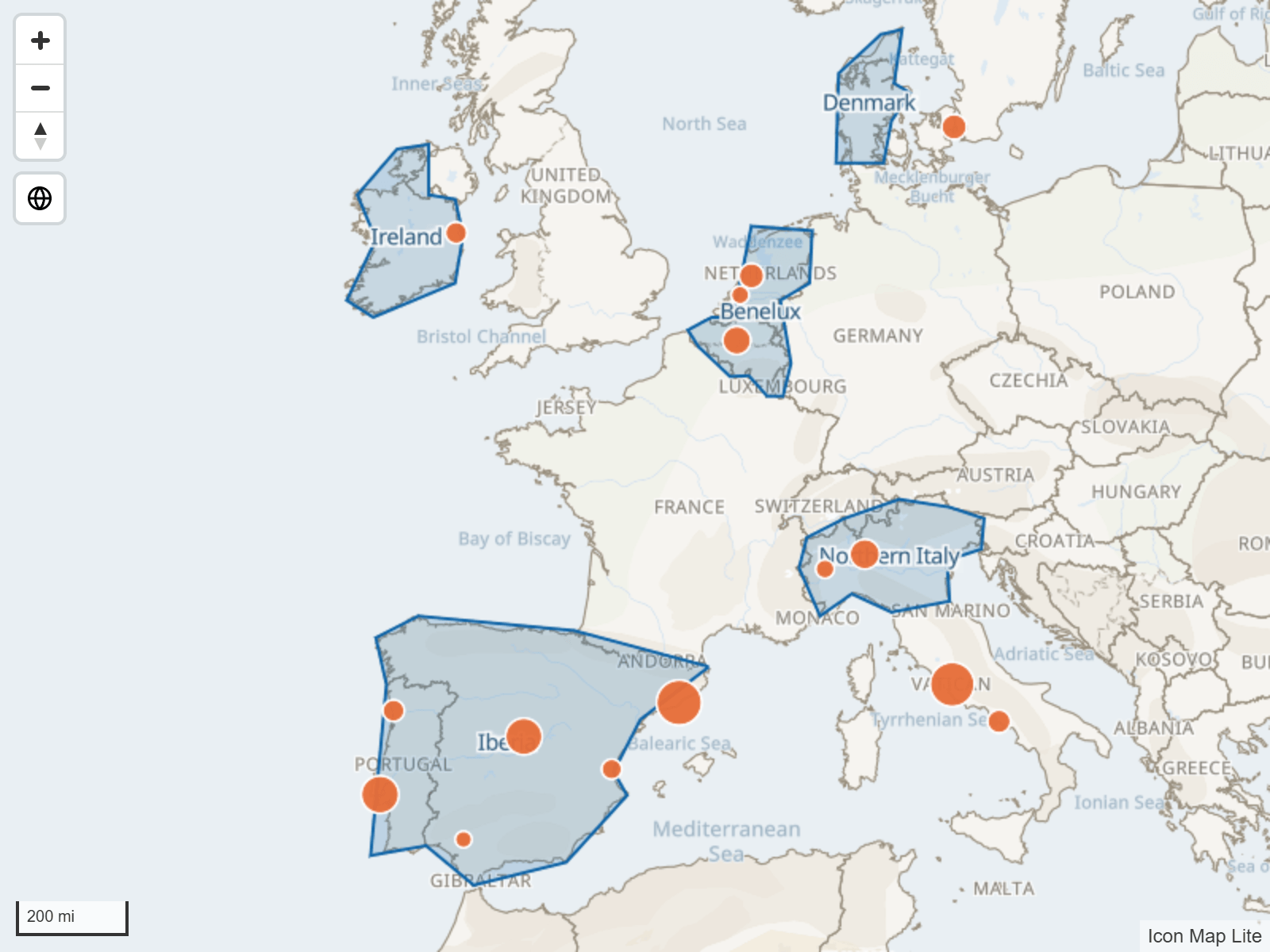
A file layer is not joined to your data. To color shapes by a measure and filter the report when they are clicked, use Shapes from files and built-in boundaries instead. If you only need clicking a region to select the data inside it, a file layer can do that too: see Select with the polygons.
Upload a file
New in 1.0.1.2 In the Layer Manager, add a reference layer and choose Shapes from file. See Add a layer. To do the same in the Format pane:
- Select the map, open Format pane > Reference Layers and switch on Shapes from file.
- To use more than one file, set Number of Layers, and choose the layer to set up in Apply settings to.
- In Shapes from file layer 1 - Configuration, switch on Display File Upload Button. The upload window opens, and the switch turns itself off again.
- Drop a file on the window, or click to browse for one. When the window has read the file, select OK to store it in the report.
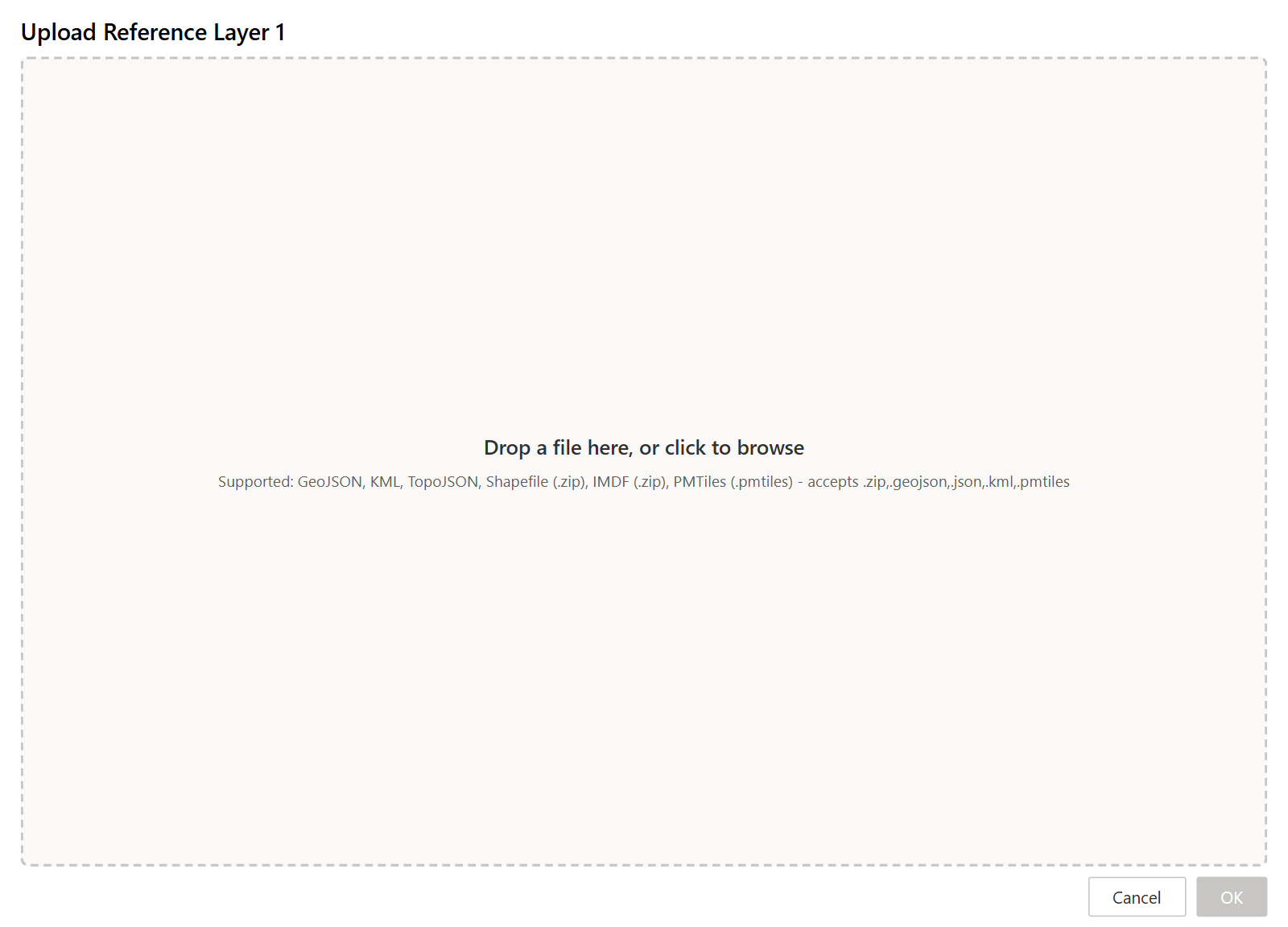
You can upload:
| Format | Notes |
|---|---|
GeoJSON (.geojson, .json) |
|
| TopoJSON | |
KML (.kml) |
|
Shapefile, zipped (.zip) |
The zip must hold the .shp, .dbf and .prj files. The shapes are converted from the projection in the .prj file |
IMDF venue, zipped (.zip) |
An indoor map. A floor picker appears on the map so readers can choose the level to show |
PMTiles archive (.pmtiles) |
Vector tiles in one file, up to 25 MB. See PMTiles archives |
To take the file out of a layer, open the upload window again and select Remove existing file. To replace it, upload another file.
Large files
Large files make a report slower to open and to use. When you choose a GeoJSON, TopoJSON, KML or shapefile file, the upload window shows the size of the file before and after, a Simplification slider with a suggested value, and a Decimal precision setting. The suggested value brings the file down to a size the report handles well. Move the slider toward Full detail or Most simplified to keep more or less detail. IMDF files are stored at full precision, with no simplification.
If the simplified file is still too large to store in the report, the window says so and does not store it until you simplify it further.
Simplifying the geometry, reducing the decimal places of coordinates and removing properties you do not use before you upload all help.
PMTiles archives
A PMTiles archive holds vector tiles in one file, which suits boundary sets that are too detailed for GeoJSON. An archive can be up to 25 MB. If yours is larger, rebuild it with a lower maximum zoom or fewer layers.
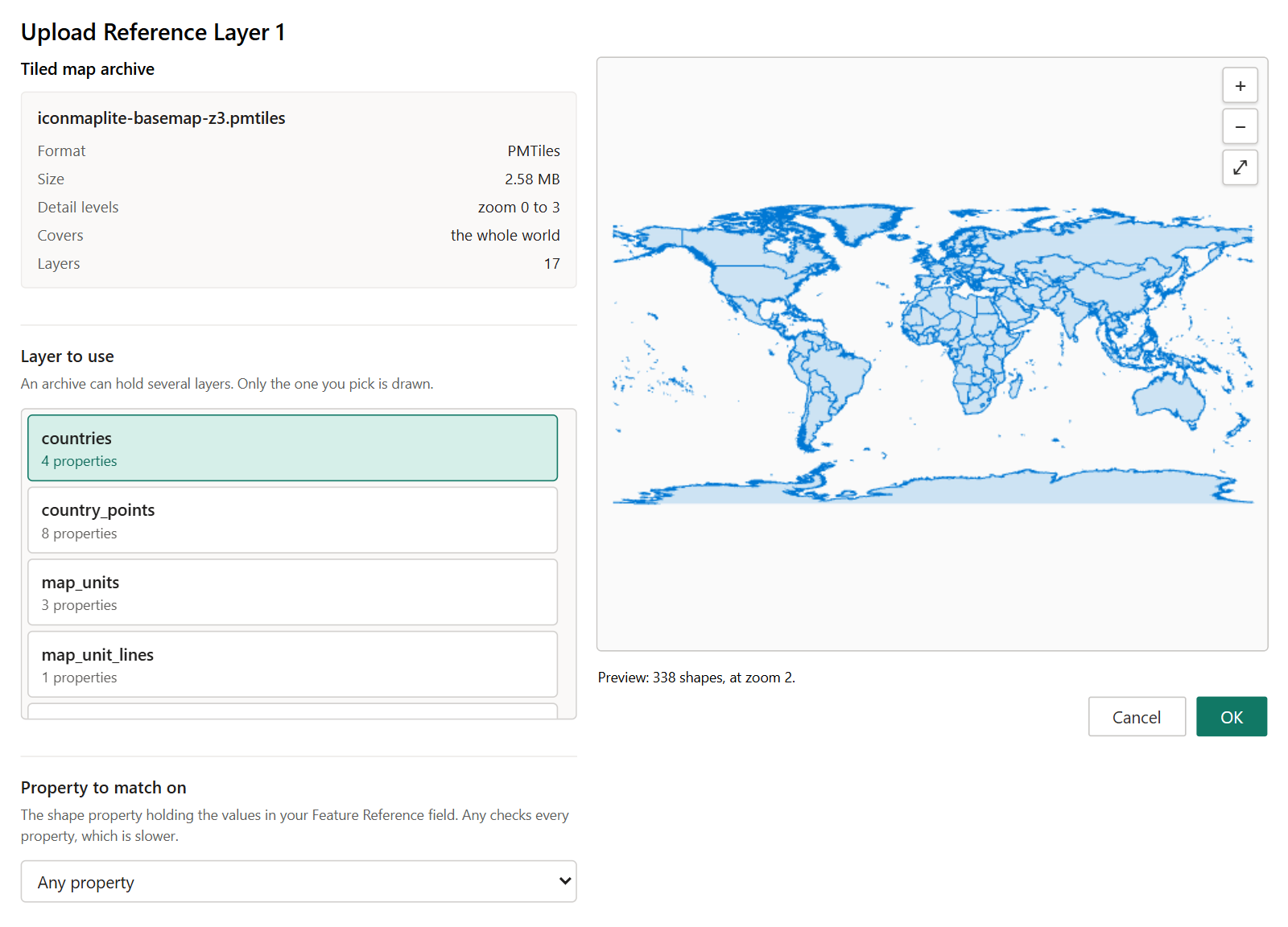
After you choose the file, the window shows its details and its layers. An archive can hold several layers and a file layer draws one of them: pick it under Layer to use. To draw three layers of one archive, upload the archive into three file layers and pick a different layer in each.
The window also shows a Property to match on section. You can ignore it here: a reference layer is not joined to your data, so nothing is matched.
An archive is drawn with one style for all its features:
- Fill Color, Line Color, their transparencies, Line Width, Line Dash Array and Show Points As apply.
- The filter, labels and zoom range apply.
- Coloring by a property (gradients and Text colors) and Override Style do not apply.
- The tooltip lists every property of the feature. Tooltip Property and Tooltip Title are not used.
- Use Polygons for Selection is not available.
A custom basemap is an .imbase file, not a PMTiles archive. An .imbase file given to this window is turned away.
Style the layer
A file layer has one style for all its features, or it can color features by one of their properties. All of the settings below are in the layer's Formatting group.
| To do this | Set |
|---|---|
| One fill color for every shape | Fill Color Type = Static, then Fill Color |
| Color shapes by a number in the file | Fill Color Type = 2 Color Gradient or 3 Color Gradient, then Property for Fill Color and the start, mid and end colors |
| Color shapes by a category in the file | Fill Color Type = Text, then Property for Fill Color and up to ten pairs of Property Value for Fill Color and Fill Color |
| Use the colors written in the file | Switch Override Style off. Style properties in the file, such as fill and color, then win over the pane colors |
| Dashed lines | Line Dash Array, for example 4 4 |
| Choose how points are drawn | Show Points As: Pin, Image or Circle |
Lines and outlines have the same four color types as fills, in the Line Color Type setting.
With Show Points As set to Image, Image takes an emoji, any text, SVG markup or a data: URL. Put a color in front of text to tint it, for example text-red:A or text-#884455:12. Icon Map Lite cannot load an image from a web address.
Show tooltips
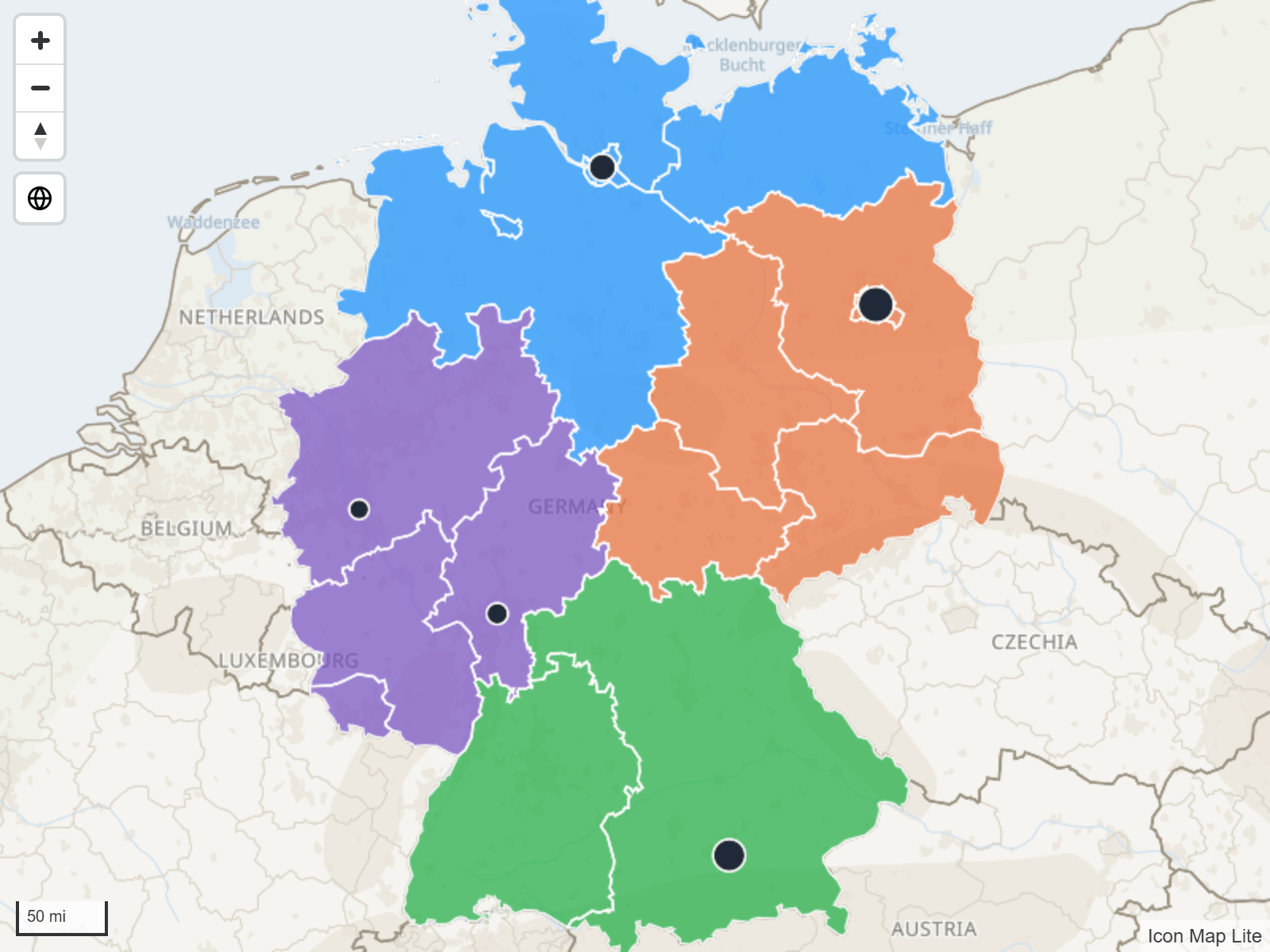
Switch on Show Tooltips to show a tooltip when the reader hovers over a feature. With Tooltip Property (1) empty, the tooltip lists every property of the feature. Choose a property there to show that one only, and a second one in Tooltip Property (2) if you want. Tooltip Title (1) and Tooltip Title (2) replace the property names with your own text.
Filter the layer by your data
A file layer can show only some of its features. Set Property to Filter to a property of the file and Filter Value to the values to keep.
- Filter Value is a comma-separated list, for example
North, South. Put a value in quotes if it contains a comma:"Yorkshire, East". - A feature is kept when its property, compared as text, is in the list.
- With either setting empty, nothing is filtered.
Filter Value takes conditional formatting (fx). When you bind it to a field or measure, the values of all the rows in the visual are combined, so a slicer that leaves three regions selected leaves three regions on the map. The labels of the layer follow the same filter.
Label the features
Switch on Show Labels and set Label Property Name to the property that holds the text. A labels group for the layer then appears. See Labels on reference layers.
Select with the polygons
With Use Polygons for Selection on, the polygons of a file layer become a selection tool. Clicking a region selects every data item inside it, and the report is filtered to those items, as if the reader had selected them one by one.
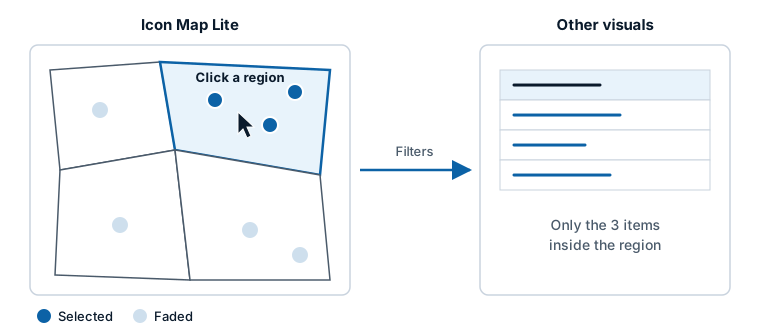
Which items count as inside follows two settings on the Selection card, under User Selection:
- Select Mode: Fully Contain (the default) selects only items that lie entirely inside the polygon. Intersect or Contain also selects lines and shapes that cross its edge.
- Select Buffer: a distance in meters added around the polygon, so items close to its edge are selected too.
Both are shown when Select Intersecting Items is switched on. See Select and filter with the map.
Settings
Shapes from file
Format pane > Reference Layers > Shapes from file
| Setting | What it does | Default |
|---|---|---|
| Shapes from file (the group's switch) | Switches file layers on | Off |
| Number of Layers | How many file layers the map has, 1 to 5 | 1 |
| Apply settings to | The layer whose settings the groups below show. An uploaded layer shows its file name | Layer 1 |
Configuration
Format pane > Reference Layers > Shapes from file layer {n} - Configuration
For an uploaded file, the property settings are lists of the file's own properties.
| Setting | What it does | Default |
|---|---|---|
| Display File Upload Button | Opens the upload window, then turns itself off | Off |
| Use Polygons for Selection | Clicking a polygon of this layer selects every data item inside it | Off |
| Show Tooltips | Shows a tooltip when the reader hovers over a feature | Off |
| Tooltip Property (1), Tooltip Property (2) | The properties to show. With the first one empty, every property is shown. Shown when Show Tooltips is on | Empty |
| Tooltip Title (1), Tooltip Title (2) | Text to show in place of the property name. Shown when Show Tooltips is on | Empty |
| Property to Filter | The property that the filter compares | Empty |
| Filter Value | The values to keep, separated by commas. Takes conditional formatting (fx) | Empty |
| Show Labels | Draws a label on each feature | Off |
| Label Property Name | The property that holds the label text. Takes conditional formatting (fx) | Empty |
| Visible | Yes or No. Shows or hides the layer. Takes conditional formatting (fx) | Yes |
| Minimum Zoom | The layer is hidden when the map is zoomed out past this level, -20 to 24 | 0 |
| Maximum Zoom | The layer is hidden when the map is zoomed in past this level, -20 to 24 | 24 |
| Z-Index | Drawing order, 0 to 1000. Higher is nearer the viewer | 365 |
Formatting
Format pane > Reference Layers > Shapes from file layer {n} - Formatting
| Setting | What it does | Default |
|---|---|---|
| Show Points As | How points are drawn: Pin, Image or Circle | Pin |
| Image, Image Size | The marker to draw at each point (an emoji, text, SVG markup or a data: URL) and its size, 0 to 200. Shown for Image |
Empty, 10 |
| Override Style | On: the colors in the pane are used. Off: style properties inside the file win | Off for layer 1, on for layers 2 to 5 |
| Fill Color Type | Static, 2 Color Gradient, 3 Color Gradient or Text | Static |
| Fill Color | The fill color for Static. Takes conditional formatting (fx) | #555555 |
| Property for Fill Color | The property that drives a gradient or a Text color. Takes conditional formatting (fx) | Empty |
| Start Color, Mid Color, End Color | The colors of a gradient. Mid Color is for 3 Color Gradient | Theme colors |
| Enter value for start, Enter value for mid, Enter value for end | Switch on to type the value at which each gradient color applies, in Start Value, Mid Value and End Value. The values take conditional formatting (fx) | Off |
| Default Fill Color | The color of a feature that has no value for the property, or no match | #555555 |
| Fill Color 1 to Fill Color 10, Property Value for Fill Color 1 to 10 | For Text: a color for each property value | |
| Fill Transparency | 0 is solid, 100 is invisible | 30 |
| Line Color Type | As Fill Color Type, for lines and outlines. Lines have the same set of color, property, gradient and text settings as the fill | Static |
| Line Color | The line color for Static. Takes conditional formatting (fx) | #000000 |
| Line Transparency | 0 is solid, 100 is invisible | 20 for layer 1, 0 for layers 2 to 5 |
| Line Width | Width of lines and outlines, 0 to 100 | 1 |
| Line Dash Array | Space-separated dash and gap lengths, for example 4 4. Empty draws a solid line |
Empty |
New in 1.0.1.2 With Show Points As set to Circle, Circle Size sets the size of each point, 0 to 200 (default 10).
Tips and limits
- Each file layer draws one file. Use Number of Layers for up to five.
- Icon Map Lite reads no links, so a file layer cannot follow a live feed. Upload the file again to update it.
- KMZ, CSV and WFS files cannot be used. Convert them to GeoJSON or KML first.
- If the map slows down, simplify the file. Fewer vertices and fewer properties make the largest difference.
Related
- Reference layers overview
- Labels on reference layers
- Shapes from files and built-in boundaries - the same files, joined to your data
- Select and filter with the map