
View, zoom and projection
These settings decide what part of the world the map shows and how readers move around it: whether the map zooms to your data or opens at a view you set, how far readers can zoom, and whether the map is flat or a globe.
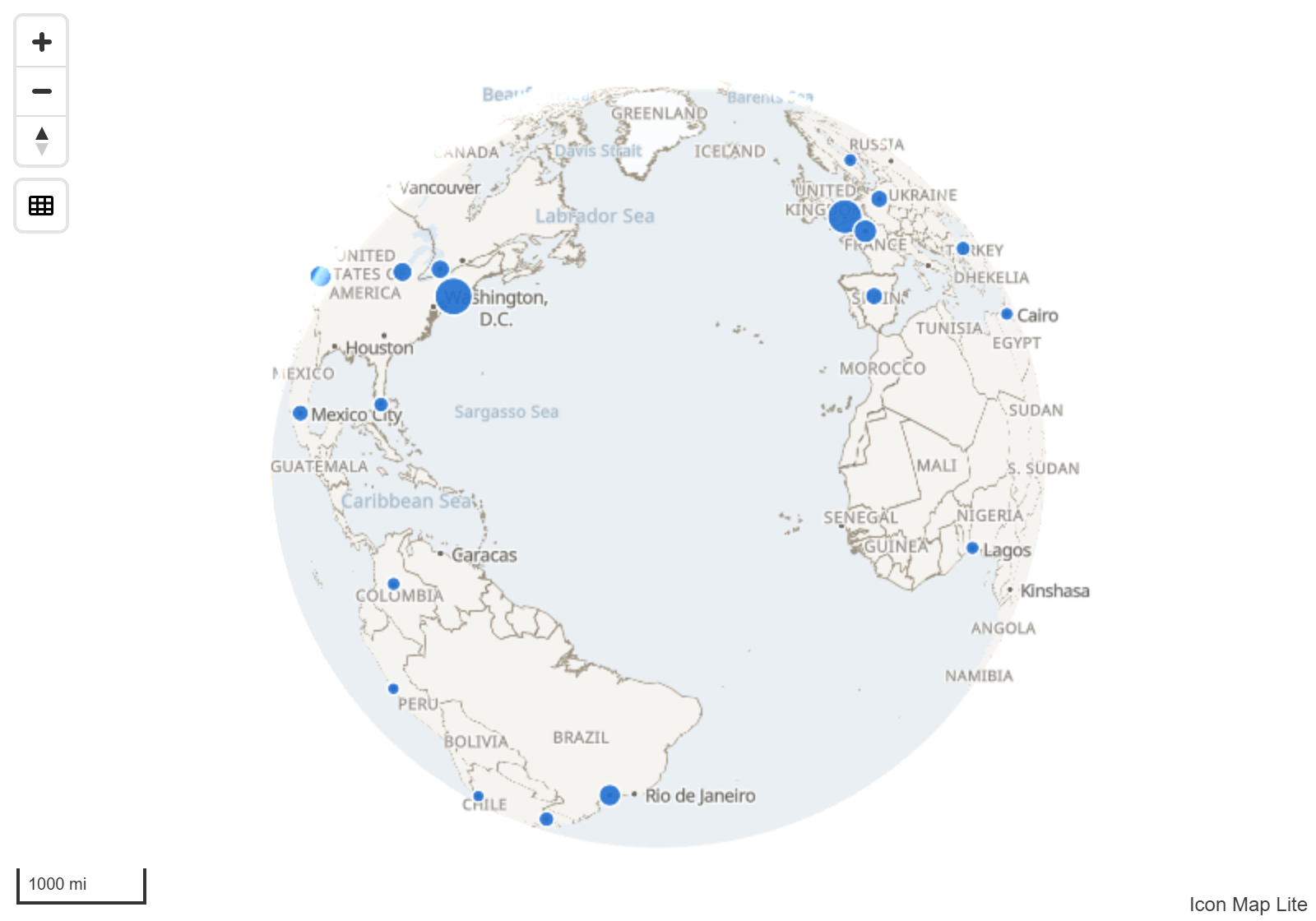
The two ways a map chooses its view
A map is in one of two modes.
- Fit to data. With Auto Zoom on (the default), the map moves to frame the data it is showing. When a slicer or another visual filters the data, the map frames it again.
- A fixed view. With Auto Zoom off, the map opens at the view you set: a center, a zoom level, a tilt and a rotation.
Both are set on the Map card of the Format pane.
Set a fixed view
- In Format pane > Map > Zoom, switch Auto Zoom off.
- While editing the report, pan, zoom, tilt and rotate the map to the view you want.
The map writes the view to Default Latitude, Default Longitude, Default Zoom Level, Default Pitch and Default Bearing in the Defaults group as you move it. You can also type the values. This happens only while you are editing the report, and only when you move the map yourself. A reader moving the map changes nothing.
Fit to data, once
To frame the data when the report opens and then leave the view alone, keep Auto Zoom on and switch on Only Zoom on Initial Load.
Zoom
Format pane > Map > Zoom
| Setting | What it does | Default |
|---|---|---|
| Min Zoom Level | How far out readers can zoom. 0 shows the whole world, 5 is about a country | 1 |
| Max Zoom Level | How far in readers can zoom. 15 is street level. Up to 24 | 22 |
| Zoom Padding | Space kept between the auto-zoomed data and the edge of the map, in pixels | 50 |
| Zoom Level When Single Item | When the data is a single point there is nothing to frame, so auto zoom goes to this level. Supports conditional formatting (fx) | 15 |
| Auto Zoom | Moves the map to frame your data | On |
| Only Zoom on Initial Load | Auto zooms once when the map first loads, and leaves the view alone on later data updates | Off |
| Duration (seconds) | How long each automatic move of the map takes, 0 to 10 seconds. The map glides to its new view | 0.5 |
The first zoom after the map loads is never animated. Set Duration (seconds) to 0 to make every automatic move jump straight to its new view.
The built-in world map has detail down to zoom level 3. You can zoom in much further, and your data stays sharp, but the background map gains no more detail. A custom basemap gives you street-level detail for one area.
The default view
Format pane > Map > Defaults
| Setting | What it does | Default |
|---|---|---|
| Default Latitude | The center of the fixed view | 51.5072 |
| Default Longitude | The center of the fixed view | -0.1276 |
| Default Zoom Level | The zoom level of the fixed view | 1 |
| Default Bearing | The rotation of the camera in degrees, -180 to 180. Rotating the map while editing updates it | 0 |
| Default Pitch | The tilt of the camera in degrees, 0 to 85. Tilting the map while editing updates it | 0 |
These settings are used when Auto Zoom is off.
Tilt and rotation
Readers tilt and rotate the map by dragging with the right mouse button, or with two fingers on a touch screen. Tilt is measured in degrees of pitch: 0 looks straight down, and the steepest tilt is 85 degrees.
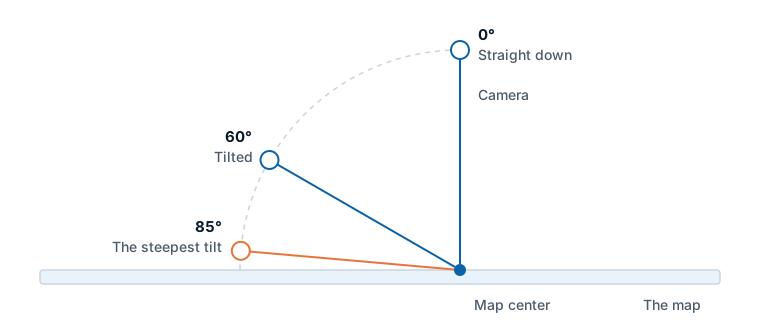
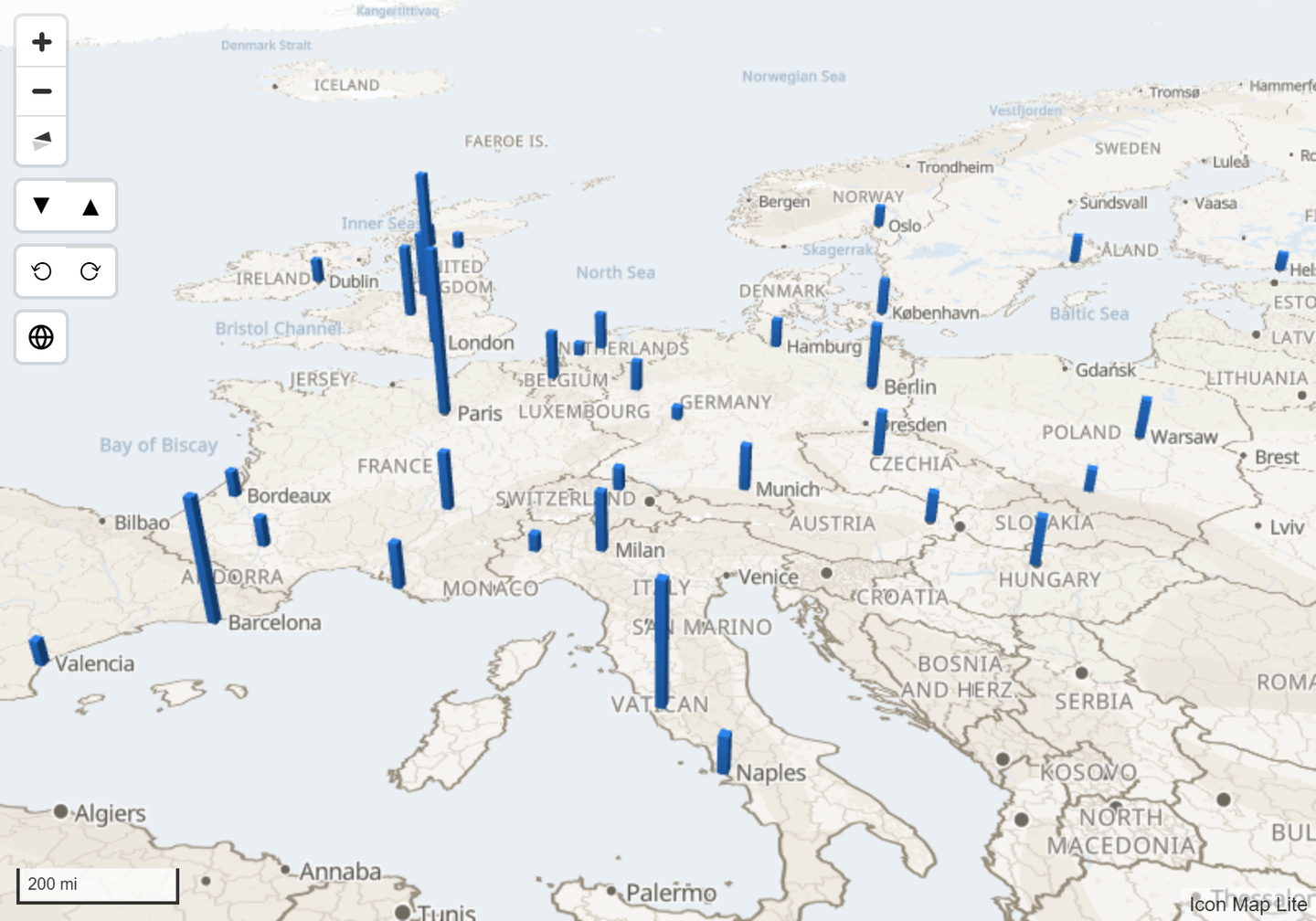
To open the map tilted, set a fixed view while tilted, or type a Default Pitch.
For buttons that tilt and rotate the map, switch on Pitch and Bearing in Format pane > User Interface > Controls. Each click moves the camera 10 degrees. See Map controls.
A tilted map is where 3D columns and extruded shapes stand out, and where the sky becomes visible. See Light and sky.
Flat map or globe
The map can be drawn flat (Mercator) or as a globe.
Format pane > User Interface > Controls
| Setting | What it does | Default |
|---|---|---|
| Globe Toggle | Shows a button on the map that switches between the flat map and the globe | On |
| Projection | Mercator (flat) or Globe: the projection the map opens with | Mercator (flat) |
- The button's tooltip reads Switch to globe view or Switch to flat map.
- While you are editing the report, selecting the button also saves the Projection, so the report opens that way. A reader's click lasts for their session.
- When you zoom in close, the globe changes to the flat view by itself.
- On the flat map, the world repeats to the east and west, so readers can pan all the way around.
- The glow around the globe is set by Atmosphere Blend in the Sky settings. See Light and sky.
- The glow shows only against a dark background. On a white report page the area around the globe is transparent. To see the glow, give the visual or the report page a dark background.
Tips and limits
- If the map keeps moving away from the view you set, Auto Zoom is on. Switch it off, or use Only Zoom on Initial Load.
- Readers can stop the map zooming to the data for their session with the Zoom Lock button, if you switch it on. See Map controls.
- To keep readers near your area of interest, raise Min Zoom Level so they cannot zoom out past it.
- Double-clicking the map does not zoom it.