
Legend
The legend explains the colors, sizes and symbols on the map. Icon Map Lite builds it from the way each data layer is really styled, so it stays in step with your formatting.
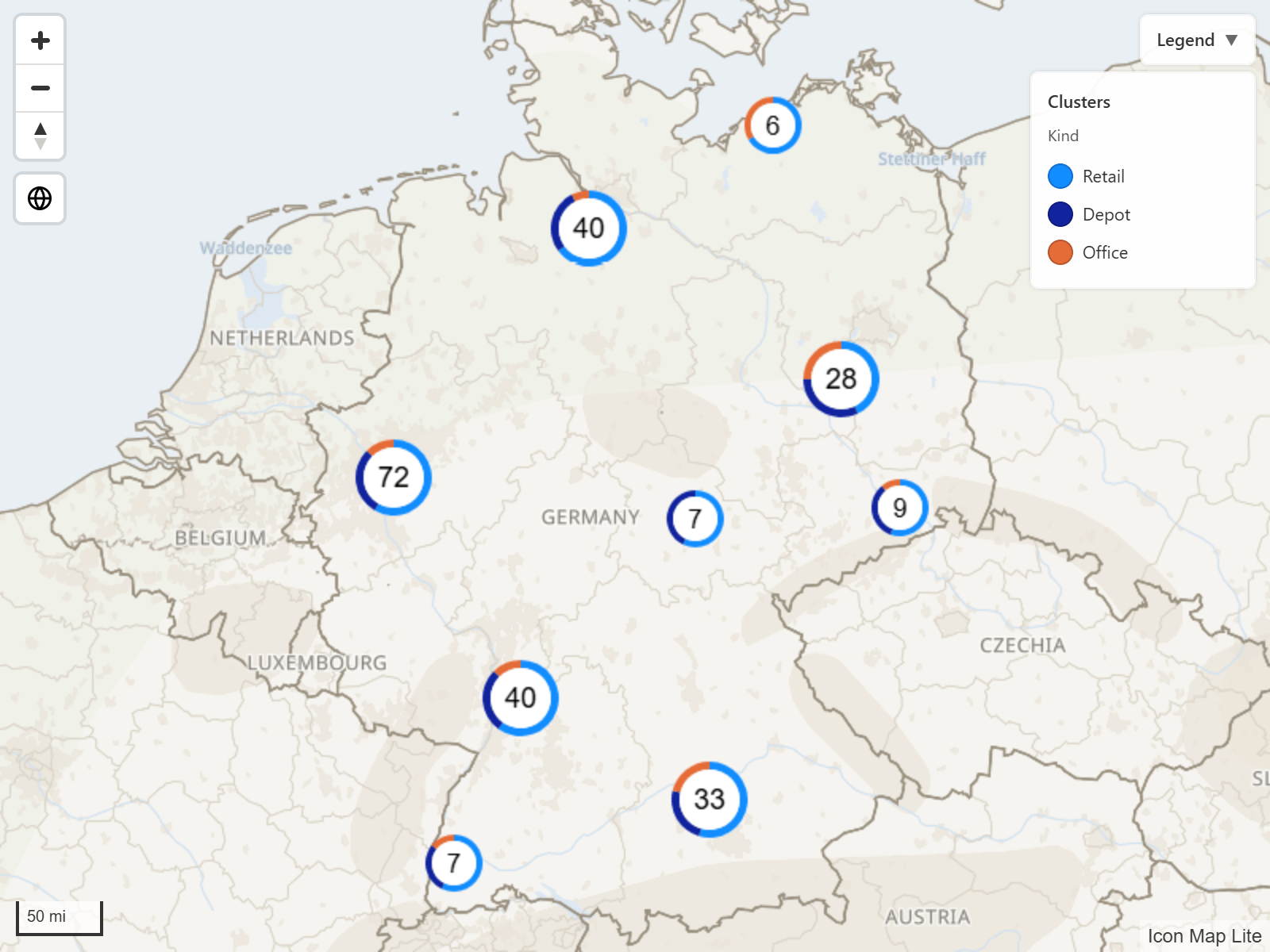
Add a legend
- In the Format pane, switch on the Legend card.
- Choose a Position: one of the four corners of the map.
- Type a Title, or clear it to show the legend with no heading.
The legend lists every data layer that is switched on and can be explained. To leave a layer out, expand Legend labels and switch off its in legend setting.
New in 1.0.1.2 Reference layers (Shapes from file) are listed too, under the title you give them in Legend labels, or the uploaded file's name when the title is empty. A single-color layer shows its Fill Color; a layer colored by a property shows its gradient or its list of values.
What appears in the legend
The legend has one group for each layer, headed by the layer's title when Show layer titles is on. With two or more groups, the legend's heading adds the number of groups, for example "Legend (2)". What a group shows depends on the layer and how it is styled.
| Layer | What the legend shows |
|---|---|
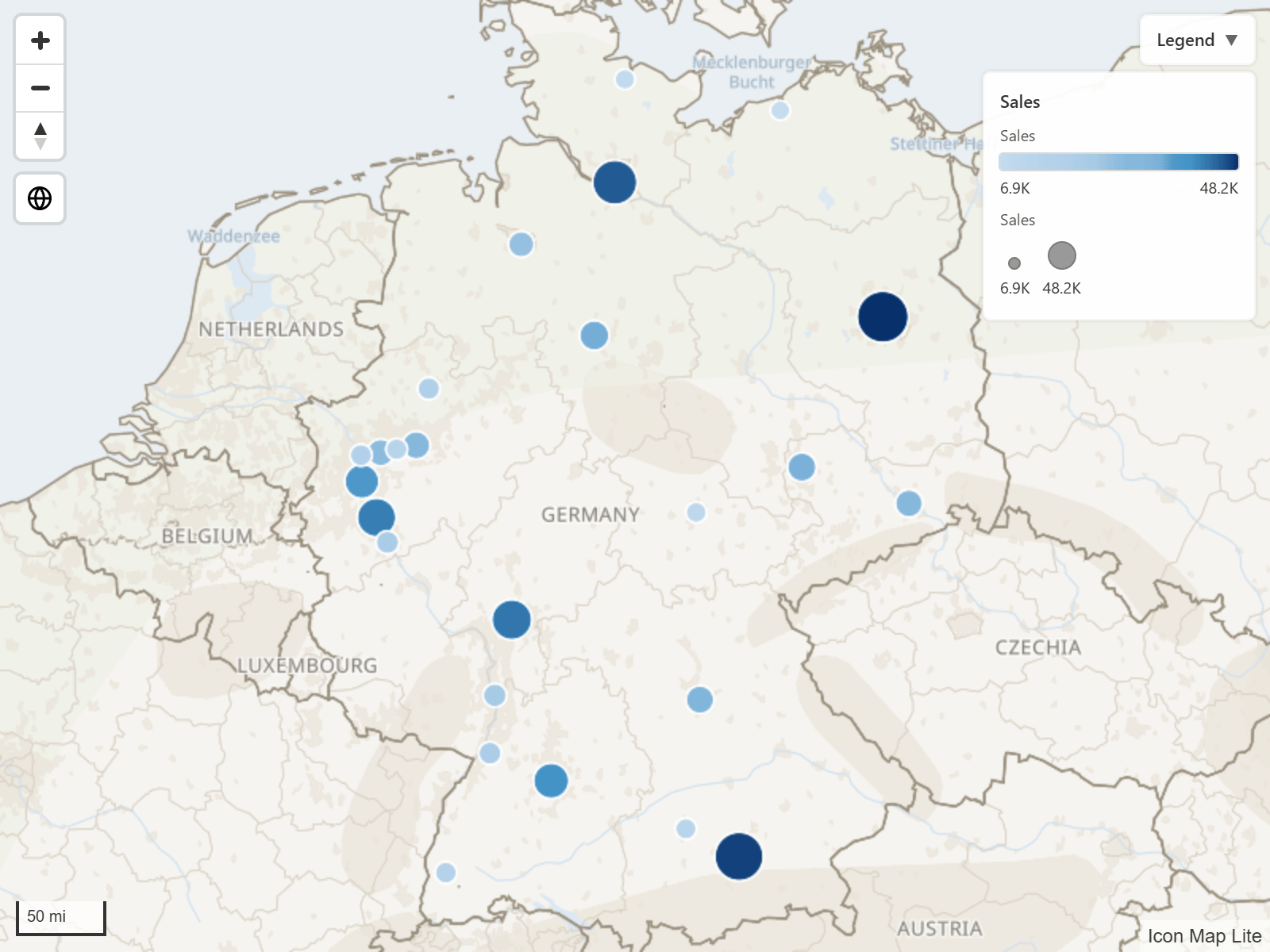
| Circles | A color swatch for each category, and a size ramp when circles are sized by a value. Cluster group colors are shown as swatches. |
| Images and icons | The icon or icons in use. When every row has its own icon and no description, a note says icons are set per item. |
| Lines | A sample of the line, a gradient for gradient lines, and a width ramp when the width follows a value. |
| Heatmap | A gradient from Low to High. |
| Cells | A swatch or a gradient. |
| Shapes (from data, from files) | Fill swatches or line samples. |
3D columns can have legend entries too. Name them with the Columns settings under Legend labels.
A group with three categories or fewer is shown in full. A larger group starts folded: it shows three swatches without names, then "+N" and an arrow. Select the arrow to expand the group and list every category with its name.
When a layer has more entries than Max categories, the list is cut short and a note such as "+ 8 more" is added.
Colors from conditional formatting
When a layer's color is set with conditional formatting (fx), Power BI gives the map only the finished color of each row, not the rule behind it. The legend works backward from those colors:
- a small number of different colors becomes a list of categories
- a smooth range of colors becomes a gradient
To label the categories, give the layer a description in Legend labels: select fx, then Field value, and pick the field that names each category. If the legend picks the wrong form, or needs better labels at the ends of a gradient, use the settings in Conditional formatting legends.
Show legends in the layer control
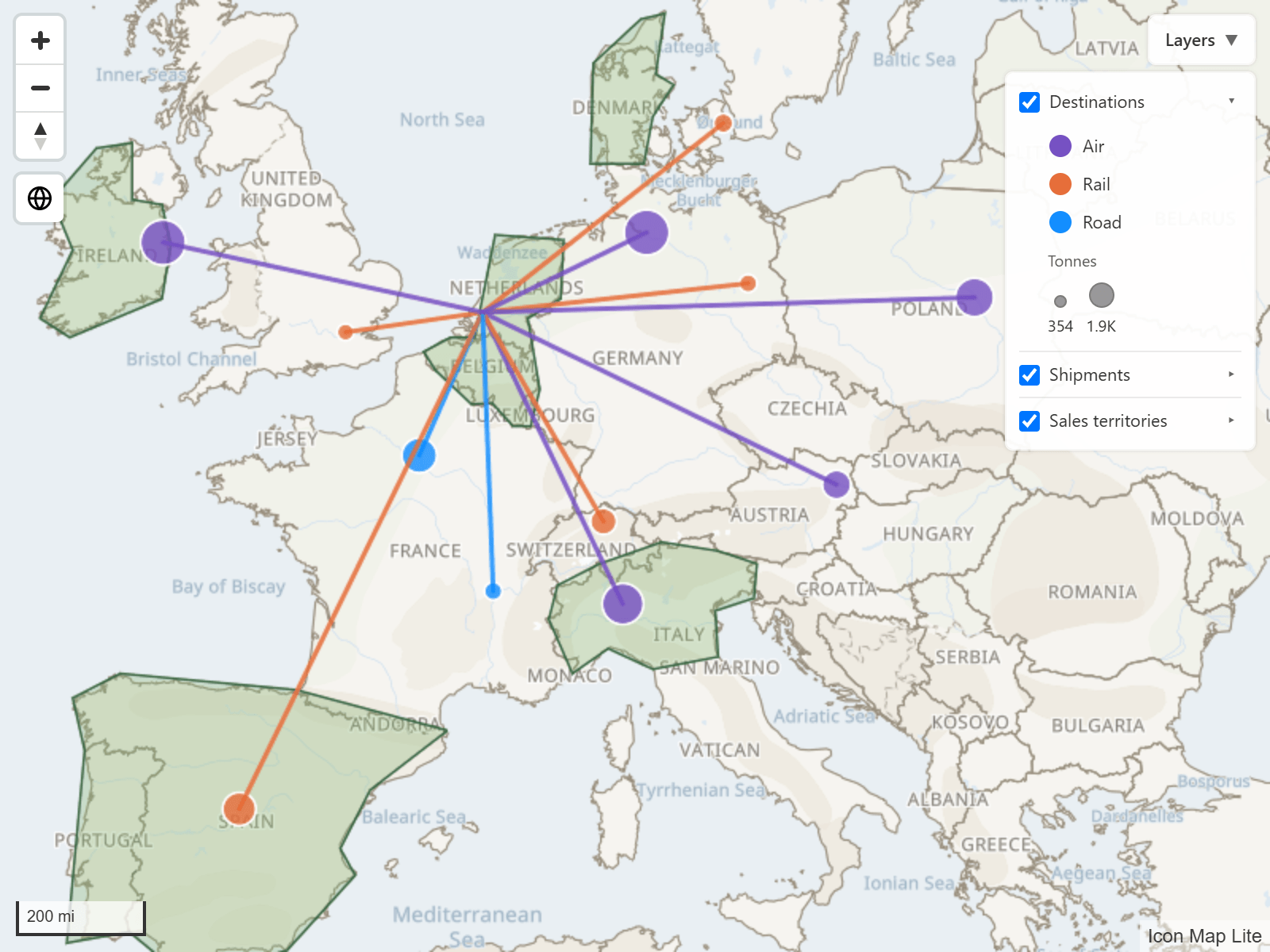
Display mode chooses where legends are drawn:
| Option | Result |
|---|---|
| Panel | A legend panel of its own. This is the default. |
| In layer control | Each layer's row in the layer control gets an arrow. The legend is folded until a reader selects the arrow, then it opens under the row. |
| Both | The panel and the layer control rows. |
In layer control needs the layer control switched on: Format pane > User Interface > Layer control > Show layer control. Without it the legend falls back to a panel. See Map controls.
Settings
Legend
| Setting | What it does | Default |
|---|---|---|
| Legend (the card's switch) | Shows the legend. | Off |
| Position | Top left, Top right, Bottom left or Bottom right. | Top right |
| Title | The heading at the top of the legend. Clear the text to hide it. | Legend |
| Start collapsed | The legend opens folded away; readers expand it. | Off |
| Show layer titles | Shows a heading for each layer's group. | On |
| Max categories | The most category swatches shown for one layer, 1 to 50. | 12 |
| Display mode | Panel, In layer control or Both. | Panel |
Legend labels
This group appears when at least one layer that can be in the legend is switched on. Each layer gets up to three settings, named after the layer.
| Setting | What it does | Default |
|---|---|---|
| {layer} in legend | Includes the layer in the legend. | On |
| {layer} title | The heading for this layer in the legend and the layer control. | Empty (the layer's own name) |
| {layer} description | Fixed text, or use fx and Field value to label the entries from a field. | Empty |
| Layer name in the settings | in legend | title | description |
|---|---|---|---|
| Circles | Yes | Yes | Yes |
| Icons (the Images / Icons layer) | Yes | Yes | Yes |
| Columns (3D columns) | Yes | Yes | Yes |
| Lines | Yes | Yes | Yes |
| Shapes (from data) | Yes | Yes | Yes |
| Shapes (from files), or Shapes level 1, Shapes level 2 and so on | Yes | Yes | Yes |
| Heatmap | Yes | Yes | No |
| Cells | Yes | Yes | No |
Conditional formatting legends
These settings tune how fx colors are turned into legend entries. They are offered for Circles, Icons, Columns, Shapes (from data), Lines and Shapes (from files). When Shapes (from files) layers are used as levels, the settings are labeled Shapes (all levels), for example Shapes (all levels) mode.
| Setting | What it does | Default |
|---|---|---|
| {layer} mode | Auto decides by the number of different colors. Categories forces a list of swatches, Gradient forces a gradient, None switches this off for the layer. | Auto |
| {layer} gradient field | The field whose values drive the gradient. Select fx, then Field value, and pick it. Leave it empty to let the map detect it from the measures in the visual. | Empty |
| {layer} min label, {layer} max label | Text for the two ends of the gradient. | Empty |
| {layer} value ranges | Labels category swatches with the range of values seen for each color. The ranges are approximate, based on the data present. | Off |
Tips and limits
- The legend sits in a corner of the map and cannot be dragged. If it covers a control, move it to another corner with Position.
- The layer control lets readers show and hide layers. Their choices last for the session only and are not saved with the report.
- Use {layer} title to replace a name such as Shapes level 1 with words your readers know.