
Data rows and limits
Power BI sends data to a visual in blocks of 30,000 rows. Icon Map Lite loads one block by default and can load up to 16, for a maximum of 480,000 rows. This page explains the setting and how to keep a large map responsive.
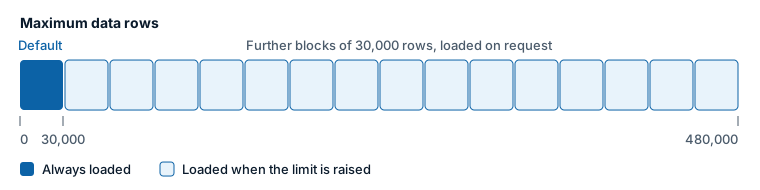
Load more than 30,000 rows
- In the Format pane, expand Data Layers.
- Expand the Data Rows group, at the bottom of the card.
- Set Maximum data rows to the number you need, from 30000 to 480000.
The visual then asks Power BI for further blocks of 30,000 rows until it reaches your limit or the end of the data. A large dataset takes longer to appear than a small one.
One row is one value of the field in * ID (required). If the map shows fewer items than you expect, check whether your data has more rows than Maximum data rows.
Settings
| Setting | What it does | Default |
|---|---|---|
| Maximum data rows | The most rows the visual loads. 30000 to 480000. The pane notes that more rows may cause performance issues, and that data is loaded in increments of 30000 rows. | 30000 |
Conditional formatting works on every row the visual loads, including rows beyond the first 30,000.
Keep large maps fast
Loading more rows makes the map slower to draw. Before raising the limit, consider whether the reader needs every point.
| Approach | Why it helps |
|---|---|
| Aggregate in the data model | Draw one row per site, area or cell instead of one per transaction. Fewer rows is always the fastest option. |
| Use Cells or a Heatmap | They show the pattern of many points without drawing each one as a separate shape. |
| Cluster circles and images | Clusters replace crowds of overlapping points when zoomed out. |
| Turn off tooltips and selection where they are not needed | Each layer has settings such as Include Tooltip and Selectable. Items that are only there for context do not need them. |
| Prefer circles, a few distinct images or text badges | Each distinct image is decoded once and reused, so many different images cost more than a few. |
| Use a PMTiles file or the built-in boundaries for large boundary sets | In Shapes from files, a PMTiles archive (up to 25 MB) is already simplified for each zoom level, and the built-in countries, states and provinces add nothing to the report. |
| Filter with slicers | Let readers choose a region or period, so that each view loads fewer rows. |
Other limits to know about
| Limit | Value |
|---|---|
| Rows loaded by default | 30,000 |
| Most rows the visual can load | 480,000 |
| Fields in Cluster Group | 2 |
| Points selected by selecting a cluster with Select on Click | The first 100 |
| Items that can be selected at once | 5,000 by default. Set by Format pane > Selection > User Selection > Max Selections, 1 to 100,000. |
| Uploaded PMTiles file (Shapes from files, custom shapes for Cells) | 25 MB |
| Uploaded GeoJSON, TopoJSON, KML or shapefile | 100 MB as uncompressed JSON, after simplification |
| Shapes from files levels or layers | 5 |
Power BI also limits the length of a single text value to 32,766 characters, which matters when you hold WKT or GeoJSON shapes, SVG images or data URIs in a column. See Shapes from data and Images and icons.