
Select and filter with the map
Icon Map Lite works like a slicer. Select items on the map, by clicking, with a lasso or by drawing a circle, and the rest of the report page is filtered to them. The filter stays until you clear it, and bookmarks remember it.
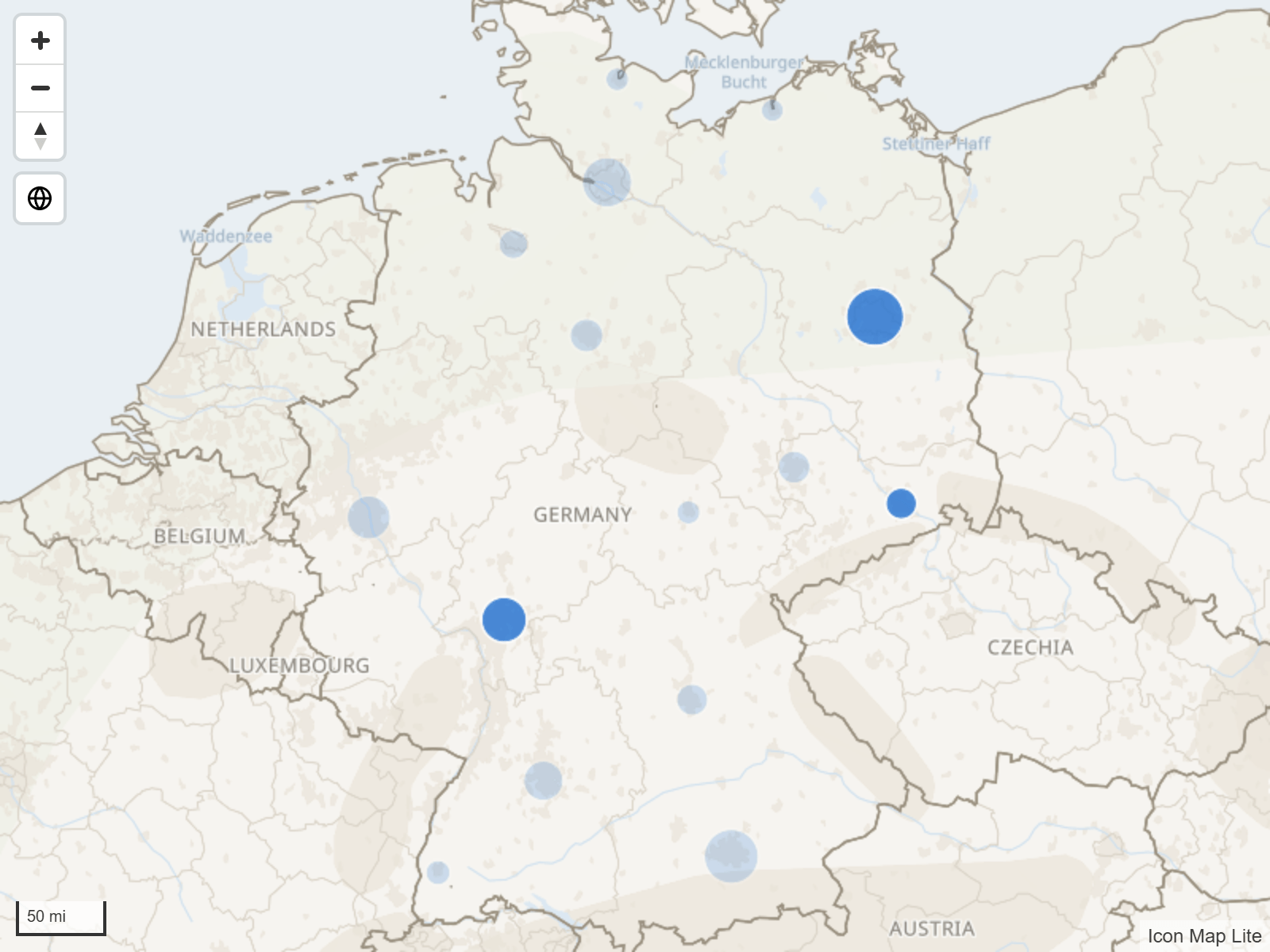
Select on the map
| To do this | Do this |
|---|---|
| Select one item | Click it. |
| Add items to the selection | Hold Ctrl or Shift and click another item. |
| Remove items from the selection | Hold Ctrl or Shift and click items that are already selected. |
| Clear the selection | Click the selected item again, click an empty part of the map (while Background Click Clears Selection is on, the default), or use the Clear All Selections button. |
| Select everything inside a freehand shape | Use the Lasso Select Tool. See Lasso. |
| Select everything within a distance of a point | Use the Circle Select Tool. See Circle Select. |
| Select with the keyboard | Tab to the map, then use the arrow keys and Enter. See Keyboard. |
The pointer changes to a hand over anything you can select.
The lasso, the circle tool and the Clear All Selections button are not on the map by default. Switch them on in Format pane > Selection > User Selection.
How the map filters the report
When you select items, Icon Map Lite applies a filter on the ID field to the report page, the same way a slicer does. Every other visual on the page shows only the rows you selected.
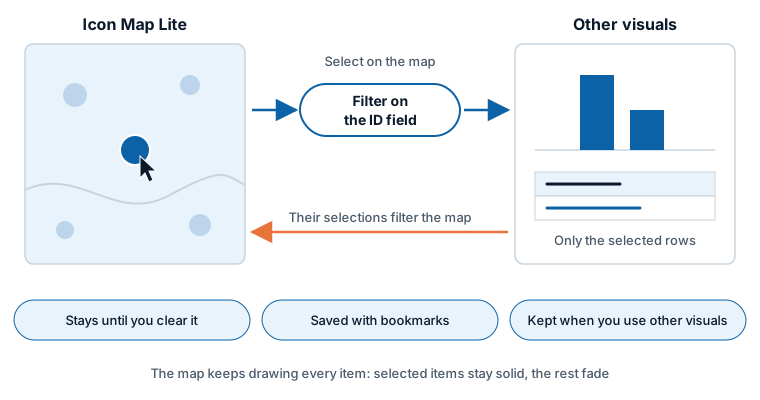
Because it is a filter and not a passing selection:
- It stays when readers use other visuals. Selecting a bar in a chart does not clear the map's filter. Both apply.
- Bookmarks remember it. A bookmark captures the map's selection and puts it back when the bookmark is applied, so the map works in bookmark navigation.
- It can be saved with the report. A selection you make while editing the report is saved with it.
- The map does not filter itself. The map keeps drawing all its items. The selected items stay solid and the others fade, so readers can still see and pick the rest.
From other visuals to the map
Selections in other visuals, slicers and filters filter the map's rows. The map redraws with the rows that remain and, with Auto Zoom on, zooms to fit them. Other visuals cannot cross-highlight Icon Map Lite: their selections always filter it.
Set up selection
All selection settings are on the Selection card of the Format pane, in the User Selection group.
| Setting | What it does | Default |
|---|---|---|
| Max Selections | The most items that can be selected at once, 1 to 100000. Items beyond the limit are left out. A filter on a very large number of items slows the report down | 5000 |
| Background Click Clears Selection | Clicking an empty part of the map clears the selection | On |
| Clear Selections Button | Adds a Clear All Selections button to the map. It is the same setting as the one on the User Interface card | Off |
| Select Intersecting Items | Clicking an item also selects every item that lies inside it or crosses it. See Select what lies inside a shape | Off |
| Select Buffer | A distance in meters added around the clicked item, -10000 to 10000. Shown when Select Intersecting Items is on | 0 |
| Select Mode | Intersect or Contain or Fully Contain. Shown when Select Intersecting Items is on | Fully Contain |
| Circle Select | Adds the Circle Select Tool to the map | Off |
| Circle Select Units | Metric, Imperial or Nautical: the units of the radius shown while you draw. Shown when Circle Select is on | Metric |
| Lasso | Adds the Lasso Select Tool to the map | Off |
| Lasso Mode | Intersect or Contain or Fully Contain. Applies to the lasso and the circle tool. Shown when Lasso or Circle Select is on | Intersect or Contain |
| Fill | Fill color of the lasso or circle while you draw. Shown when Lasso or Circle Select is on | #AAAAAA |
| Outline | Outline color of the lasso or circle while you draw. Shown when Lasso or Circle Select is on | #000000 |
What you can select
An item can be selected when it comes from a row of your data and its layer allows selection.
| Layer | Selectable | Setting |
|---|---|---|
| Circles, Images and icons, Lines, Shapes from data, Shapes from files, Cells | Yes | Selectable: Yes or No. Takes conditional formatting (fx), so some rows can be made unselectable. |
| 3D columns | Yes | Allow Selection: Yes or No. Takes fx. |
| Clusters | Optional | Select on Click (off by default) selects the points in a cluster. Zoom on Click (on by default) zooms in to them. |
| Heatmap | No | |
| Shapes in a file that match no row | No | |
| Reference layers | No | A file layer's polygons can be made a selection tool. See below. |
An item that stands for several rows selects all of them. Clicking a cell that aggregates 40 points selects those 40 rows.
Lasso
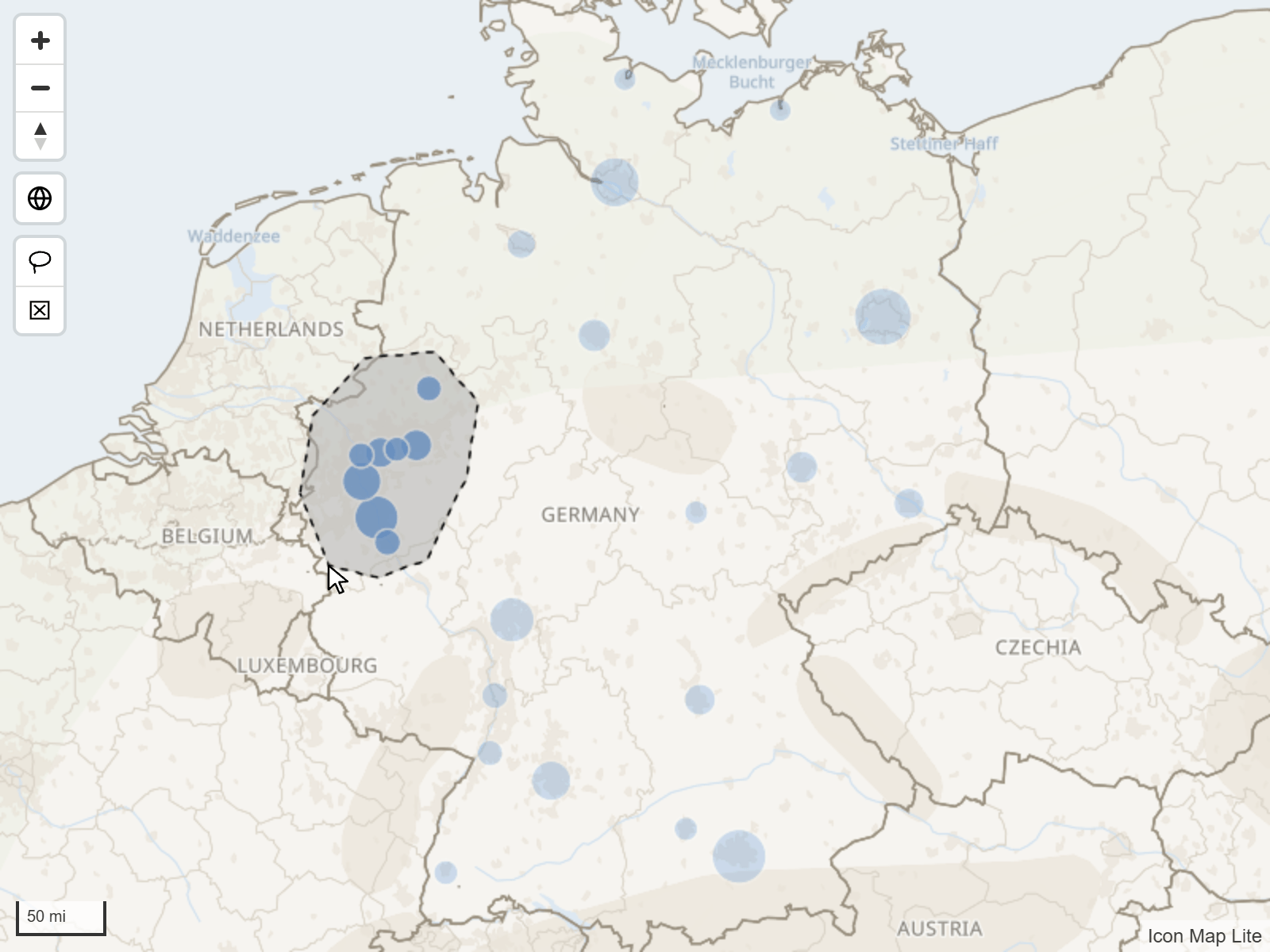
- Switch the tool on: Format pane > Selection > User Selection > Lasso.
- On the map, select the Lasso Select Tool button.
- Press on the map and drag a shape around the items you want. The map does not pan or zoom while the tool is on.
- Release the mouse button. Everything inside the shape is selected and the tool switches itself off.
Hold Ctrl or Shift while you draw to add to the current selection.
Circle Select
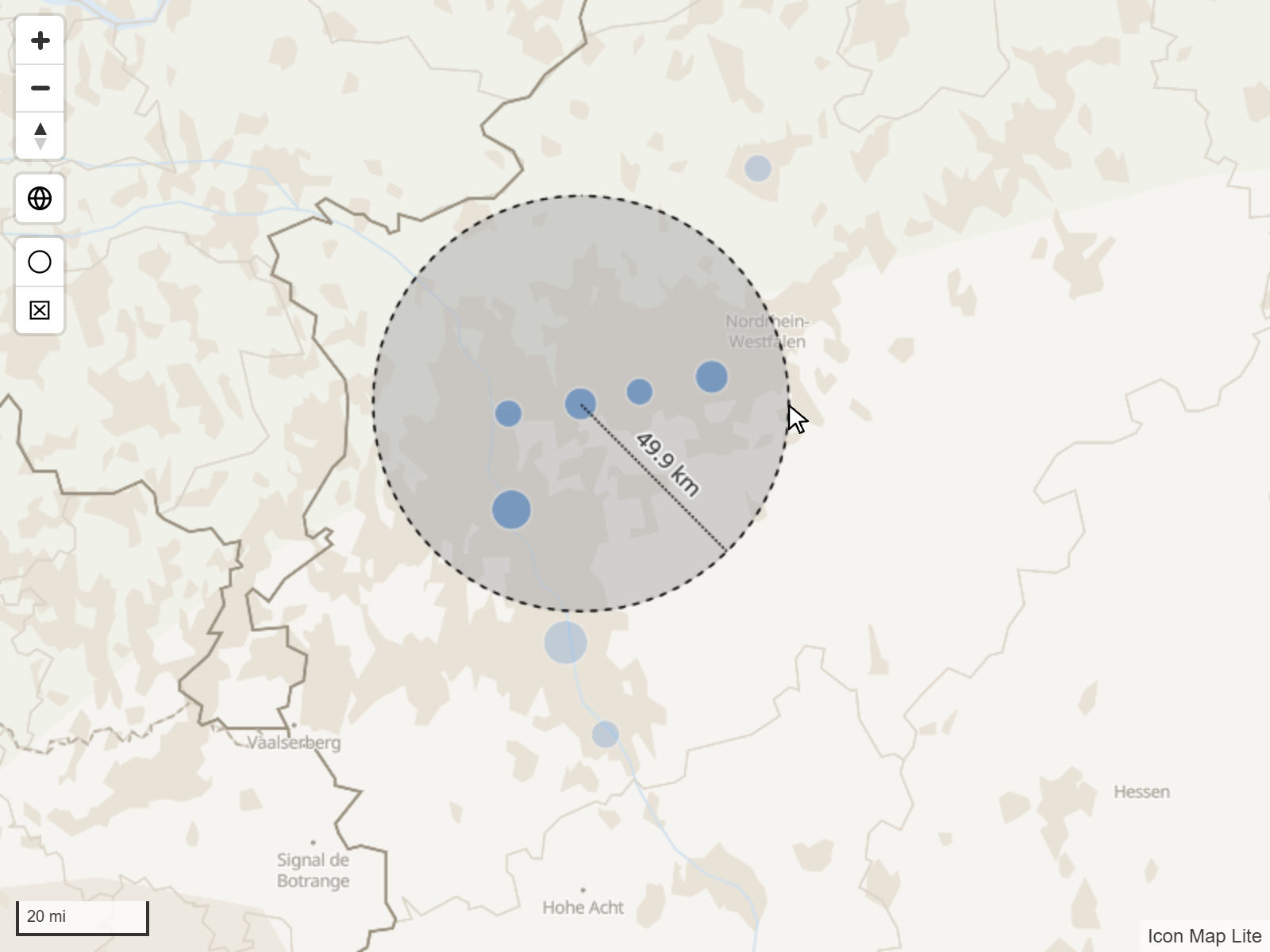
- Switch the tool on: Format pane > Selection > User Selection > Circle Select, and choose the Circle Select Units.
- On the map, select the Circle Select Tool button.
- Press on the map at the center of the area you want, and drag outward. The radius is shown as you drag.
- Release the mouse button. Everything inside the circle is selected and the tool switches itself off.
Hold Ctrl or Shift while you drag to add to the current selection.
Which items the lasso and circle select
Lasso Mode decides which lines and shapes count, for both tools:
| Lasso Mode | Selects |
|---|---|
| Intersect or Contain (default) | Lines and shapes that touch the shape you drew or lie inside it. |
| Fully Contain | Only lines and shapes that lie entirely inside the shape you drew. |
A point is selected when it is inside the shape you drew, in either mode.
Select what lies inside a shape
With Select Intersecting Items on, clicking an item also selects the items around it. Click a region from your data, and the sites inside it are selected with it, with nothing else to set up.
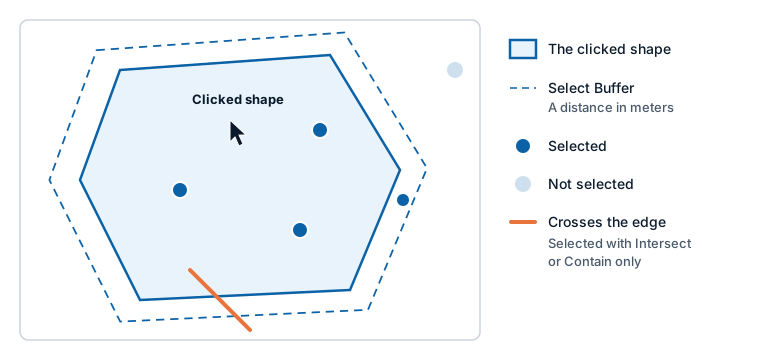
- Select Buffer widens the area by a distance in meters. Set it to 100 and clicking a circle also selects everything within 100 meters of it.
- Select Mode decides what counts. Fully Contain (the default) selects only items entirely inside the area. Intersect or Contain also selects lines and shapes that cross its edge.
Select with a reference layer
The polygons of an uploaded file can work the same way, without being part of your data. Switch on Use Polygons for Selection for the file layer, and clicking one of its polygons selects every data item inside it. This suits regions that come from a boundary file. It uses the same Select Mode and Select Buffer. See Shapes from file.
How selected items look
When a selection is active, the map changes the transparency of its items. With nothing selected, each layer uses its own transparency.
Format pane > Selection > Formatting
| Setting | Applies to | Default |
|---|---|---|
| Selected Items Transparency | The items you selected on the map. 0 is solid, 100 is invisible | 20 |
| Unselected Items Transparency | Every other data item while a selection is active | 80 |
Data labels fade with their items. With Label Visibility set to When selected, only the selected items show their labels. See Data labels.
Keyboard
Readers can select items on the map without a mouse.
- Press Tab until the map's data has the focus. An outline is drawn, and a status line announces how many selectable items there are.
- Press the arrow keys to move from item to item. Home and End go to the first and last item. The item with the focus is outlined, brought into view and announced.
- Press Enter or Space to select it. Hold Ctrl or Shift as well to add it to the selection.
- Press Escape to leave the map's items. Power BI then takes the focus back.
Reference layers are not in the list of items.
High contrast
When a reader has Windows high contrast switched on, the map switches to the reader's high contrast colors: the background map uses the High contrast theme, and the data layers and map controls are recolored. See The background map.
Drill-down
The ID field well accepts a hierarchy, for example Country, Region, District. Add the fields in order and Power BI shows its drill buttons on the visual header. With drill mode switched on, clicking an item on the map drills into it. A click that selects up to 20 items drills into all of them.
Shapes from files can show a different set of shapes at each level. Its setting Display multiple layers as offers:
| Option | Result |
|---|---|
| Drill-Down (default) | One layer is drawn at a time. Level 1 of the layer is drawn at the top of the hierarchy, level 2 after one drill, and so on, up to 5 levels. |
| Multiple Layers | All the layers are drawn together. |
Right-click menu
Right-click a data item to open Power BI's context menu for that row, with the commands Power BI offers for a data point, such as Include, Exclude and Drill through. Right-clicking an empty part of the map opens the visual's general menu.
Filter by where the map is
As well as selecting items, the map's position can filter the report: pan and zoom, and other visuals show only the rows in view. See Filter by the map's location.
Tips and limits
- If readers keep clearing the selection by accident when they click the map, switch off Background Click Clears Selection and switch on Clear Selections Button instead.
- Large selections make Power BI work harder. Keep Max Selections as low as your report allows.
- To stop a layer taking part in selection, set its Selectable setting to No. The pointer no longer changes over its items.