
Build your first map
This tutorial takes about 15 minutes. You start with an empty visual and a ten-row table of European capitals, and finish with a map of circles sized and colored by sales, with labels and tooltips, that filters the rest of the report page.
Before you start
You need:
- Power BI Desktop, with Icon Map Lite added to your report. See Add Icon Map Lite to a report.
- An Icon Map Lite license assigned to you. The free one-month trial from Microsoft AppSource is enough. See How Icon Map Lite is licensed.
Step 1: Create the sample data
- In Power BI Desktop, select Home > Enter data.
- Copy the table below, select the first cell of the grid in the Create Table window, and paste.
- If Power BI does not pick up the column names, select Use first row as headers.
- Name the table
Storesand select Load.
| City | Latitude | Longitude | Sales | Category |
|---|---|---|---|---|
| Lisbon | 38.7223 | -9.1393 | 310 | Retail |
| Madrid | 40.4168 | -3.7038 | 540 | Online |
| Dublin | 53.3498 | -6.2603 | 280 | Wholesale |
| London | 51.5072 | -0.1276 | 950 | Online |
| Paris | 48.8566 | 2.3522 | 880 | Retail |
| Rome | 41.9028 | 12.4964 | 450 | Wholesale |
| Berlin | 52.5200 | 13.4050 | 760 | Online |
| Vienna | 48.2082 | 16.3738 | 390 | Retail |
| Stockholm | 59.3293 | 18.0686 | 420 | Wholesale |
| Warsaw | 52.2297 | 21.0122 | 610 | Retail |
Expected result: a table named Stores appears in the Data pane with five columns. Latitude, Longitude and Sales show the sum symbol, which tells you they are numbers.
On a computer whose regional settings use a comma as the decimal separator, Power BI may read 38.7223 as text. Select the column in the Data pane and check that Data type on the Column tools ribbon is Decimal number. If it is not, retype the values with your own decimal separator.
Step 2: Add the visual
- Select the Icon Map Lite icon in the Visualizations pane.
- Drag a corner of the new visual so it fills most of the page, leaving some room on the right for a table in Step 9.
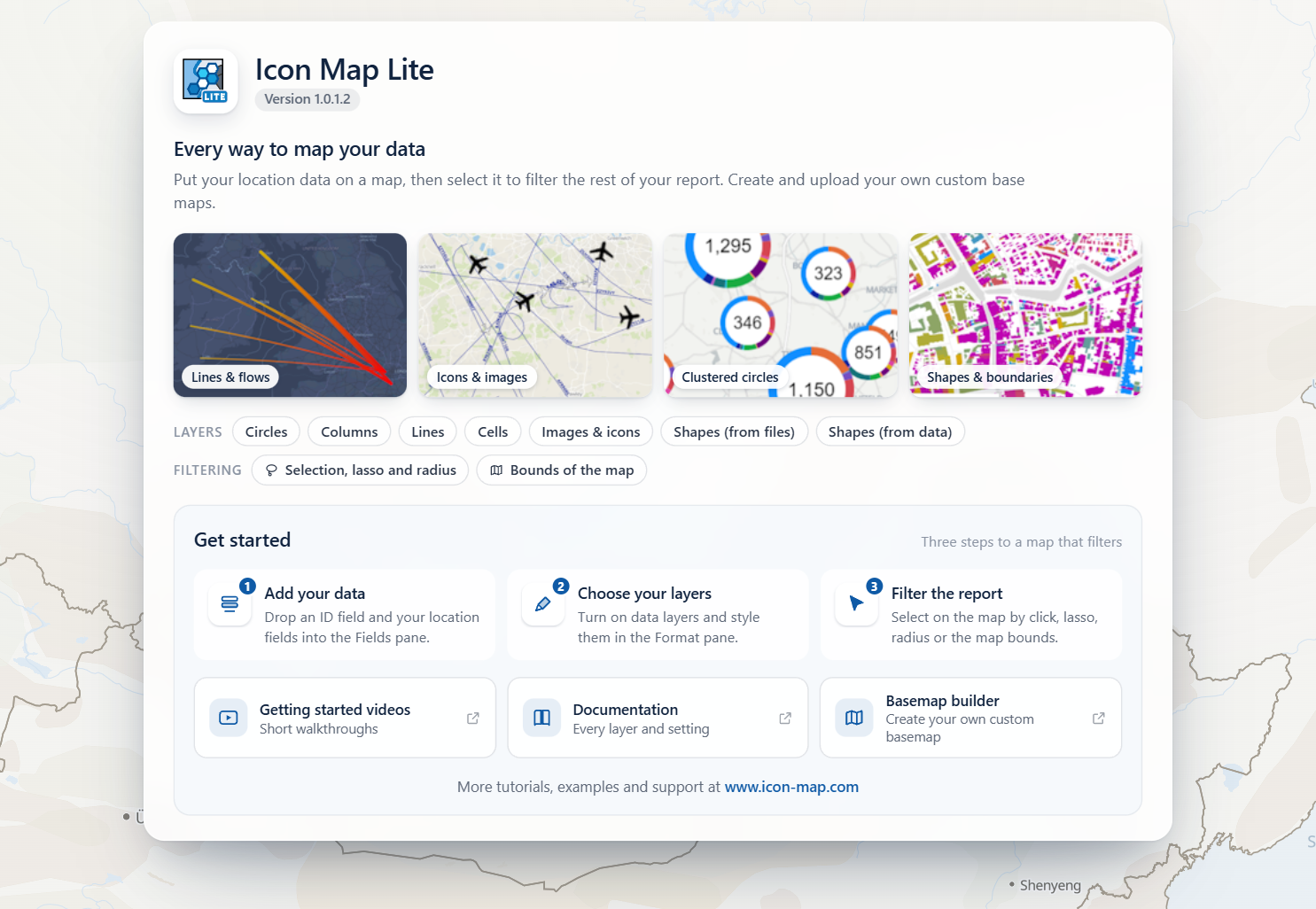
Expected result: the visual shows the Icon Map Lite start page over a moving world map, with a Get started panel. On a large visual the start page also shows example maps.
Step 3: Add the fields
Keep the visual selected and drag fields from the Stores table into the field wells in the Build pane, in this order.
Drag City to * ID (required).
Expected result: the start page is replaced by a panel titled What kind of map are you making?. It tells you that only the ID is filled in so far. This panel is the layer guide. It appears whenever your rows do not reach a layer yet.
If you have no license, a page headed "Get Icon Map Lite to see this map" appears instead. Start the free trial or ask for a license to be assigned to you, then reopen the report.
Drag Longitude to Longitude (X) and Latitude to Latitude (Y).
In each of those two field wells, select the arrow next to the field and choose Average.
Expected result: the layer guide stays, and now says that Circles is turned on, but also needs Circle Size. Point to the Circles tile to see the fields it needs, with a tick next to the ones you have added. The card opens over the tile and, on a short visual, can cover the summary at the top of the guide.
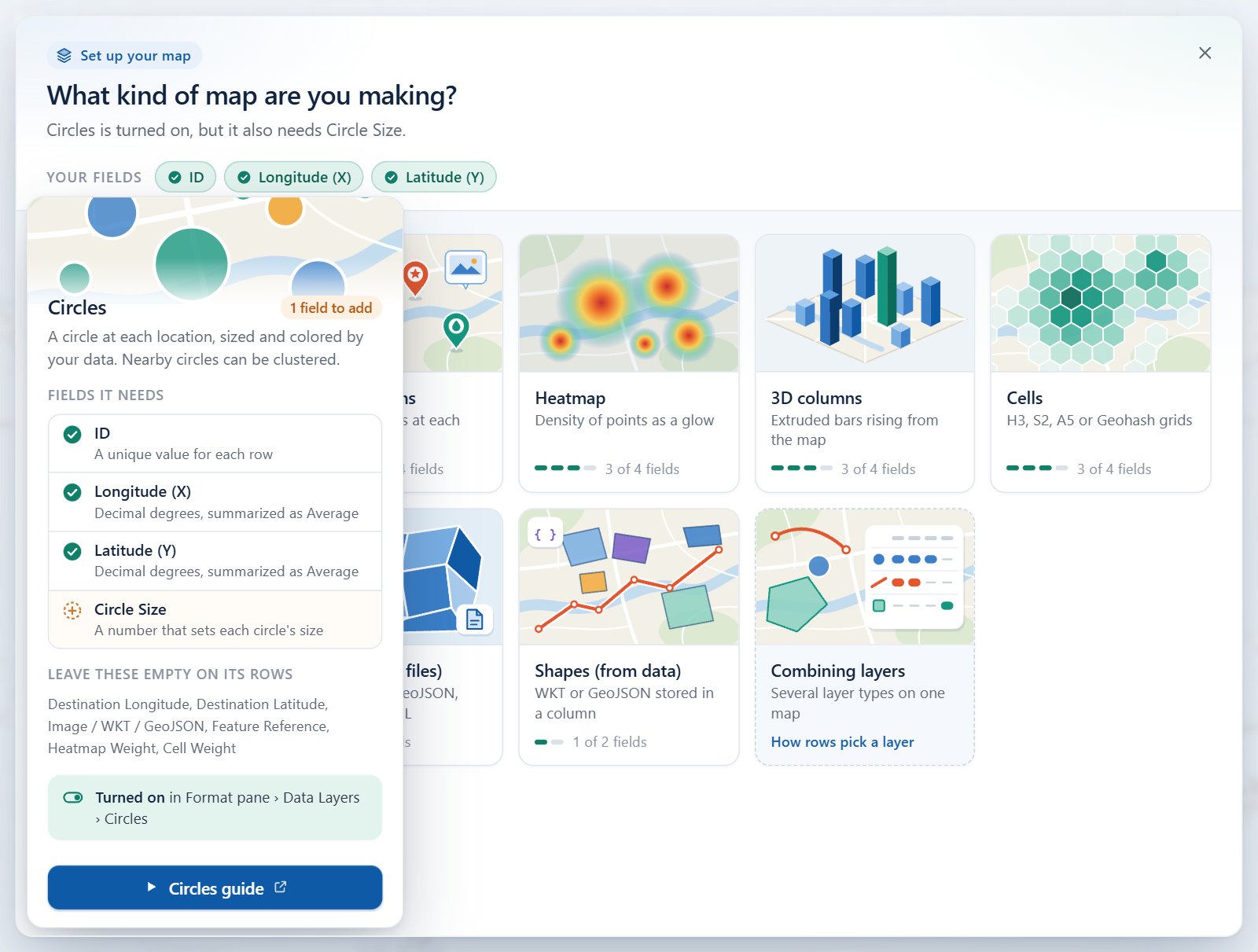
The layer guide shows what each layer type needs Drag Sales to Circle Size.
Expected result: the guide closes and the map appears. It zooms to fit ten circles across Europe, larger where sales are higher.
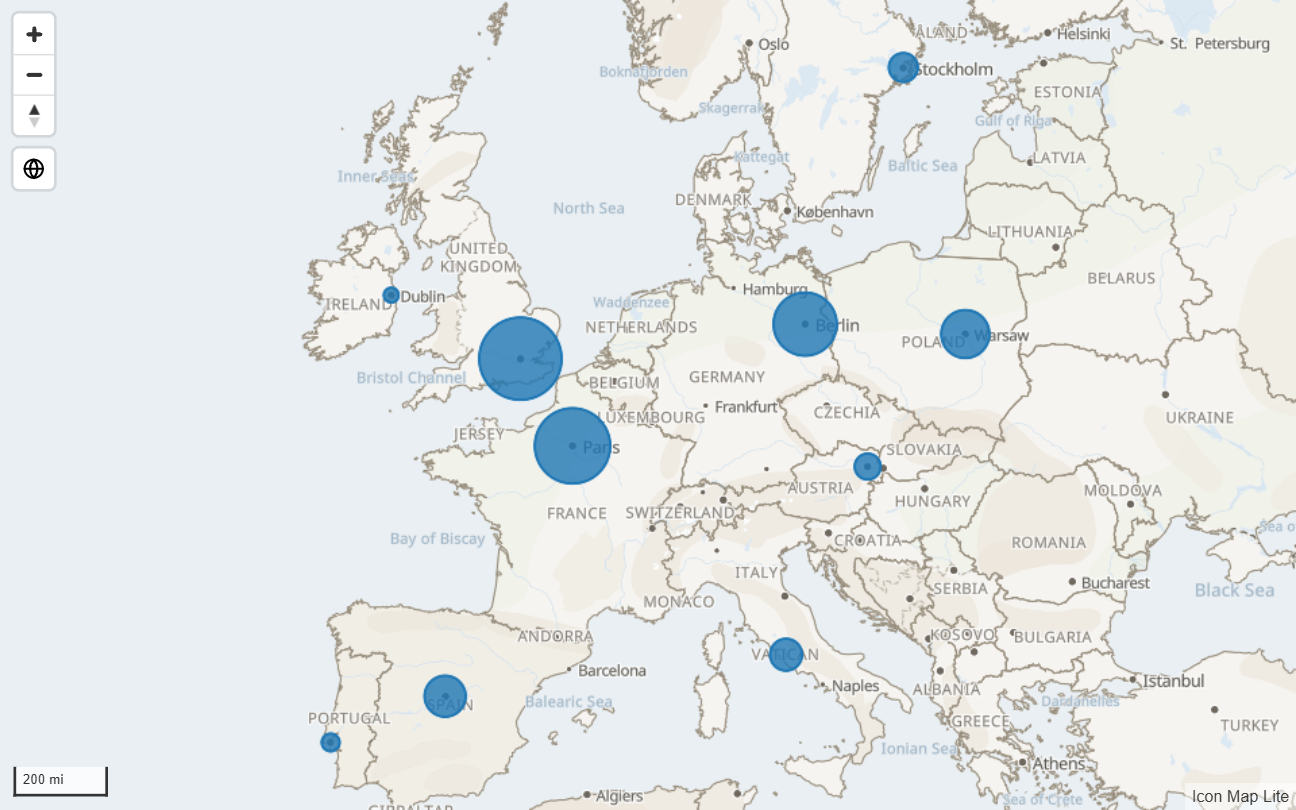
Your field wells now look like this:
| Field well | Field |
|---|---|
| * ID (required) | City |
| Longitude (X) | Average of Longitude |
| Latitude (Y) | Average of Latitude |
| Circle Size | Sum of Sales |
On a new map the Circles layer is already on. Each row has an ID, a longitude, a latitude and a circle size, and no other layer's fields, so it is drawn as a circle. See How Icon Map Lite works.
Step 4: Style the circles
- Open the Format pane and expand the Data Layers card. In its first group, Data Layers, the Circles switch is already on.
- Expand Circles - Configuration. Leave Size Behavior on Relative, and set Minimum Size to
8and Maximum Size to40. These are the sizes of the circles with the smallest and largest value. - Expand Circles - Formatting. Set Outline Color to white (
#FFFFFF) and Outline Width to1.
Expected result: the circles now range from small to large with a thin white outline.
Step 5: Color the circles by sales
Fill Color sets one color for every circle. To take the color from your data, use conditional formatting.
- Stay in Data Layers > Circles - Formatting.
- Next to Fill Color, select the fx button.
- In the Power BI dialog, set Format style to Gradient and choose Sales as the field to base it on. Pick a light color for the lowest value and a dark color for the highest.
- Select OK.
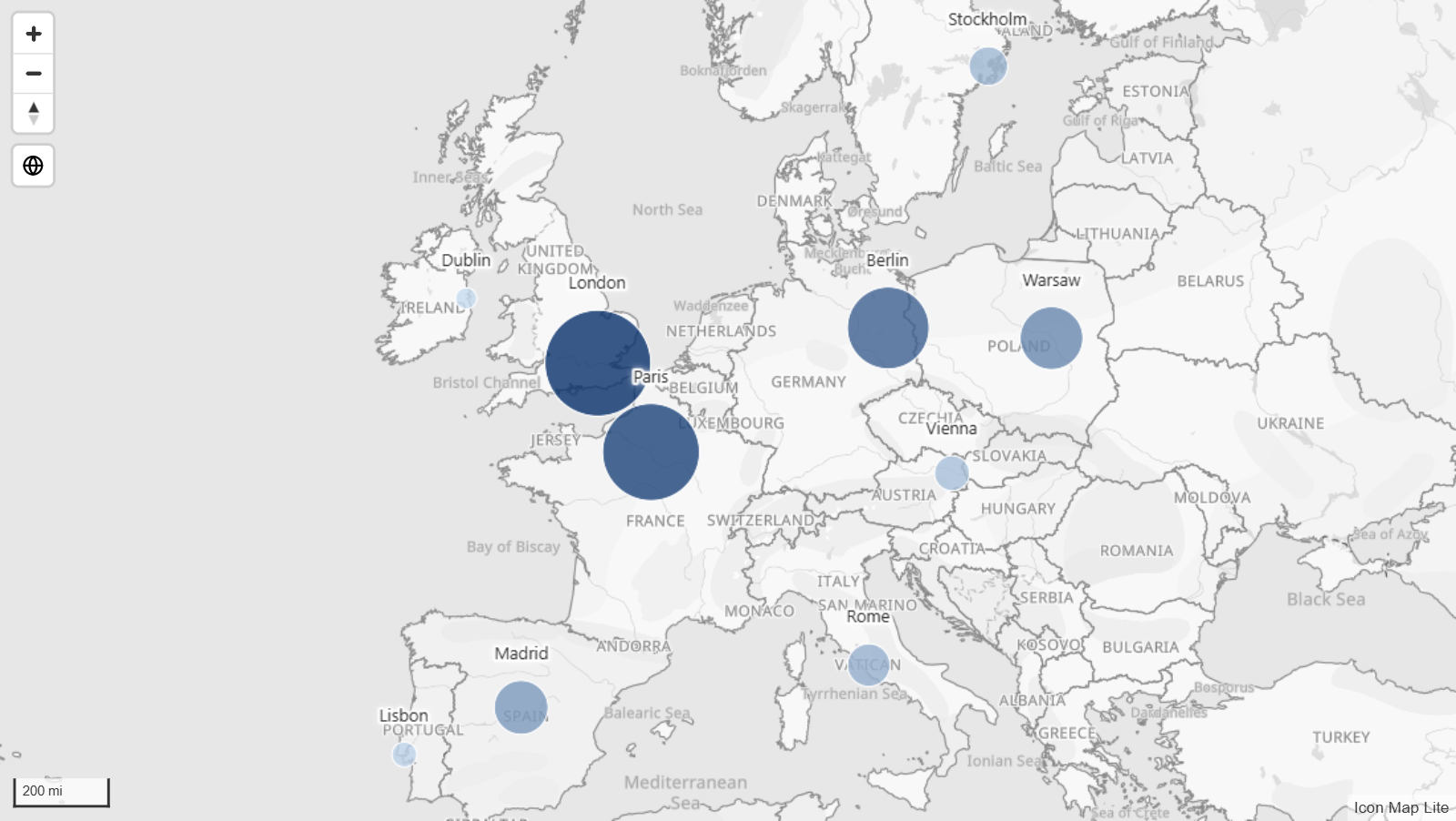
Expected result: each circle takes a color between your two colors. London, with the highest sales, is the darkest, and Dublin the lightest.
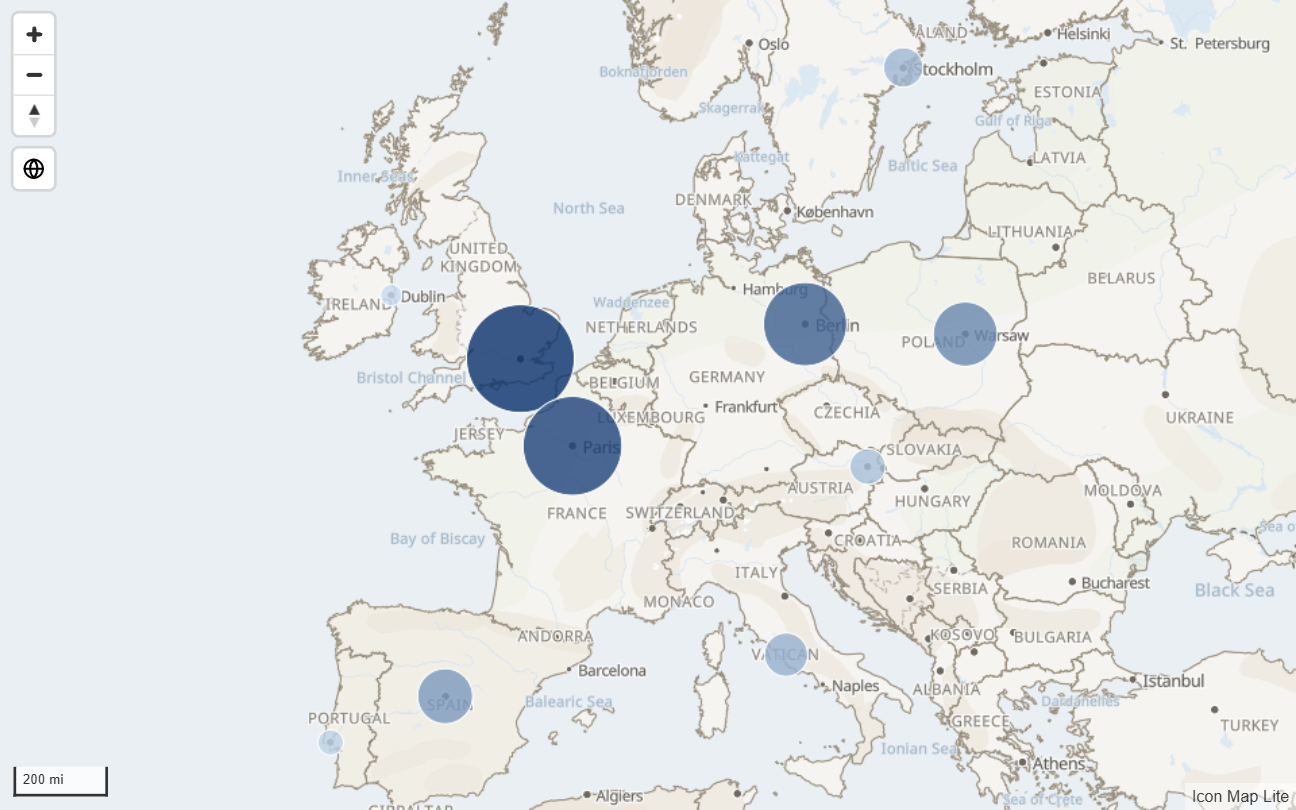
Most color, size and visibility settings accept conditional formatting. See Conditional formatting.
Step 6: Choose a background map
- In the Format pane, expand the Background Layer card and its Map group. Background map is set to Light.
- Change Background map to Mono light, a gray version of the map.
- In the Map labels group, switch off Towns and cities, so that the map's own city names do not compete with the labels you add in the next step.
Expected result: the map is now gray, and the colored circles stand out against it.
The world map is built into the visual, so changing it downloads nothing. See The background map for the other themes and detail switches.
Step 7: Add labels
In the Format pane, expand the Labels card and its Content group.
Set Display Label to Yes.
Next to Label Text, select fx. Set Format style to Field value, choose City as the field, and select OK.
Expected result: each circle shows its city name in a box, centered on the circle.
In the Style group, set Label Style to Halo Text.
In the Placement group, set Position (circles & images) to Above.
Expected result: the names sit above the circles as plain text with a white halo, which keeps them readable on any background map.
See Data labels for the other label styles and options.
Step 8: Add tooltips
- Drag Category to the Tooltips field well.
- Drag Sales to Tooltips as well.
- Point to a circle on the map.
Expected result: a tooltip lists the category and the sales for that city. When the Tooltips field well is empty, the tooltip shows the ID and the circle size instead. See Tooltips.
Step 9: Filter the report
Icon Map Lite filters the other visuals on the page the way a slicer does.
Select an empty part of the report page, then select Table in the Visualizations pane.
Add City and Sales from the Stores table to the new table.
Select the London circle on the map.
Expected result: the table shows only London. On the map, London stays solid and the other circles fade.
Hold Ctrl or Shift and select the Paris circle. The table now shows both cities.
Select an empty part of the map. The filter is cleared and the table shows every city again.
The filter stays in place when you select something in another visual, and a bookmark saves it with the rest of the page. To select several circles at once with a lasso or a circle, turn on Lasso or Circle Select in Format pane > Selection > User Selection. See Select and filter with the map.
Step 10: Try it out
- Zoom and move. Scroll to zoom, drag to pan, and use the + and - buttons at the top left.
- Switch to a globe. Select the globe button on the map. Select it again for the flat map.
- Use the keyboard. Press Tab until the map is outlined, move between circles with the arrow keys, and press Enter to select one.
What you have learned
- A row is drawn when it fills in the fields its layer needs. For circles these are * ID (required), Longitude (X), Latitude (Y) and Circle Size.
- The layer guide tells you what is missing while nothing is drawn.
- Each layer has a switch in Format pane > Data Layers, followed by its configuration and formatting groups.
- Conditional formatting (fx) takes a color, a size or a label from your data.
- Selecting on the map filters the rest of the report page.