
Format pane map
The Format pane holds every setting of Icon Map Lite. This page lists each card and group in the order the pane shows them, with a link to the page that explains it.
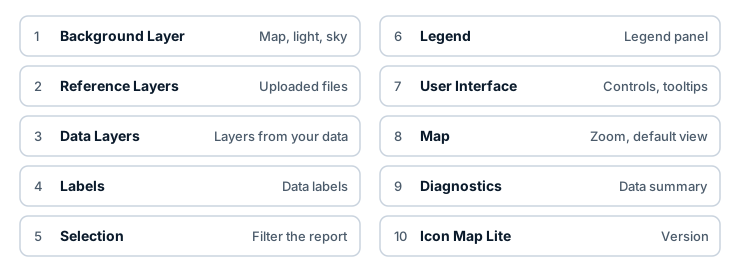
Open the Format pane
- Add at least one field to the visual. Until then the pane shows one card, Icon Map Lite, with the message "Add data to the visual before configuring formatting options." and the version number.
- Select the visual.
- Open the Format pane (the paintbrush icon). In Power BI Desktop with the on-object interaction turned on, select More options on the formatting menu to show the full pane.
How the pane is organized
- A card is a top-level section, such as Data Layers.
- A group is a collapsible block inside a card, such as Circles - Formatting.
- Most groups appear only when the thing they configure is switched on. Turn on Circles in Data Layers and the circle groups appear.
- A setting with an fx button accepts conditional formatting. See Conditional formatting.
Background Layer
| Group | What it holds | Documented in |
|---|---|---|
| Map | Background map: one of the built-in themes, None or Custom | The background map |
| Map labels | Switches for the map's own country, state, city, sea and mountain names | The background map |
| Map boundaries | Switches for country, internal, state and disputed borders | The background map |
| Land and water | Switches for deserts and landform, ice, urban areas, lakes and rivers | The background map |
| Custom basemap | Upload basemap file, the uploaded file's Style and its layer switches | Custom basemaps (.imbase) |
| Light | The light on 3D content and the globe | Light and sky |
| Sky | The sky above a tilted map and the globe's atmosphere | Light and sky |
Map labels, Map boundaries and Land and water are shown when Background map is one of the built-in themes. Custom basemap is shown when it is Custom.
Reference Layers
| Group | What it holds | Documented in |
|---|---|---|
| Shapes from file | Turns on file reference layers. Number of Layers (up to five) and Apply settings to, which picks the layer the groups below configure | Shapes from file |
| Shapes from file layer 1 - Configuration | The upload button, tooltips, filter, labels, visibility, zoom range and drawing order of the layer | Shapes from file |
| Shapes from file layer 1 - Formatting | The layer's points, fill and lines | Shapes from file |
| Shapes from file layer 1 - Labels | The layer's labels, shown once labels are on and a label property is chosen | Labels on reference layers |
| Daylight Terminator | Day and night shading | Day and night |
See also Reference layers overview.
Data Layers
The first group holds a switch for each data layer type. The groups for a layer appear when its switch is on.
| Group | What it holds | Documented in |
|---|---|---|
| Data Layers | The switches: Circles, Columns, Heatmap, Cells (H3/S2/A5/Geohash), Images / Icons, Lines, Shapes (from data) WKT / GeoJSON features and Shapes (from files) GeoJSON / Shapefile / KML / IMDF | Data layers overview |
| Circles - Configuration, Circles - Formatting | Circle size, color and behavior | Circles |
| Cluster - Configuration, Secondary Cluster - Configuration | Clustering of circles and images | Clusters |
| Columns - Configuration, Columns - Formatting | 3D columns | 3D columns |
| Heatmap - Configuration, Heatmap - Formatting | The heatmap. With advanced settings on: Heatmap - Weight, Heatmap - Radius, Heatmap - Intensity | Heatmap |
| Cells - Configuration, Cells - Formatting | Grid cells and custom shapes | Cells: H3 hexagons and grids |
| Images - Configuration | Images, text and emoji badges | Images and icons |
| Lines - Configuration, Lines - Formatting | Lines, flows and routes | Lines and Routes |
| Shapes (from data) - Configuration, Shapes (from data) - Formatting | Shapes held in your data as WKT or GeoJSON | Shapes from data (WKT and GeoJSON) |
| Shapes (from files) - Setup, then configuration, fill, line and unmatched groups for each level or layer | Shapes from an uploaded file or the built-in boundaries, joined to your data | Shapes from files and built-in boundaries |
| Data Rows | Maximum data rows | Data rows and limits |
Labels
This card appears when a data layer that can carry labels is on: Circles, Images / Icons, Shapes (from data), Shapes (from files), Lines or Cells.
| Group | What it holds | Documented in |
|---|---|---|
| Content | What the label says, and when it shows | Data labels |
| Style | The label style and text color | Data labels |
| Container, Halo or Card (the title follows the style) | The box or halo around the text | Data labels |
| Placement | Where the label sits | Data labels |
| Size and Zoom | Label size and the zoom range it shows at | Data labels |
Selection
| Group | What it holds | Documented in |
|---|---|---|
| User Selection | Max Selections, Background Click Clears Selection, Clear Selections Button, Select Intersecting Items, Circle Select, Lasso and their options | Select and filter with the map |
| Map Location | Longitude Field to Slice and Latitude Field to Slice, which filter other visuals to the area the map shows | Filter by the map's location |
| Formatting | Selected Items Transparency and Unselected Items Transparency | Select and filter with the map |
Legend
The card has its own on/off switch.
| Group | What it holds | Documented in |
|---|---|---|
| Legend | Position, title and display mode | Legend |
| Legend labels | Per-layer titles and descriptions | Legend |
| Conditional formatting legends | Legend entries for settings driven by conditional formatting | Legend |
User Interface
| Group | What it holds | Documented in |
|---|---|---|
| Controls | Control Size, a switch for each on-map control (zoom, pitch, bearing, clear selections, zoom level, globe toggle, scales, zoom lock), Projection and Additional Attribution | Map controls |
| Tooltips | Combine Tooltips | Tooltips |
| Layer control | The panel that lets readers turn layers on and off | Map controls |
Map
| Group | What it holds | Documented in |
|---|---|---|
| Zoom | Zoom limits, auto zoom, zoom padding and the animation duration | View, zoom and projection |
| Defaults | The view the map opens with: latitude, longitude, zoom level, bearing and pitch | View, zoom and projection |
Diagnostics
| Group | What it holds | Documented in |
|---|---|---|
| Diagnostic Tools | Show Data Configuration Summary, a switch that opens a summary of the rows the visual received and which layer draws each one | Troubleshooting |
Icon Map Lite
The last card. It holds the running version, "Visit icon-map.com for support.", and "This visual makes no external requests. The map, its fonts and every icon are contained in the visual package." There are no settings in it: Icon Map Lite has no license key, no telemetry and no network options. See Get support.