
Light and sky
Two groups give a map depth. Light sets the light source that shades 3D columns and extruded shapes. Sky colors the space above the horizon when the map is tilted, and the glow around the globe. Both belong to the map, so they work with every background map.
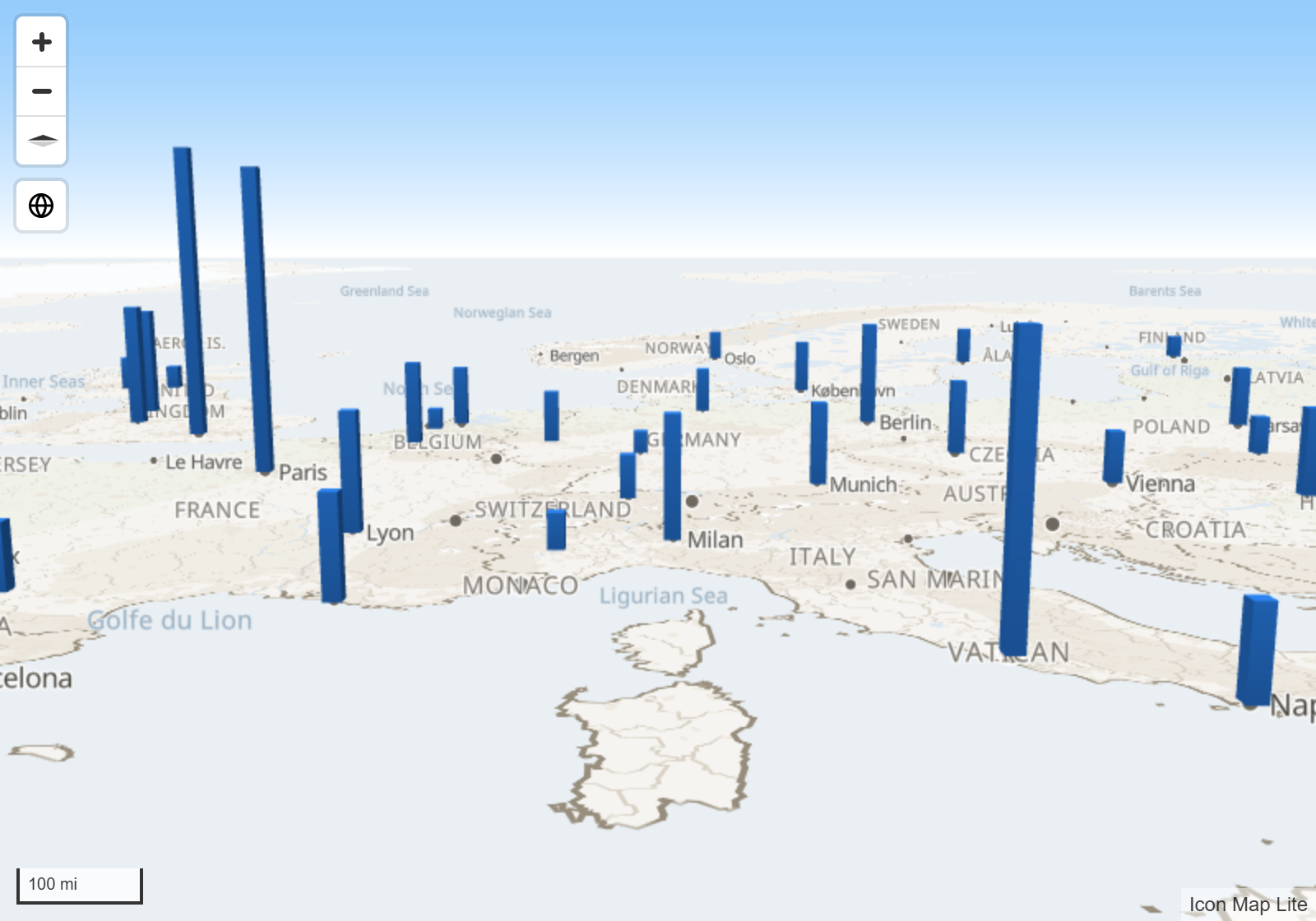
What each one does
| Group | What it does | Visible when |
|---|---|---|
| Light | Shades 3D columns, and cells and shapes that are extruded into 3D. Also sets where the sun sits for the glow around the globe | The map has 3D objects, or is on the globe |
| Sky | Colors the sky and the horizon, and sets the glow around the globe | The map is tilted far enough to show the horizon, or is on the globe |
Both groups are at the bottom of Format pane > Background Layer, below the background map settings.
Light
Light is always on. Its settings change how 3D objects are shaded.
| Setting | What it does | Default |
|---|---|---|
| Anchor | Whether the light's position is measured against the screen (Viewport) or the map (Map). With Map, the light turns with the map when it is rotated | Viewport |
| Color | The color of the light | #FFFFFF |
| Intensity | How bright the light is, 0 to 10 | 5 |
| Radial Coordinate | The distance of the light from the objects, 0.1 to 2 | 1.15 |
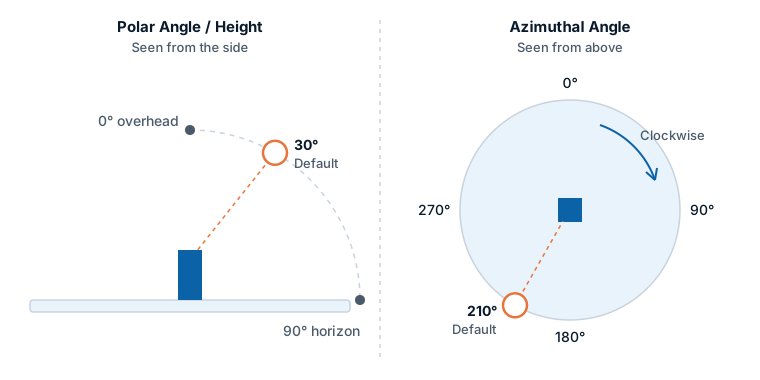
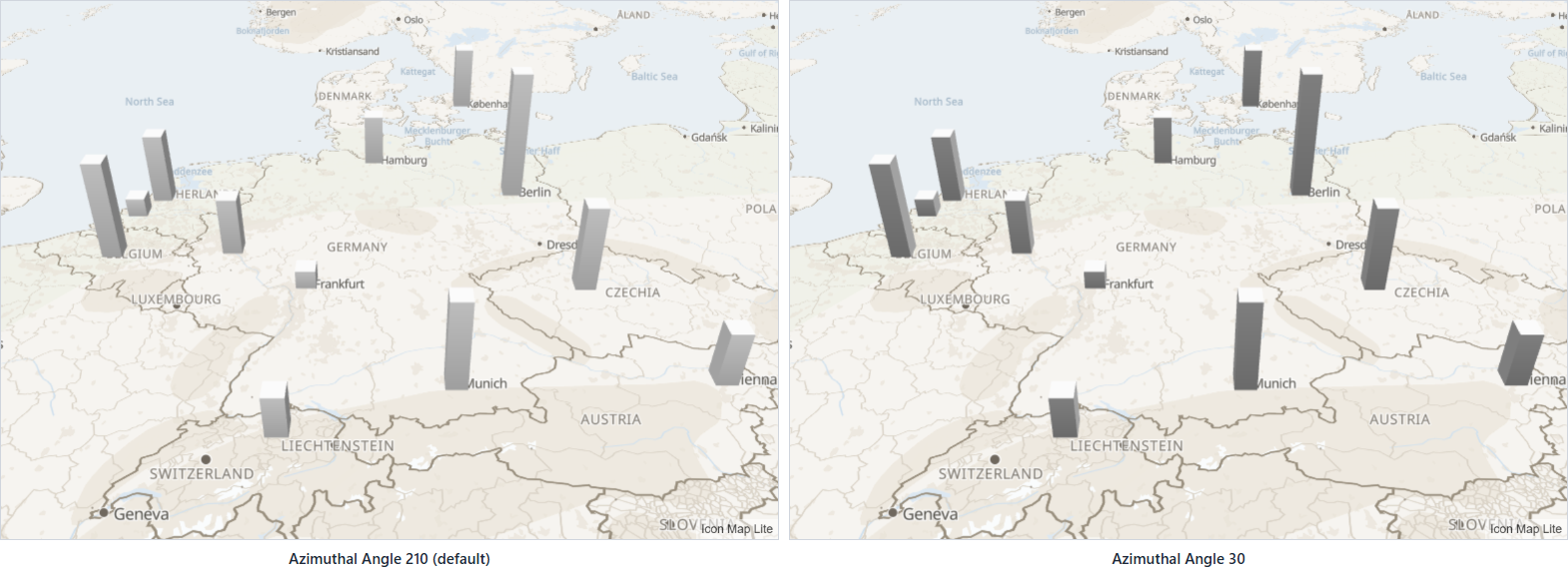
| Azimuthal Angle | The direction the light comes from, 0 to 360 degrees, measured clockwise from the top of the screen (or from north, with the Map anchor) | 210 |
| Polar Angle / Height | The height of the light, 0 to 180 degrees. 0 is straight overhead, 90 is on the horizon | 30 |
Sky
Sky colors the space above the horizon on a tilted map, and sets the atmosphere around the globe. Switch on the Sky group to use it.
| Setting | What it does | Default | Visible when |
|---|---|---|---|
| Sky | Switches the group on | Off | |
| Sky Color | The color at the top of the sky | #88C6FC | The map is tilted far enough to show the horizon |
| Horizon Color | The color at the horizon, blended upward into the sky color | #FFFFFF | The map is tilted far enough to show the horizon |
| Sky Horizon Blend | How far the horizon color reaches up into the sky, 0 to 100. 0 uses the sky color alone | 80 | The map is tilted far enough to show the horizon |
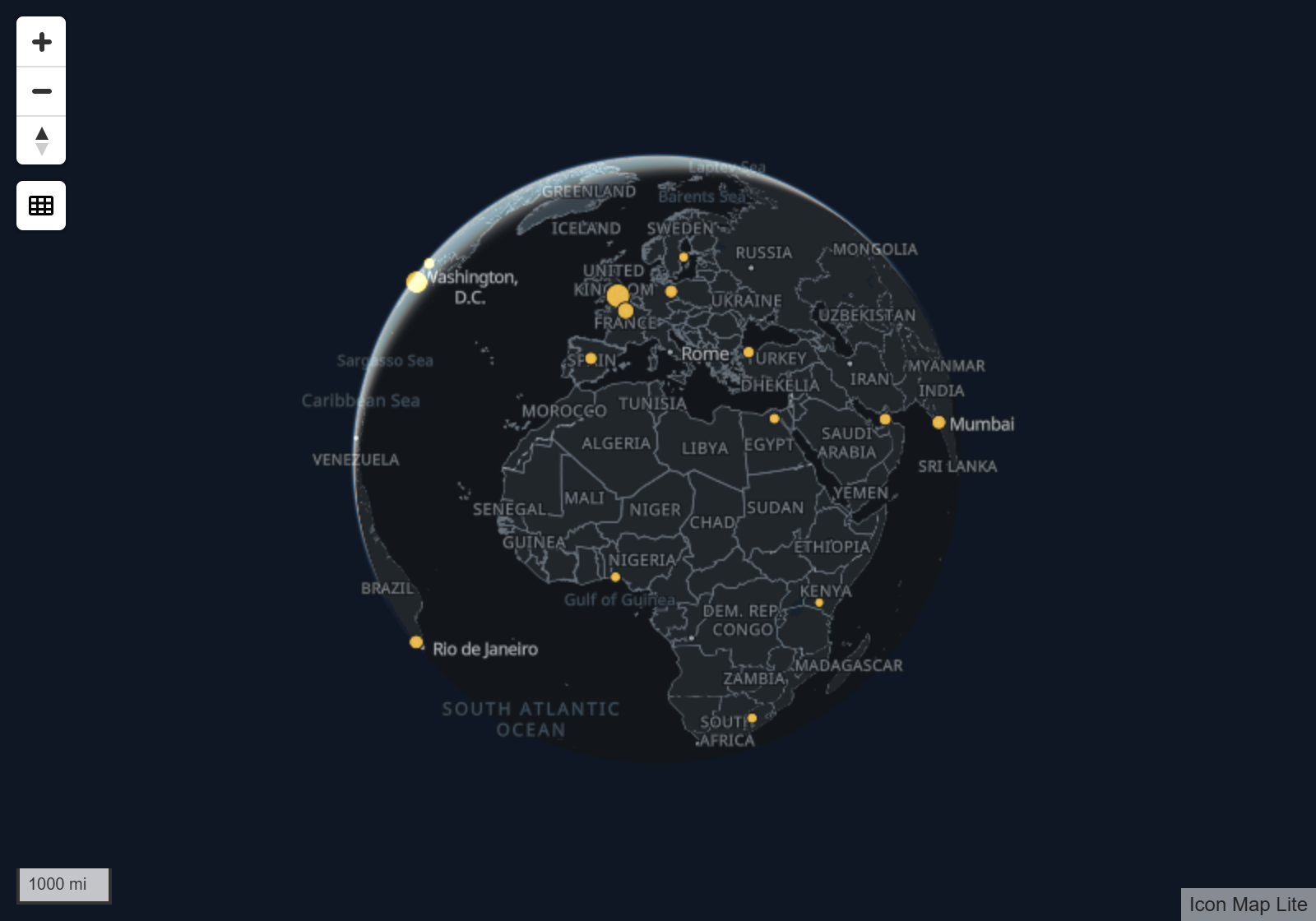
| Atmosphere Blend | The strength of the halo around the planet, 0 to 100 | 80 | The globe projection |
Tilt and the globe are described in View, zoom and projection.
Tips and limits
- If the sky does not appear, tilt the map further. At small tilts the horizon is off the top of the map.
- The glow around the globe shows only against a dark background. On a white report page the area around the globe is transparent. Set a dark background for the visual (Format pane > General > Effects > Background) or for the report page.
- Icon Map Lite has no 3D terrain, hillshade or 3D buildings. The light shades your own 3D data: 3D columns, and cells and shapes extruded into 3D.