
Shapes from files and built-in boundaries
This layer draws boundaries, such as countries, states, regions or sales territories, and joins each shape to a row of your data. Matched shapes take their color from your data, show your tooltips and can be selected. Use it for choropleth maps. Countries, states and provinces are built into Icon Map Lite, so for those you need no file at all.
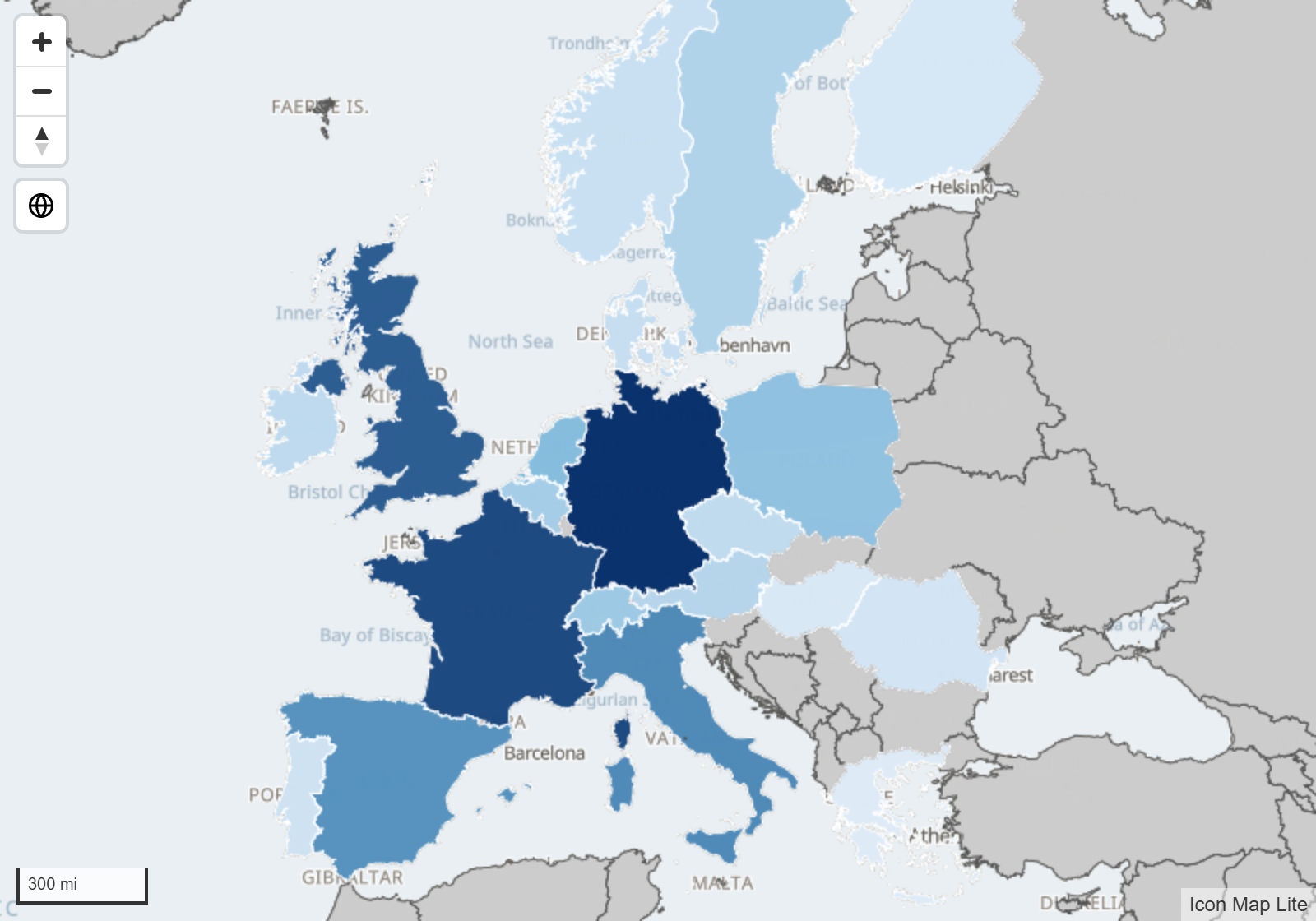
What you need
Add these fields to the visual:
| Field well | What to put in it |
|---|---|
| * ID (required) | A unique value for each row. |
| Feature Reference | The value that identifies the shape, for example a country code or a region name. |
Add fields to Tooltips if you want them.
These fields must be empty on the row, otherwise the row belongs to another layer: Image / WKT / GeoJSON, Longitude (X), Latitude (Y), Destination Longitude, Destination Latitude, Circle Size, Heatmap Weight and Cell (H3/S2/A5/Geohash) Weight. See Combine several layers in one map.
You also need the shapes. Shapes from offers two kinds:
| Shapes from | What it is |
|---|---|
| Countries, Countries, split, States and provinces | Boundaries built into the visual. Nothing to upload, nothing downloaded. See Built-in boundaries. |
| Uploaded file | A GeoJSON, TopoJSON, KML, shapefile, IMDF or PMTiles file that you upload into the report. See Upload a file. |
Built-in boundaries
Icon Map Lite has three sets of boundaries built in. They come from the same Natural Earth world data as the built-in background map.
| Shapes from | What it holds | Properties you can match on | Example value |
|---|---|---|---|
| Countries | 258 countries and territories | Name, ISO 3166-1 alpha-2, ISO 3166-1 alpha-3, Natural Earth code | Germany, DE, DEU, DEU |
| Countries, split | Countries, with some divided into their parts: England, Scotland, Wales and Northern Ireland, the regions of Belgium, and about 20 more | Name, Map unit code, Country code | England, ENG, GBR |
| States and provinces | The first-level divisions of each country, such as US states and Canadian provinces | Name, ISO 3166-2, Country code | Texas, US-TX, USA |
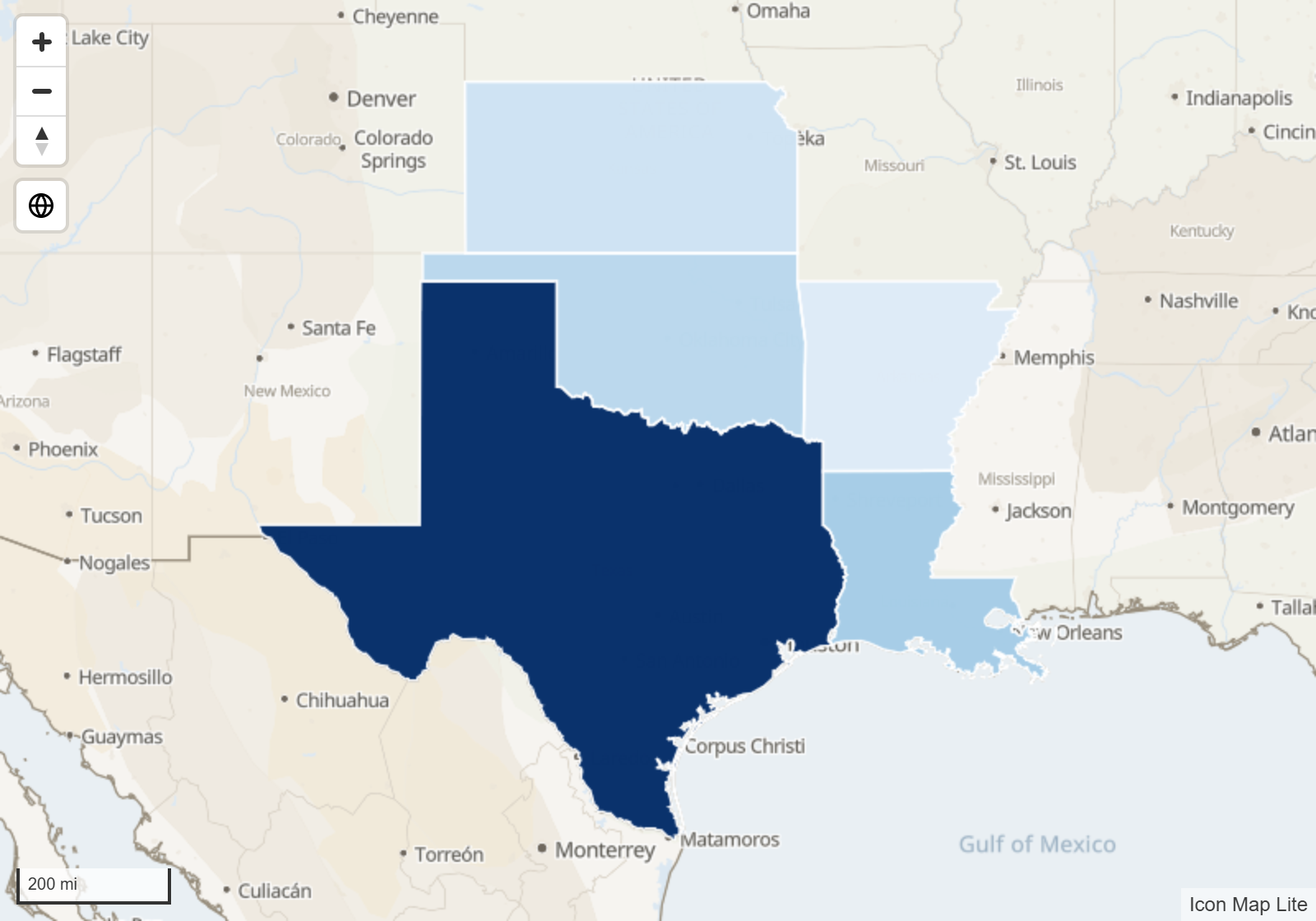
Color countries or states in four steps
- Add * ID (required) and Feature Reference to the visual. Put a country or state name or code in Feature Reference.
- In the Format pane, expand Data Layers and, in the Data Layers group, turn on Shapes (from files) GeoJSON / Shapefile / KML / IMDF. If the panel What kind of map are you making? is showing, you can select the Shapes (from files) tile instead.
- In Shapes (from files) - Configuration, set Shapes from to Countries, Countries, split or States and provinces. Then set Property to Match to Feature Reference Field to the property your data holds. The pane shows an example under it, such as "Your data should look like: DEU".
- In Shapes (from files) - Fill Formatting, select the fx button next to Fill Color and color the shapes from a measure or a field.
The match is exact. Your values must be written as the built-in set writes them, so codes are often more reliable than names. To show only the shapes in your data, turn on Remove Unmatched Shapes.
Good to know about the built-in sets:
- They are drawn from simplified world data, so borders are generalized. They suit a world, continent or country view. For detailed boundaries, upload a file.
- States and provinces are drawn when the map is zoomed in to level 3 or closer. Auto zoom takes you there when your rows match states.
- The map zooms to the matched shapes, not to the whole world.
- Each drill level or layer chooses its own Shapes from, so you can drill from countries to states, or draw countries and an uploaded file together. See Drill down between levels.
How the join works
Every shape carries properties, for example a code and a name. The layer compares the value in Feature Reference with one property of each shape. Where they are the same, the shape is matched to that row.
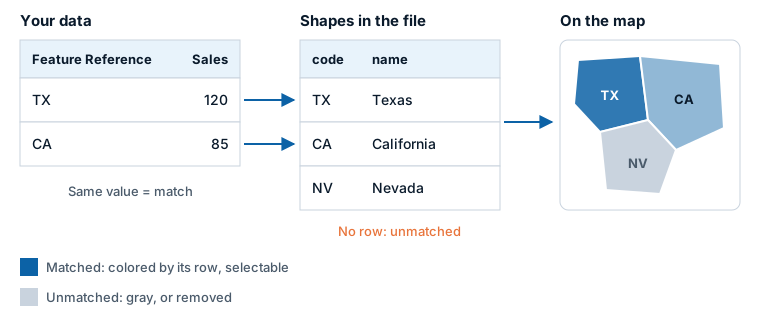
- A matched shape takes the row's formatting, tooltips and data label, and can be selected.
- A shape with no matching row is unmatched. It is drawn in the unmatched colors, or removed if you turn on Remove Unmatched Shapes.
- The comparison is exact.
TXdoes not matchtx, and12does not match012. A stray space in either value stops a match. - If several rows have the same Feature Reference value, the first row is used. If several shapes have the same value, they all take that row's formatting.
The property to compare is set in Property to Match to Feature Reference Field. For the built-in sets it is a list of their properties, starting at Name. For an uploaded file, left at Any, the layer works it out: it uses a property with the same name as your Feature Reference field if there is one, otherwise the first property whose value matches one of your rows. Naming the property is faster and avoids a match on the wrong property. Property names are case sensitive.
Add the layer with a file
- Add * ID (required) and Feature Reference to the visual.
- In the Format pane, expand Data Layers. In the Data Layers group, turn on Shapes (from files) GeoJSON / Shapefile / KML / IMDF.
- In Shapes (from files) - Configuration, leave Shapes from on Uploaded file and turn on Display File Upload Button. The upload window opens.
- Choose your file. Pick the property that matches your data in the Data bind column (for a PMTiles file, in Property to match on), and select OK.
- In Shapes (from files) - Fill Formatting, select the fx button next to Fill Color to color each shape from your data.
Upload a file
An uploaded file is stored inside the report. It travels with the report and nothing is read from the web. Icon Map Lite cannot link to a file on a server: download the file and upload it instead.
Files you can upload
| Format | File | Notes |
|---|---|---|
| GeoJSON | .geojson, .json |
A FeatureCollection. |
| TopoJSON | .json |
The first object in the file is read. |
| KML | .kml |
|
| Shapefile | .zip |
The zip must contain the .shp, .dbf and .prj files. |
| IMDF (indoor maps) | .zip |
See Indoor maps. |
| PMTiles | .pmtiles |
A vector tile archive. See PMTiles archives. |
KMZ and CSV files cannot be uploaded to this layer. A custom basemap file (.imbase) is refused here: it belongs under Background Layer. See Custom basemaps.
Coordinate systems. A shapefile is converted to longitude and latitude using its .prj file. A GeoJSON or TopoJSON file that names its coordinate system in a crs member is converted too. A file with no crs member is taken to be longitude and latitude (WGS84) already. KML is always WGS84.
Size limits
- GeoJSON, TopoJSON, KML and shapefiles: the file can be saved when it is 100 MB or less as uncompressed JSON after simplification. Above that, OK is unavailable and the window shows "File too large to save in the Power BI report."
- PMTiles: the archive can be at most 25 MB.
Large files slow the report down well before these limits. The upload window suggests a level of simplification that brings the file to 30 MB or less, and a smaller file is better still. For countries, states and provinces, the built-in boundaries add nothing to the report's size.
The upload window
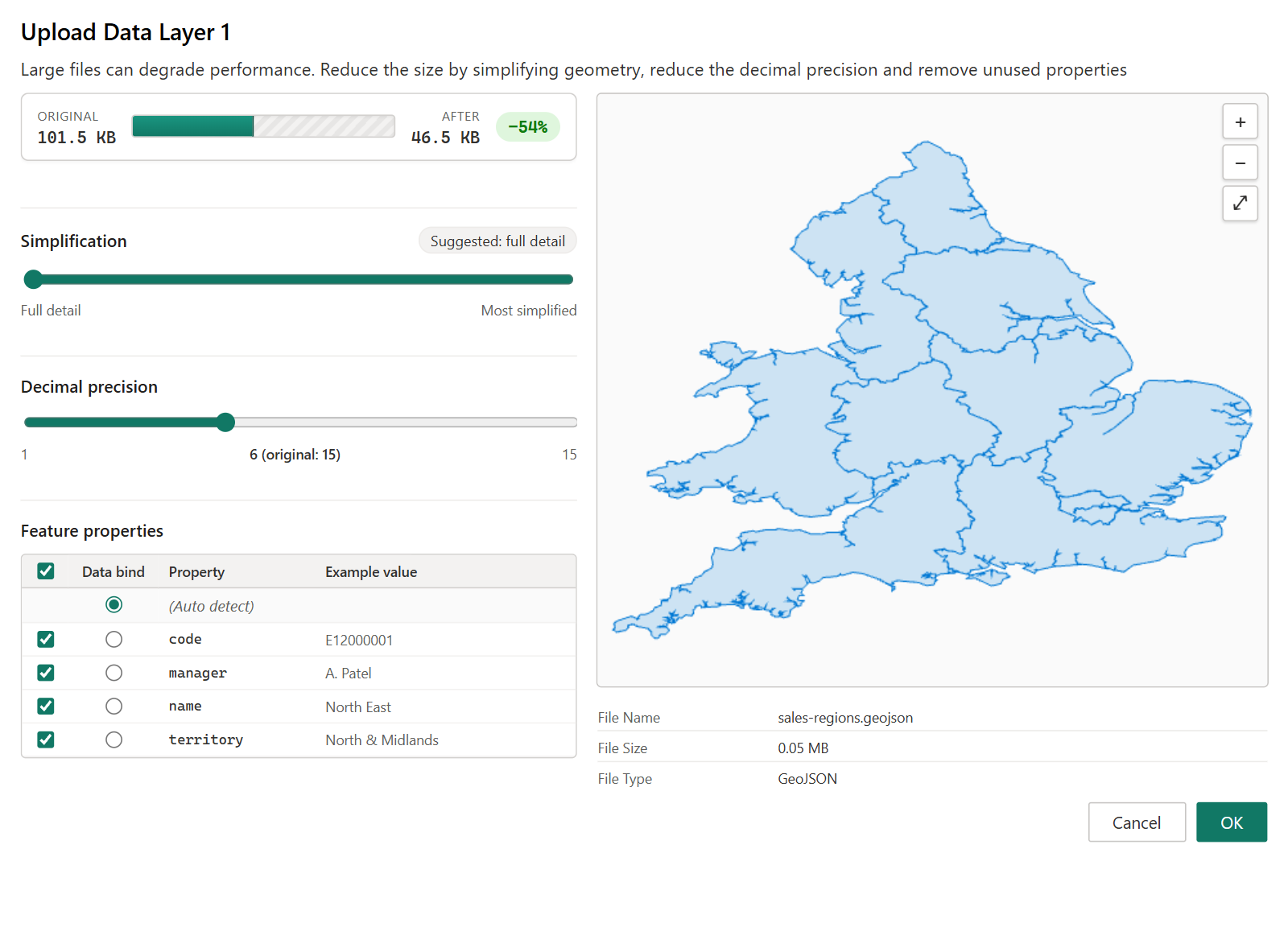
The window is titled Upload Data Layer and the number of the level or layer. Drop a file on it, or click to browse. After you choose a GeoJSON, TopoJSON, KML or shapefile, the window shows a preview that you can zoom and pan, and these controls:
- Simplification - from Full detail to Most simplified. Simplifying removes points from the outlines to make the file smaller. Borders shared by two shapes stay shared. Select the Suggested badge to apply the suggested amount.
- Decimal precision - the number of decimal places kept in each coordinate. Fewer places make a smaller file.
- Feature properties - every property in the file with an example value. Clear the check box of properties you do not need, and they are left out of the stored file. In the Data bind column, pick the property that holds the values in your Feature Reference field, or leave (Auto detect) selected.
- Original and After show the size before and after your choices.
Select OK to store the file in the report. To replace a file, upload another into the same place. Remove existing file in the upload window clears it.
PMTiles archives
A PMTiles archive holds shapes as vector tiles, already simplified for each zoom level. Uploading one lets you store much more detailed boundaries in a report than a GeoJSON file of the same size.
- The archive can be at most 25 MB and must hold vector features, not images.
- In the upload window, choose the Layer to use. An archive can hold several layers, and only the one you pick is drawn. Then choose the Property to match on, or leave Any property, which checks every property and is slower.
- There is no simplification or precision control, because the archive is already simplified.
- The map zooms to the matched shapes, not to the whole archive.
For an archive larger than 25 MB, rebuild it with a lower maximum zoom level or fewer layers.
Indoor maps (IMDF)
An IMDF archive is a zip that describes the inside of a building: units, walls, openings, fixtures, levels and amenities. It is imported at full precision, with no simplification. The upload window has a switch, Import IMDF (Indoor Map) files in 3D. When the file has more than one level, a level picker appears on the map so report users can choose a floor. The shapes keep the file's own colors.
Color the shapes
From your data with conditional formatting
Select the fx button next to Fill Color. You can use a gradient, rules or a field value, as in any Power BI visual. See Conditional formatting. This works for the line color, transparency and width as well.
Fill styles, points and 3D
- Fill Style can be Solid or Hatched (diagonal stripes, with Hatch Width). Hatching applies to GeoJSON, TopoJSON, KML and shapefile uploads. Built-in boundaries and PMTiles archives are filled solid.
- Point features in a file are drawn as circles. Circle Size sets the radius in pixels.
- Line features are drawn with the line color, width and transparency.
- Polygon Extrusion Height raises matched polygons into 3D blocks, in meters. It accepts conditional formatting, so the height can come from a measure. Tilt the map to see the height.
Unmatched shapes
Shapes with no matching row are drawn with the settings in Shapes (from files) - Unmatched Formatting, gray by default. They cannot be selected. With Override formatting for unmatched turned off, an unmatched shape that carries its own fill color in the file keeps that color. Turn on Remove Unmatched Shapes to hide them altogether.
Drill down between levels
A shapes layer can hold up to five levels or layers. Display multiple layers as in Shapes (from files) - Setup decides how they are used:
- Drill-Down - one level is on the map at a time, and Power BI's drill buttons move between them.
- Multiple Layers - all the layers are drawn together.
Each level or layer has its own Shapes from, so one level can use built-in shapes and the next an uploaded file.
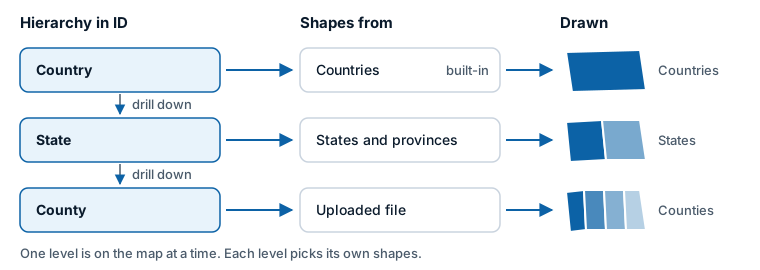
To set up drill-down:
- Put a hierarchy in the * ID (required) field well, for example Country, then State, then County.
- In Shapes (from files) - Setup, leave Display multiple layers as on Drill-Down and set Number of Drill-down Levels to the number of levels.
- Choose a level in Apply settings to:. The groups below then show that level's settings. Choose its Shapes from, upload its file if it uses one, and set its property to match and its formatting.
- Repeat for each level.
When a report user drills down, the map switches to the shapes for that level. Level 1 is used at the top of the hierarchy, level 2 after drilling once, and so on. Each level has its own shapes, property to match, formatting and tooltip settings.
For Feature Reference, either add one field that holds the right key at every level, or add one field for each level in the same order as the hierarchy. With several fields, the first is used at level 1, the second at level 2, and so on.
Several layers at once
Set Display multiple layers as to Multiple Layers and set Number of Layers. Each layer has a Feature Reference Field setting that picks which of your Feature Reference fields it is joined to, and its own Z-Index for the drawing order. A row is drawn when it has a value in the Feature Reference field of at least one layer.
Selection, tooltips and labels
- Click a matched shape to select its row and filter the other visuals on the report page. Hold Ctrl or Shift to add to the selection. The shapes you did not select fade to 80% transparency by default, set by Unselected Items Transparency in Format pane > Selection > Formatting. See Select and filter with the map.
- Pointing at a matched shape shows the fields in Tooltips. Add Property to Tooltip adds the matched property. Add All Properties to Tooltip adds every property of the shape.
- Add Tooltips to Unmatched Shapes shows the shape's properties on unmatched shapes. Turn on one of the two settings above as well, so there is something to show.
- Matched shapes can carry a data label. See Data labels.
- The map zooms to the matched shapes whose rows have Include in Auto Zoom set to Yes.
Settings
All settings are in Format pane > Data Layers. With more than one level or layer, the group titles include the level or layer number, and the groups show the one chosen in Apply settings to:. The fx column shows which settings accept conditional formatting.
Shapes (from files) - Setup
| Setting | What it does | Default |
|---|---|---|
| Display multiple layers as | Drill-Down or Multiple Layers. | Drill-Down |
| Number of Drill-down Levels / Number of Layers | How many levels or layers, 1 to 5. | 1 |
| Apply settings to: | The level or layer that the groups below edit. A level with an uploaded file shows the file name. | 1 |
Shapes (from files) - Configuration
| Setting | What it does | Default | fx |
|---|---|---|---|
| Shapes from | Uploaded file, Countries, Countries, split or States and provinces. One choice for each level or layer. | Uploaded file | |
| Display File Upload Button | Opens the upload window, then switches itself off. Shown for Uploaded file. | Off | |
| Feature Reference Field | Which Feature Reference field this layer is joined to. Shown in Multiple Layers mode. | First field | |
| Property to Match to Feature Reference Field | The property of each shape that is compared with your Feature Reference value. For built-in shapes, a list of the set's properties. For an uploaded file, Any checks every property. | Name (built-in), Any (file) | |
| Remove Unmatched Shapes | Hides shapes with no matching row. | Off | |
| Minimum Zoom | The layer is hidden when the map is zoomed out past this level. -20 to 24. | 0 | |
| Maximum Zoom | The layer is hidden when the map is zoomed in past this level. -20 to 24. | 24 | |
| Z-Index | Position in the drawing order. Layers with a higher value draw on top. 0 to 1000. | 360 | |
| Visible | Shows or hides the level or layer. With conditional formatting, a measure can switch it on and off. | Yes | Yes |
| Add Property to Tooltip | Adds the matched property to the tooltip. | Off | |
| Add All Properties to Tooltip | Adds every property of the shape to the tooltip. | Off | |
| Add Tooltips to Unmatched Shapes | Shows tooltips on unmatched shapes. | Off | |
| Include Tooltip | Shows tooltips on matched shapes. | Yes | Yes |
| Include in Auto Zoom | Includes matched shapes when the map zooms to fit your data. | Yes | Yes |
| Selectable | Lets report users select shapes. | Yes | Yes |
| Circle Size | Radius in pixels of point features in the file. | 5 | Yes |
| Polygon Extrusion Height | Height to extrude polygons, in meters. | 0 | Yes |
Shapes (from files) - Fill Formatting
| Setting | What it does | Default | fx |
|---|---|---|---|
| Fill Color | The fill color. | Theme color | Yes |
| Fill Transparency | 0 is solid, 100 is invisible. | 1 | Yes |
| Fill Style | Solid or Hatched. | Solid | Yes |
| Hatch Width | Width of the stripes, 1 to 10. Shown for Hatched. | 1 | Yes |
Shapes (from files) - Line Formatting
| Setting | What it does | Default | fx |
|---|---|---|---|
| Line Color | The outline color, and the color of line features. | Theme color | Yes |
| Line Transparency | 0 is solid, 100 is invisible. | 1 | Yes |
| Line Width | Width in pixels, 0 to 100. | 1 | Yes |
Shapes (from files) - Unmatched Formatting
| Setting | What it does | Default |
|---|---|---|
| Override formatting for unmatched | Uses the settings below for every unmatched shape, in place of any color the file carries. | On |
| Unmatched Fill Color | Fill color of unmatched shapes. | #CCCCCC |
| Unmatched Line Color | Outline color of unmatched shapes. | #555555 |
| Unmatched Fill Transparency | 0 is solid, 100 is invisible. | 1 |
| Unmatched Line Transparency | 0 is solid, 100 is invisible. | 1 |
| Unmatched Line Width | Width in pixels, 0 to 100. | 1 |
Tips and limits
- Nothing is colored. The Feature Reference values do not match the property. Check the case, leading zeros and stray spaces, and set Property to Match to Feature Reference Field to the right property. For built-in shapes, compare your values with the example the pane shows.
- Keep files small. Simplify as far as the map still looks right at the zoom levels you use. It is the biggest single improvement to the speed of a shapes map.
- One row for each shape. If your data has several rows for a shape, summarize them so each Feature Reference value appears once.
- Up to five levels or layers, and one layer from each PMTiles archive.
- Outlines have no dash patterns.
- For outlines that give context but are not joined to your data, such as a study area, use a reference layer instead.