
Conditional formatting
Conditional formatting (fx) lets a setting take its value from your data instead of a fixed value. Use it to color circles by a measure, show a different emoji for each category, or switch a layer on and off with a slicer.
Before you start
- Conditional formatting is set in the Format pane. Look for the fx button next to a setting.
- The layer must be on, and the visual must have data, before its settings appear.
Color circles by a measure
- In the Format pane, open Data Layers > Circles - Formatting.
- Select the fx button next to Fill Color.
- In Format style, choose Gradient, Rules or Field value.
- Choose the field or measure the color is based on, set the colors or rules, and select OK.
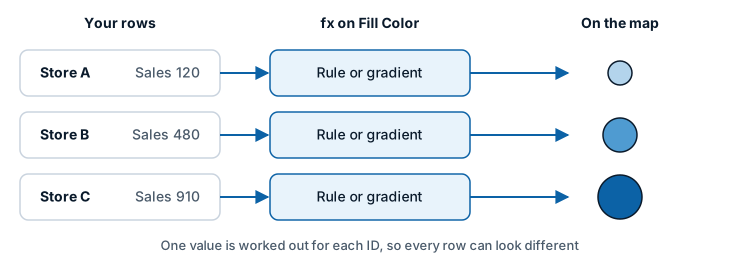
Each circle now takes the color worked out for its own row. To go back to one color, select the fx button again and remove the formatting, or use the eraser next to the setting.
How it works
Power BI works out a conditional formatting value for each value of the * ID (required) field, which is one value per row the visual receives. Icon Map Lite reads that value when it draws the row.
The three format styles do different jobs:
| Format style | Use it for | Example |
|---|---|---|
| Gradient | A color that runs from low to high | Fill color from light to dark by sales |
| Rules | A fixed set of outcomes | Red when a status measure is 1, green when it is 2 |
| Field value | A value your data already holds, or a measure builds | A column of hex colors, an emoji, a line width, a Yes or No |
Field value is the one that makes non-color settings work. A measure can return a number for a width, text for a badge, or "Yes" and "No" for a switch such as Visible.
Settings read from every row and settings read once
Most data layer settings are read for every row, so each item can differ. Some settings apply to a whole layer, such as a visibility switch or a cell resolution. For those, Icon Map Lite uses the value from the first row. Give them a measure that returns the same value on every row, for example a measure that reads a slicer selection.
| Read for every row | Read once for the layer |
|---|---|
| Colors, transparency, widths and sizes of circles, images, lines, columns and shapes | Visible switches of layers |
| Selectable, Include Tooltip, Include in Auto Zoom | Cell Resolution and its Min Value, Mid Value and Max Value |
| Images, text badges and rotations | |
| Label text and label colors |
Large datasets
When you raise Data Layers > Data Rows > Maximum data rows above 30,000, conditional formatting applies to every row loaded, including the rows after the first 30,000. See Data rows and limits.
Patterns
Color from a column of color values
Hold a hex color such as #0c62a6 in a column, or build one in a measure. Select fx on the color setting, choose Field value, and pick the column or measure.
A badge or emoji per row
With Image Source set to Text or emoji in Images - Configuration, select fx next to Text or emoji and choose Field value. Each row shows its own text or emoji, for example a different emoji for each category. See Images and icons.
Per-row values without a field well
Some values have no field well and are set per row with Field value. Lines are the main example: Width, Color, Weight for Flow, Route Name and Dash Array all take a value per row this way. See Lines.
Show or hide per row
Selectable, Include Tooltip and Include in Auto Zoom are Yes or No settings that accept fx. Return "Yes" or "No" from a measure with Field value, or use Rules, to exclude some rows from selection, tooltips or the auto zoom. Display Label in Labels > Content works the same way for data labels.
Switch a layer with a slicer
Use a measure that reads the slicer, for example with SELECTEDVALUE, and bind it with Field value to a layer's Visible setting. The same measure value must come back on every row. Visible is offered on Shapes (from files) and on reference layers.
Filter a reference layer from your data
On a reference layer, bind Filter Value with Field value. Icon Map Lite reads the value from every row and shows the features that match any of them. See Shapes from file.
Legend entries from a field
In Legend > Legend labels, the description setting of each layer accepts fx > Field value to label legend entries from a data field. See Legend.
Settings that accept conditional formatting
Names are as they appear in the Format pane. A setting is listed only where the fx button is offered.
Data layers
| Layer | Group | Settings with fx |
|---|---|---|
| Circles | Circles - Configuration | Include in Auto Zoom, Include Tooltip, Selectable |
| Circles | Circles - Formatting | Fill Color, Fill Transparency, Outline Color, Outline Transparency, Outline Width, Blur |
| Clusters | Cluster - Configuration, Secondary Cluster - Configuration | Color (when Color Source for Cluster Groups is From a field or rule). Each category takes the color of its first row |
| Images / Icons | Images - Configuration | Text or emoji, Icon Text Color, Icon / Background Color, Icon Background Transparency, Image Rotation, Image Width, Image Height, Transparency, Include in Auto Zoom, Include Tooltip, Selectable |
| Heatmap | Heatmap - Configuration | Include in Auto Zoom |
| Cells | Cells - Configuration | Resolution, Start Resolution, Start Resolution Zoom Level, End Resolution, End Resolution Zoom Level, Include in Zoom, Selectable |
| Cells | Cells - Formatting | Min Value, Mid Value, Max Value. For cells from cell IDs: Extrusion Start Height, Extrusion End Height, and with Use Power BI Formatting on: Fill Color, Fill Transparency, Outline Color, Outline Transparency |
| 3D columns | Columns - Configuration | Include in Zoom, Allow Selection, Include Tooltip |
| 3D columns | Columns - Formatting | Base Height, Width, Color |
| Lines | Lines - Configuration | Include in Auto Zoom, Include Tooltip, Selectable, Include circle(s) at:, and the image, height, width, rotation and transparency of the start and end images |
| Lines | Lines - Formatting | Route Name, Color, Transparency, Weight for Flow, Width, Amplitude, Dash Array, Dash Animation Speed, Line Blur, Include Line Symbol, Line Symbol Text, Line Symbol Color, Line Symbol Size, Line Symbol Repeat, Symbol Halo Color, Symbol Halo Width, Symbol Halo Blur |
| Shapes (from data) | Shapes (from data) - Configuration | Include in Auto Zoom, Include Tooltip, Selectable, Circle Size, Image, Image Size, Icon, Icon Size, Icon Color, Polygon Extrusion Base Height, Polygon Extrusion Height, Linestring Shape, Route Name, and the image, rotation, width and height of the linestring start and end images |
| Shapes (from data) | Shapes (from data) - Formatting | Line Color, Line Transparency, Line Width, Line Blur, Fill Color, Fill Transparency, Fill Style, Hatch Width, Pattern / Image URL, Include Line Symbol, Line Symbol Text, Line Symbol Color, Line Symbol Size, Line Symbol Repeat, Symbol Halo Color, Symbol Halo Width, Symbol Halo Blur |
| Shapes (from files) | Configuration group | Property to Match to Feature Reference Field (when it is a text box), Visible, Include Tooltip, Include in Auto Zoom, Selectable, Circle Size, Polygon Extrusion Height |
| Shapes (from files) | Fill and line groups | Fill Color, Fill Transparency, Fill Style, Hatch Width, Line Color, Line Transparency, Line Width |
Labels and legend
| Card | Group | Settings with fx |
|---|---|---|
| Labels | Content | Display Label, Label Text or Body Text, Title Text, Image, Footer Text |
| Labels | Style | Text Color |
| Labels | Container, Halo or Card | Display Container, the fill, tint or halo color, Transparency, Border Color, Border Width, Border Radius |
| Labels | Placement | Position |
| Legend | Legend labels | The description of each layer |
Reference layers and map
| Layer | Settings with fx |
|---|---|
| Shapes from file reference layers | Filter Value, Label Property Name, Visible, Fill Color, Property for Fill Color, Line Color, Property for Line Color, and the start, mid and end values of a gradient |
| Map | Zoom Level When Single Item |
The background map, the controls, the selection settings and the legend's layout do not accept conditional formatting.
Tips and limits
- A measure used with Field value must return the type the setting expects: a color, a number, text, or "Yes" or "No".
- If a setting driven by fx seems to be ignored, check the value Power BI returns. Copy the visual, change the copy to a table, and add the measure to it.
- An image returned by a measure must be a
data:URI or SVG markup. Icon Map Lite does not read images from links. - Cells aggregated from coordinates take their colors from the layer's own color scale. Per-row colors from conditional formatting apply to cells drawn from cell IDs, with Use Power BI Formatting on.
- A Flow Tree takes one color per origin, from the first row of that origin.