
Supported environments and privacy
Icon Map Lite works in Power BI Desktop and the Power BI service. This page lists where it is supported, what the machine displaying the map must provide, and why there are no network addresses to allow.
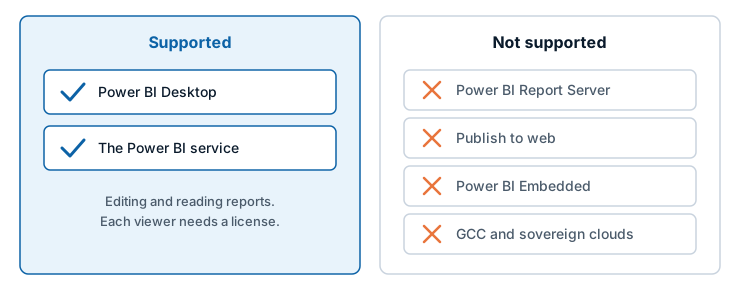
Environments
| Environment | Supported |
|---|---|
| Power BI Desktop | Yes |
| The Power BI service, editing and reading reports | Yes |
| Power BI Report Server | No |
| Publish to web | No |
| Power BI Embedded | No |
| US government (GCC, DoD) and other sovereign clouds | No |
Icon Map Lite is licensed per user through Microsoft AppSource, and Power BI has to tell the visual which licenses the person viewing the report holds. The environments that are not supported cannot do that. Where Power BI reports that it cannot tell, the visual shows a page headed "Icon Map Lite does not support this environment" in place of the map, with a Contact us about options button. See How Icon Map Lite is licensed.
For maps in Report Server, Publish to web, Embedded or government clouds, use Icon Map Pro or Icon Map Slicer, or contact sales@tekantis.com.
Graphics: WebGL 2
Icon Map Lite draws the whole map with WebGL 2, so the browser or Power BI Desktop on the machine that displays the report must provide it. Current browsers do when hardware acceleration is on.
WebGL 2 can be missing on virtual desktops (VDI, Citrix, RDP) and on machines with no GPU acceleration. There, the map is not drawn. A message that starts "WebGL 2 is not available in this environment." explains what the browser reported.
To make WebGL 2 available:
- Enable hardware acceleration in your browser settings.
- Update your graphics drivers.
- On a virtual desktop, ask your IT administrator about enabling GPU passthrough.
- Try a different browser.
No network requests
Icon Map Lite makes no network requests of any kind. It asks Power BI for no permissions: no web access, no local storage and no sign-in.
- The map is inside the visual. The built-in world map, its fonts and every icon are part of the visual package that Power BI loads.
- Uploads live in the report. Boundary files, PMTiles archives and custom basemaps you upload are stored in the report and travel with it. They are never sent to a service.
- Your data stays in Power BI. Icon Map Lite draws your rows itself, inside the visual. Nothing is sent anywhere to draw them.
- No license traffic. Power BI tells the visual whether the viewer has a license. The visual does not contact a licensing service.
- No telemetry. The visual does not report usage or errors.
There are no addresses to allow through a firewall or proxy server. The only way Icon Map Lite leads outside Power BI is a link that a person selects, such as Documentation on the start page. Power BI opens it, and asks the person to confirm first.
See Certification, security and privacy.
Power BI settings the visual depends on
| Power BI setting | Why it matters |
|---|---|
| Custom visuals allowed in your tenant | Your organization's settings decide whether visuals from AppSource can be used. If your tenant allows certified visuals only, a visual is allowed once Microsoft has certified it. See Certification, security and privacy |
Limits
| Limit | Value |
|---|---|
| Rows Power BI sends by default | 30,000 |
| Maximum rows, with Maximum data rows raised | 480,000, loaded in steps of 30,000 |
| Text Power BI can hold in one value, which caps a WKT or GeoJSON shape, or an image, held in your data | 32,766 characters |
| Detail of the built-in world map | Zoom levels 0 to 3, world to country scale. Beyond zoom 3 the map adds no detail |
A custom basemap (.imbase) |
Up to 25 MB, stored in the report |
| A PMTiles archive, as a data layer or reference layer | Up to 25 MB, stored in the report |
| Reference layers from files | Up to 5 |
| Items selected at once | 5,000 by default, set by Max Selections |
| Map projections | Web Mercator and globe |
| Languages | English, German, Spanish, French, Portuguese. See Languages |
More on rows and performance is in Data rows and limits.