
Map controls
Map controls are the buttons and panels drawn on top of the map: zoom buttons, the globe toggle, scales, the selection tools, the layer control and more. You choose which ones your readers get on the User Interface card of the Format pane.
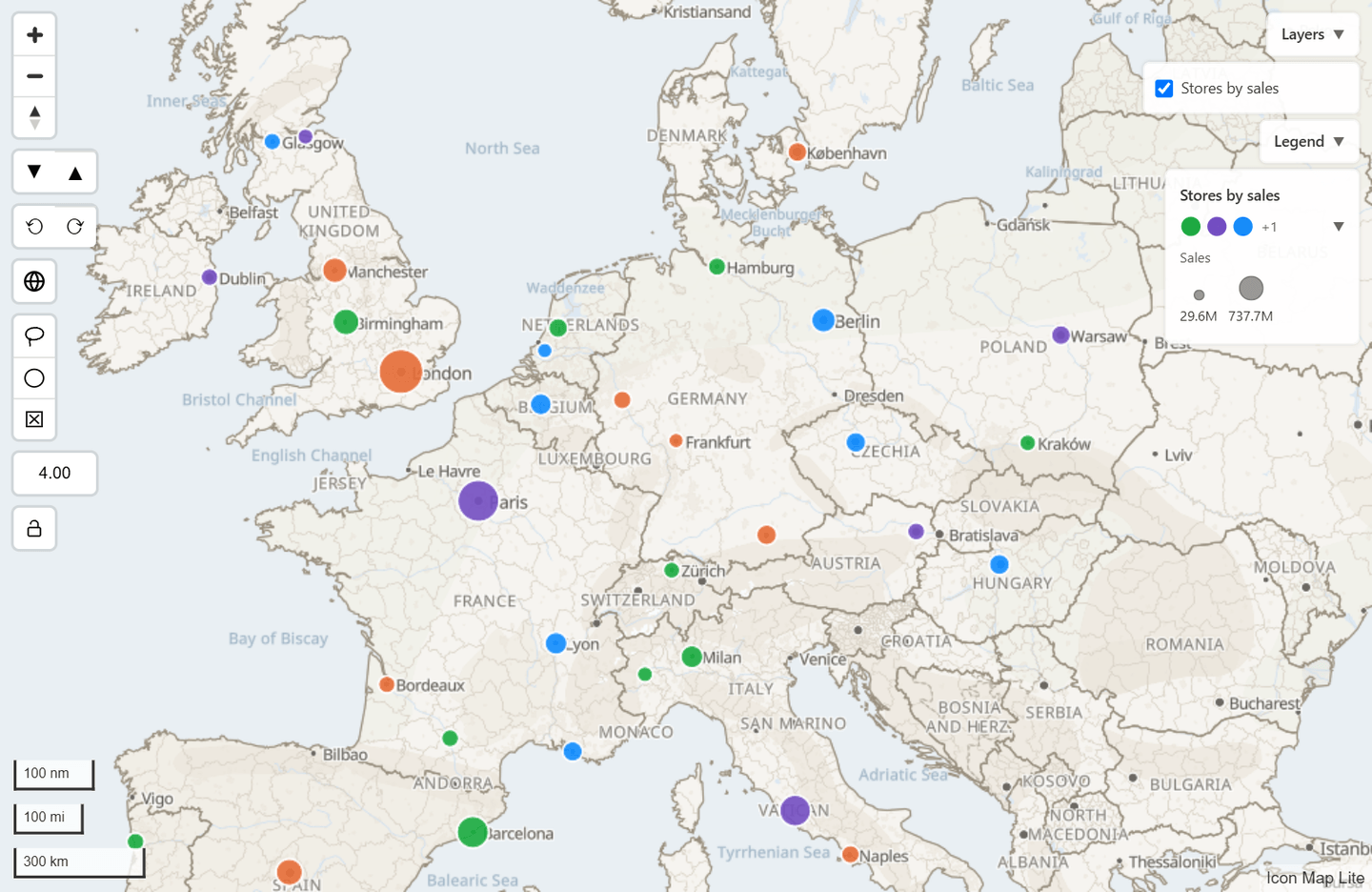
Switch controls on and off
- In the Format pane, open User Interface > Controls.
- Switch on the controls you want. A new map starts with Zoom, Globe Toggle and Imperial Scale on.
- Set Control Size to make the buttons larger or smaller.
The selection tools, Lasso and Circle Select, are switched on in the Selection card instead. See Select and filter with the map.
Controls work in both editing and reading view. Changes a reader makes with a control, such as switching to the globe or hiding a layer, last for their session and are not saved to the report.
Every control
Format pane > User Interface > Controls, in the order the pane lists them:
| Setting | What it does | Default |
|---|---|---|
| Control Size | The width and height of every control button, in pixels, 20 to 75. | 30 |
| Zoom | + and - buttons, and a compass that shows which way the map is turned and tilted. Click the compass to turn the map back to north. | On |
| Pitch | Two buttons, Decrease Pitch and Increase Pitch, that tilt the map 10 degrees at a time. | Off |
| Bearing | Two buttons, Rotate Left and Rotate Right, that rotate the map 10 degrees at a time. | Off |
| Clear Selections Button | A Clear All Selections button that removes the map's filter on the report. | Off |
| Display Zoom Level | Shows the current zoom level. Useful while you design a map and need a number for a zoom setting. | Off |
| Globe Toggle | One button that switches between the flat map and the globe. | On |
| Projection | Mercator (flat) or Globe: the projection the map opens with. Clicking the globe toggle while you edit the report updates this setting. | Mercator (flat) |
| Metric Scale, Imperial Scale, Nautical Miles Scale | A scale bar for each one you switch on, in any combination. | Imperial on, others off |
| Zoom Lock | A padlock button that stops the map zooming to the data until it is clicked again. | Off |
| Additional Attribution | Text added to the map's credit line. | Empty |
Other things on the map:
| Control | Where it is set | Default |
|---|---|---|
| Lasso | Selection > User Selection > Lasso | Off |
| Circle select | Selection > User Selection > Circle Select | Off |
| Layer control | User Interface > Layer control > Show layer control | Off |
| Legend | The Legend card. See Legend | Off |
| Floor picker | Nothing to set. It appears by itself when a layer holds an indoor (IMDF) venue with floors, so readers can pick the floor to show | Automatic |
How each control works
Zoom and compass
The + and - buttons zoom one step. The compass turns as the map rotates and leans as it tilts; click it to face north again. The compass comes with Zoom and has no switch of its own.
Globe toggle and Projection
The button's tooltip reads Switch to globe view or Switch to flat map. While you edit the report, clicking it also saves the choice to Projection, so the report opens that way. For readers the switch lasts for the session. See View, zoom and projection.
Pitch and Bearing
Pitch adds Decrease Pitch and Increase Pitch buttons. Bearing adds Rotate Left and Rotate Right buttons. Each click moves the camera 10 degrees. The steepest tilt is 85 degrees.
Scales
The scale bars sit in the bottom left corner. Switch on any combination of metric, imperial and nautical miles.
Zoom lock
The padlock is for readers. Its tooltip reads Prevent auto zoom to data points, and once locked, Re-enable auto zoom to data points. While it is locked, the map stays where it is when the data changes. It lasts for the session.
Lasso and circle select
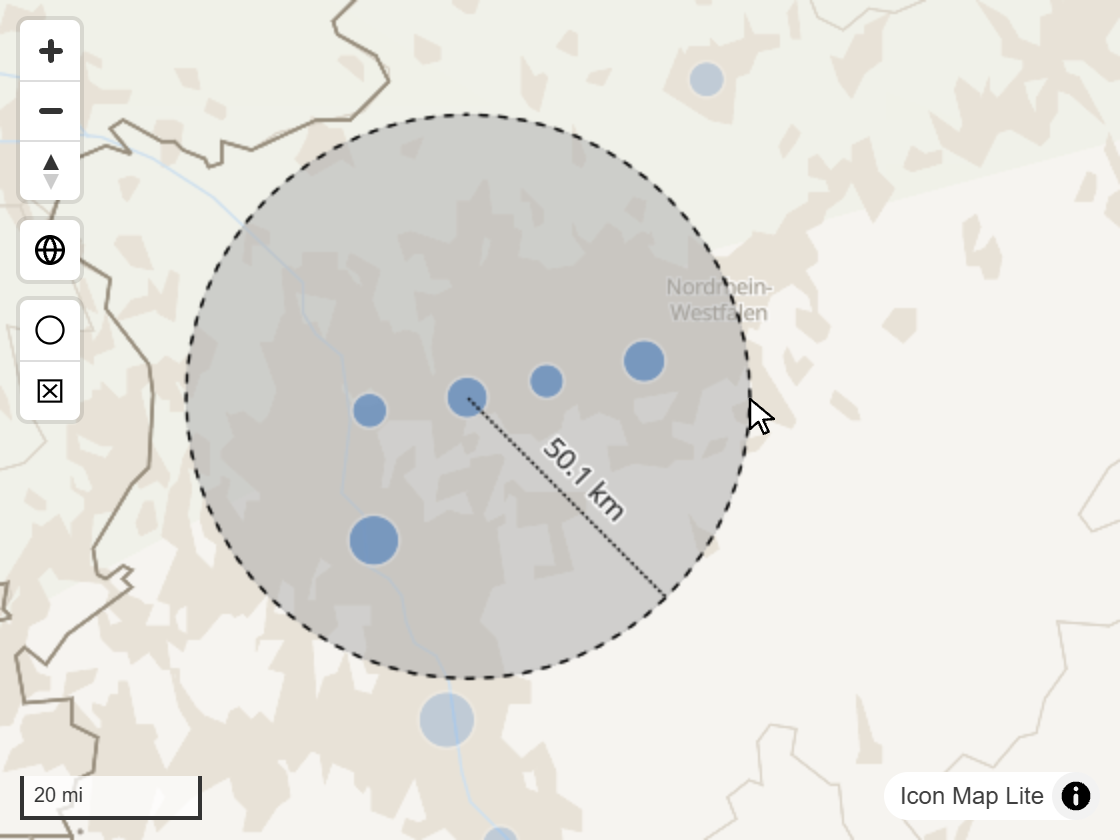
The Lasso Select Tool selects every item inside a freehand shape. The Circle Select Tool selects every item within a radius: press at the center and drag outward, and the radius is shown in the Circle Select Units you chose. While either tool is on, the map does not pan or zoom, and the tool switches itself off after use.
Their settings, Lasso Mode, Fill and Outline, are on the Selection card. See Select and filter with the map.
Clear selections
The Clear All Selections button removes the filter the map has put on the report. It is useful when Background Click Clears Selection is off. The same setting is also on the Selection card.
Attribution
The credit line sits in the bottom right corner. It always carries an Icon Map Lite link. A custom basemap adds its own credit, and text you type in Additional Attribution is added to it. When the map is narrow, the credit folds into a small "i" button.
Layer control
The layer control is a panel listing the data layers on the map, so readers can show and hide them. Its settings are in Format pane > User Interface > Layer control.
| Setting | What it does | Default |
|---|---|---|
| Show layer control | Shows the panel. | Off |
| Position | Top left, Top right, Bottom left or Bottom right. | Top right |
| Title | Heading of the panel. | Layers |
| Allow show/hide | Lets readers switch layers on and off. Off shows a read-only list. | On |
| Start collapsed | The panel opens folded away. | On |
What readers show and hide lasts for their session only. Rename a row with the layer's title setting in the Legend card, and put each layer's legend inside its row with the legend's Display mode. See Legend.
Tooltips
The User Interface card also holds the Tooltips group, with Combine Tooltips. See Tooltips.
Size and position
Control Size sets the size of every button at once. The buttons sit in the top left corner. The scale bars sit in the bottom left and the credit line in the bottom right. The legend and the layer control each have their own Position setting, and start in the top right. None of them can be dragged.
Tips and limits
- Icon Map Lite has no search box, distance tool or basemap selector. There is no full screen or locate-me control either; use Power BI's focus mode to enlarge the visual.
- Readers can also work the map with the keyboard. See Select and filter with the map.